https://chromewebstore.google.com/detail/notejet/ekodgbgoiecakdclfobnhnaeobnmlgbo?hl=zh_TW

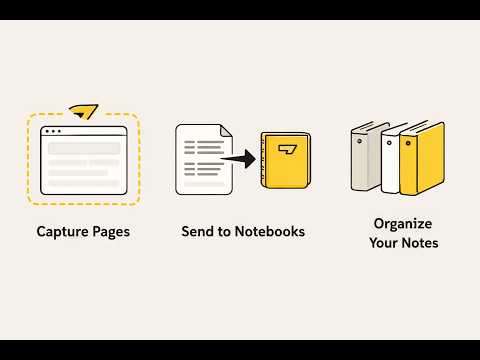
NoteJet is a Chrome extension that sends the current page into NotebookLM with fewer manual steps.
- Node.js 20+ (required for
node --test, used as primary runtime) - npm (all build scripts use
npm run) - TypeScript (installed via npm as devDependency)
- Bun is optional — used only for formatting convenience (
bunx --bun @biomejs/biome format --write). You can also usenpx @biomejs/biome format --writeinstead. - Make sure you can sign in to NotebookLM in Chrome.
- Run
npm install. - Run
npm run build.
Build sub-commands for reference:
npm run clean— removedist/npm run build:ts— TypeScript compile onlynpm run build:assets— copy static assets onlynpm run build— full build (clean + ts + assets)
- Open
chrome://extensionsin Chrome. - Turn on Developer mode.
- Click Load unpacked.
- Select the
dist/folder.
- Test:
npm testbuilds the project then runs the Node.js test runner. Tests are.mjsfiles intests/and cover shared modules (API client, auth, session state, URL policy, YouTube channel parsing). - Format:
npm run format:fix(uses Biome). Orbun run format:fixif you prefer Bun. - Lint: no ESLint or TypeScript strict mode is currently configured.
- Reload: After changes, run
npm run buildthen click Reload on the extension card inchrome://extensions.
- Captures the title and URL of the current tab.
- Shows recent notebooks and lets you search existing notebooks.
- Lets you create a new notebook.
- Imports the current page URL into the selected notebook.
- Lists videos from a YouTube channel profile and imports selected videos one by one.
- Checks whether the current page is allowed by your import whitelist.
NoteJet uses a dual approach to import pages:
- API-first: it tries NotebookLM's internal RPC API (
batchexecuteendpoint) using Google cookie auth (SID, __Secure-1PSID, __Secure-3PSID cookies) - DOM fallback: if API calls fail, it falls back to automating the NotebookLM web UI via the content script
- Open the webpage you want to save.
- Open the NoteJet popup.
- Check the captured page title and source URL.
- Confirm the source is allowed by the whitelist.
- Search for a notebook or create a new one.
- Select a notebook.
- Click Import.
If the import succeeds, the popup will show a success message.
YouTube channel import only appears when the current tab is a YouTube channel profile, such as:
https://www.youtube.com/channel/UCX6OQ3DkcsbYNE6H8uQQuVAhttps://www.youtube.com/@MrBeast
Before using it, open Edit import whitelist and add a YouTube Data API key. Google's setup guide is linked from the options page: https://developers.google.com/youtube/v3/getting-started
Workflow:
- Open a YouTube channel profile.
- Open the NoteJet popup.
- Select or create the NotebookLM notebook.
- Click Import YouTube channel.
- Search or scroll the video list.
- Check the videos to import.
- Click Import selected videos.
NoteJet imports selected videos sequentially. If one video fails, the batch continues and the popup reports the imported and failed counts.
NoteJet needs an active NotebookLM session before it can search notebooks, create notebooks, or import URLs.
If you are not signed in:
- the popup will show
NotebookLM login expired. Please sign in again. - the main actions will stay disabled
- the link at the bottom will change to
Sign in to NotebookLM
Click that link to open NotebookLM and sign in, then return to the popup and click Refresh session.
Click Edit import whitelist in the popup to open the options page.
The whitelist supports these formats:
*to allow all HTTP and HTTPS websitesexample.comto allow one exact host*.example.comto allow subdomainshttps://example.comto allow one host with a specific scheme
Rules to know:
- only HTTP and HTTPS pages can be imported
- browser pages such as
chrome://and local files are blocked - if the current page is not allowed, the popup will show a message and the import button will stay disabled
- Open the popup.
- Type a notebook name in New notebook name.
- Click Create.
- Wait for the success message.
The new notebook should appear in the notebook list and become the selected target.
Use the link at the bottom of the popup to open the selected notebook in a new tab.
If no notebook is selected, the link stays hidden. If you are signed out, the link opens the NotebookLM home page instead.
NoteJet stores local extension data to keep the workflow usable between sessions.
This includes:
- recent notebook entries
- import whitelist settings
- YouTube Data API key
- NotebookLM session state