




Free, offline pronunciation trainer for English and Spanish. Mimora says a phrase, you repeat it, and you get a grade from 0 to 5 (like 4+) and the exact words to work on. Speech synthesis, speech recognition, phrase generation and scoring all run on your computer, so your voice never leaves it.
Windows - download the Setup file and run it. It installs for your user, without administrator rights.

macOS, Linux, or Windows from a terminal - one command: see Quick install.
Needs 16 GB RAM and no graphics card. The models take about 4 GB (up to about 8.5 GB with every model), and Mimora asks before it downloads them. Other ways to install (uv, pipx, pip, from a clone): Installation.
The Setup file is not code-signed yet, so Edge and Windows can warn about it before it runs. What to click: Windows Setup file.
- 🔒 100% offline after install - your voice never leaves your computer. No cloud, no accounts, no API keys.
- ♾️ Unlimited, varied practice - a local LLM writes fresh phrases from your own text, so you never drill the same canned sentences.
- 💸 No subscription - free and open source. The only cost is disk space for the models.
- 💻 Runs on a normal PC - 16 GB RAM and no graphics card. A GPU is optional and only makes it faster.
- 🎯 Instant, word-level feedback - a grade from 0 to 5 and the exact words to work on, with reference-vs-you replay.
Anyone working on clearer speech in a new language: language learners, accent reduction and shadowing practice. You bring the text (a paragraph, a song, a script), and Mimora turns it into spoken drills.
The practice language is set in the settings window (Language, applies after a restart). A language can offer regional variants (Accent).
| Language | Variants | Scoring engines |
|---|---|---|
| English | American, British | phoneme (default, calibrated), acoustic, none |
| Spanish (Peninsular / Castilian) | Castilian | phoneme (experimental), none |
Calibration, the status of Spanish and the translation languages: Languages.
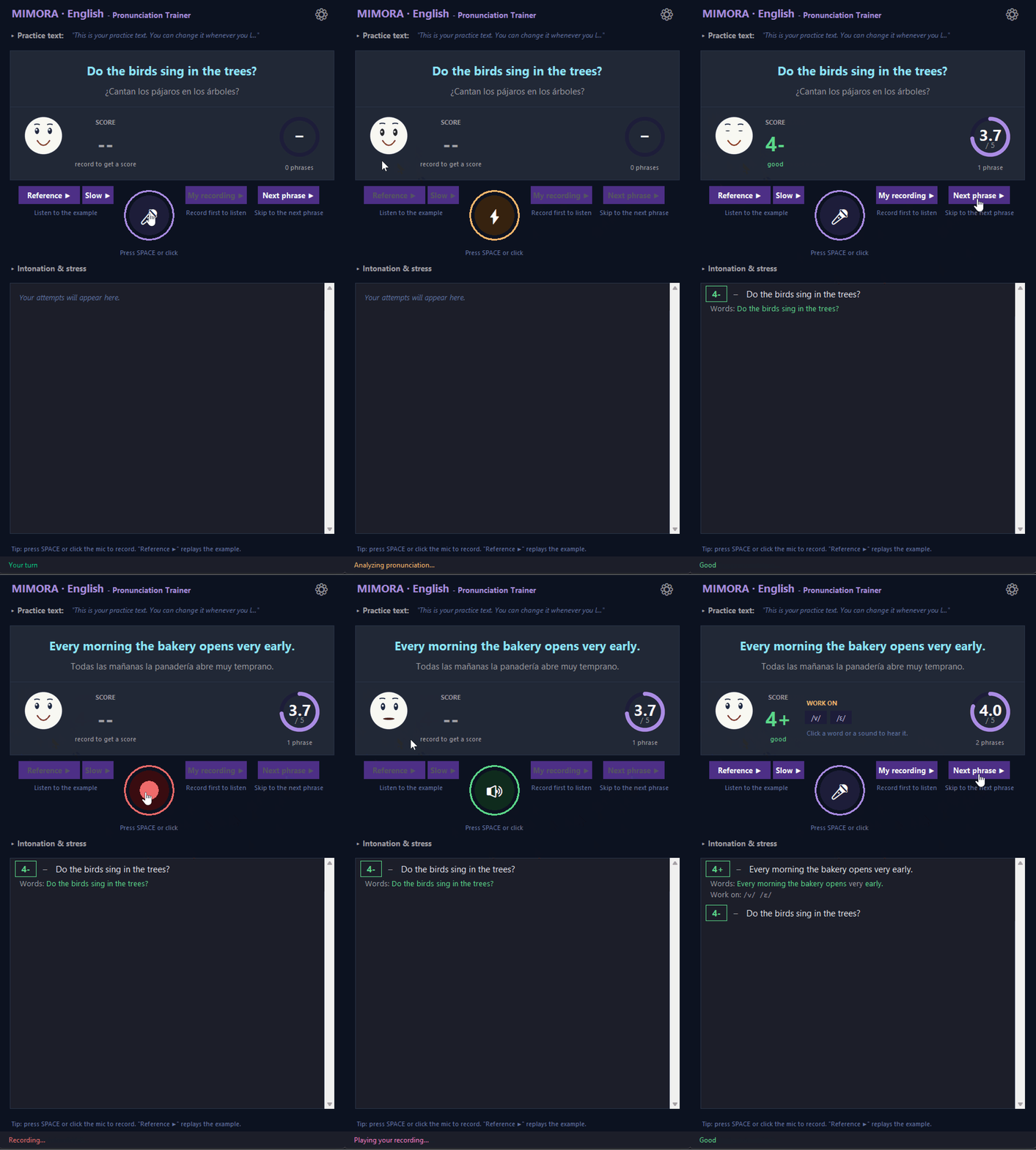
For each practice phrase Mimora runs a simple loop:
- Prompt - the local LLM writes a phrase from your practice text, and the TTS voice of the language speaks it (Kokoro for English, Supertonic for Spanish). The same audio is the reference for scoring.
- Record - press
SPACEor click the mic, then repeat the phrase. The take stops on its own once you fall silent, or when you pressSPACEagain. - Analyze - your recording is compared with the reference, and prosody (pitch and energy) is added to the result. The default phoneme engine matches espeak reference phonemes against a wav2vec2 phoneme recognizer. The acoustic engine is the alternative, selected in the settings window (Engine; settings.json
"engine"). How each engine scores: How scoring works. - Feedback - you get a grade from 0 to 5 with a verdict (for example 4+ Good), what was recognized, and the words to improve. The acoustic engine shows a score out of 100 instead.
- Loop - repeat the same phrase until you are happy with the score, then generate the next one.
You can play the reference and your own recording back to back to hear the difference.
No-LLM mode for slow machines. Set the LLM backend to
offand the language model is never loaded or started. Each phrase is then a sentence of your practice text, taken verbatim and in order. This saves the GGUF download, the server subprocess, RAM and VRAM, and it starts faster. It also suits drilling a text exactly as written. Phrase length is fixed in this mode: sentences are never shortened. Together with thenonescoring engine, Mimora then runs with no LLM and no recognizer model at all.
Reference:  The weather is getting colder.
You said:   The weather is getting color.
Grade:      4-  Good
Work on:    colder
- 🎙️ One-press recording - press once, speak, and it stops by itself when you go quiet.
- 🗣️ One consistent reference voice - the prompt and the scored reference are the same voice, so the target never changes. Prefer variety? Turn on Random voice per phrase in the settings.
- 🧠 Practice your own material - paste a paragraph, a song or a few sentences into the practice text panel, and the local LLM turns them into an endless stream of phrases.
- ⚙️ Settings window (the gear button) - the practice language and its accent (both apply after a restart), the TTS voice and playback speed, Random voice per phrase (needs at least two voices of the current language), the phrase length (full phrase or a few words), the translation language shown under the phrase, and a user name that selects the per-user scoring calibration.
- 📊 Two interchangeable scoring engines, selected in the settings window (Engine; settings.json
"engine"). The default phoneme engine compares the phonemes of your take with the phonemes of the reference text. The acoustic engine compares the sound of the two recordings instead. Both are length-invariant, and both can be calibrated to your voice from a clone (see Known limitations). - 🔁 Replay reference vs. your recording to hear the difference.
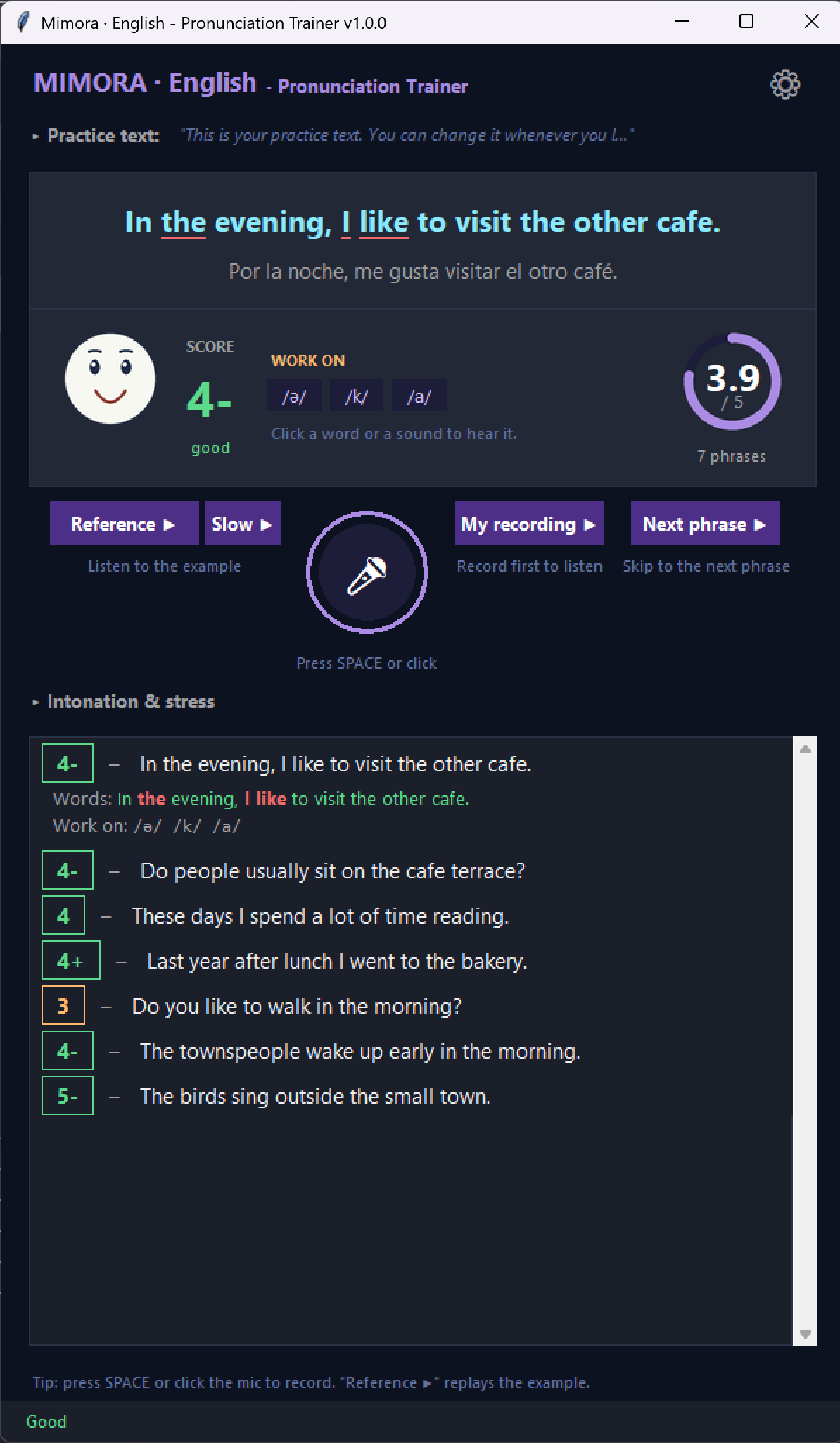
- 😀 Articulation face - a schematic mouth moves with the speech while audio plays, and shows a smiley for your score while idle.
- 🧵 Responsive window - scoring and model loading never block the interface.
| Dark theme | Light theme |
|---|---|
 |
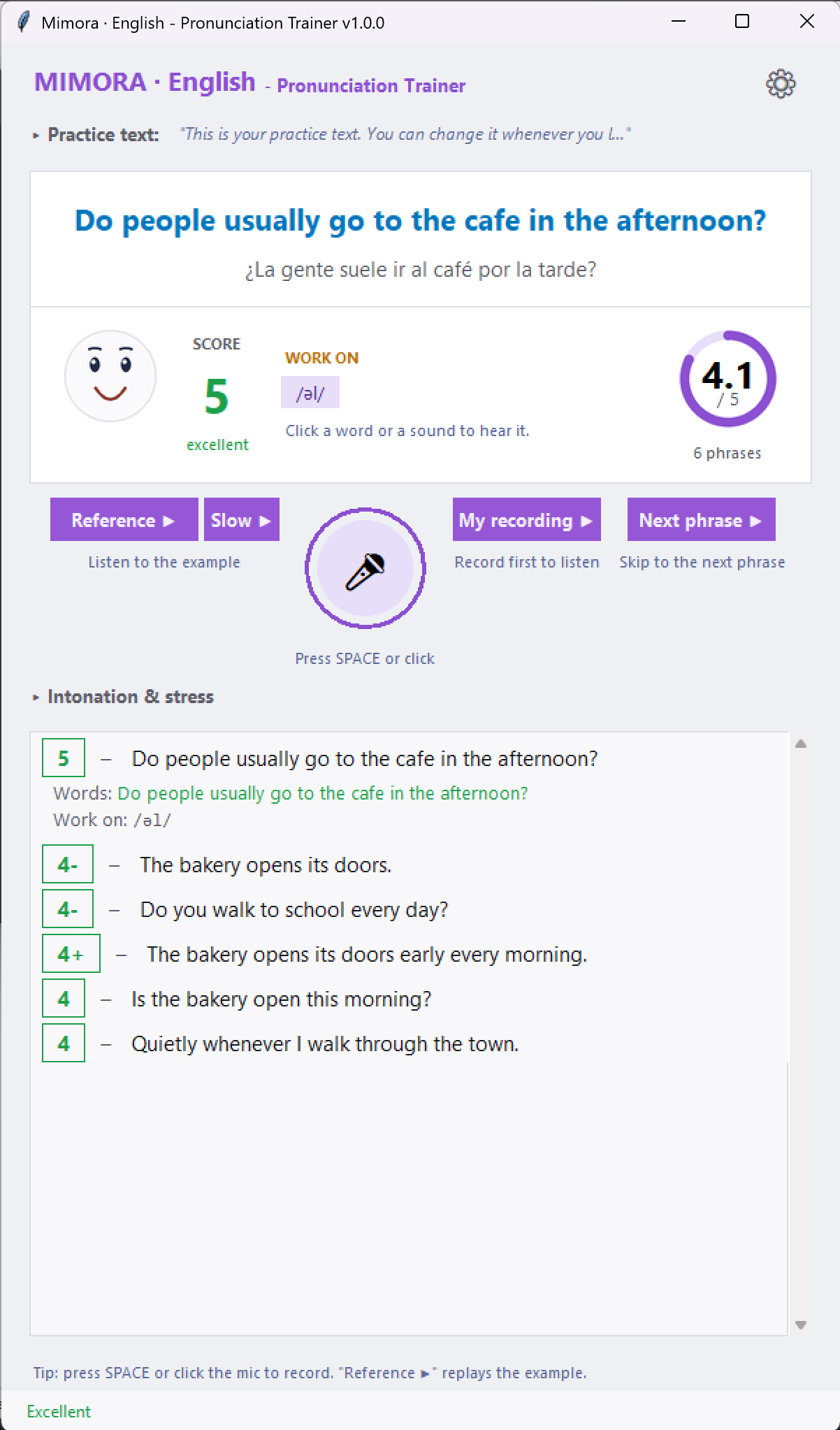 |
Both themes ship with the app; drop your own <name>_schema.json into config/themes/ to add or replace one.
Installed with the Setup file? Go to Usage.
Two ways in, in the order most people should try them:
- Quick install - one command on Windows, macOS and Linux, or a Setup file on Windows. It installs uv and Mimora and adds Mimora to the Start menu or the Linux application menu. This is the recommended way.
- From PyPI - the same package, installed with uv, with every command and option in your hands. pipx and pip: Manual installation.
To work on the code, or to have every model in place before the first start, install from a clone: Installation from a clone. To run each command yourself: Manual installation.
Every way installs prebuilt packages (wheels), so no compilation toolchain is needed. You need neither a C/C++ compiler nor a CUDA toolkit.
- Hardware - a typical laptop or desktop: 16 GB RAM and no GPU required. On CPU the first phrases are slower. An NVIDIA GPU is optional, needs a CUDA build of PyTorch, and speeds up scoring and phrase generation.
- Less RAM or disk? Decline the chat model on the first start, or set
LLM backend to
offin the settings. Phrases then come from your practice text as written (see How it works). - Windows is the primary target. macOS and Linux are supported as well.
- A microphone and speakers.
Platform details (espeak-ng, tkinter and PortAudio on Linux, macOS) and the model list: Technical details.
One command installs uv if it is missing, then
Mimora, and adds Mimora to the Start menu (Windows) or the application menu
(Linux). On macOS, start it with mimora in a terminal. Copy the command into
a terminal. Do not download the script with a browser and run
it as a file.
# macOS
curl -LsSf https://github.com/vikonix/Mimora/releases/latest/download/install-macos.sh | sh

# Linux (Ubuntu Desktop has wget but not curl)
wget -qO- https://github.com/vikonix/Mimora/releases/latest/download/install-linux.sh | sh
# Windows (PowerShell)
powershell -ExecutionPolicy ByPass -c "irm https://github.com/vikonix/Mimora/releases/latest/download/install.ps1 | iex"What the script does
-ExecutionPolicy ByPass applies to this one command only, the system policy
does not change. On Windows the script also installs the Visual C++ runtime if
it is missing, and on a computer with an NVIDIA GPU it gets the CUDA build of
PyTorch.
Python. On Windows and macOS the script uses a Python build from uv: 3.14, or 3.12 on an Intel Mac and on macOS 13. On Linux it uses the system Python (3.12 on Ubuntu 24.04, 3.14 on Ubuntu 26.04), because only its Tk draws smooth text.
On Linux the script does not run sudo. When system packages are missing,
it prints one apt command for them at the end: run it before the first start.
The models are not part of the installation. The first start names the download size (about 4 GB with the default settings) and asks before it downloads.
Upgrade and uninstall
To upgrade, run the same command again. The script first tries the new version in a separate folder and replaces the installed Mimora only when that works. To uninstall:
# Windows (PowerShell)
powershell -ExecutionPolicy ByPass -c "& ([scriptblock]::Create((irm https://github.com/vikonix/Mimora/releases/latest/download/install.ps1))) -Uninstall"
# macOS
curl -LsSf https://github.com/vikonix/Mimora/releases/latest/download/install-macos.sh | sh -s -- --uninstall
# Linux
wget -qO- https://github.com/vikonix/Mimora/releases/latest/download/install-linux.sh | sh -s -- --uninstallUninstalling keeps the models, settings and logs. The script prints the directory, so that you can delete it yourself.
If you prefer not to use a terminal, download
Mimora-<version>-windows-x64-setup.exe from the latest
release and run it. It
installs for the current user, without administrator rights, and it also
installs the Visual C++ runtime if it is missing. It downloads Mimora from
PyPI, so it needs an internet connection. It also offers to download the
models during the installation: the English speech models and the chat model
are selected, the translator, the Spanish voice and the acoustic engine are
options. What you do not select, the first start offers again. The Setup file
is not signed yet.
Edge may say that the file "isn't commonly downloaded": select Keep, then
Keep anyway. Windows then shows "Windows protected your PC" with an
unknown publisher. Click More info, then Run anyway. To uninstall,
use Settings > Apps >
Installed apps. The uninstaller asks whether to delete the models and
settings too.
Mimora is an application rather than a library, so install it with a tool installer instead of adding it to an everyday environment. uv is the recommended one: it is the only installer that supplies both the Python version and the CUDA build of PyTorch by itself.
Mimora needs Python 3.11 to 3.14. Two platforms are narrower: an Intel Mac
needs 3.11 or 3.12, and a Mac with Apple Silicon needs macOS 14 or newer for
3.14. Pass --python to uv as shown below.
uv is a single binary and needs no Python of its own:
# Windows (PowerShell)
powershell -ExecutionPolicy ByPass -c "irm https://astral.sh/uv/install.ps1 | iex"

# macOS
curl -LsSf https://astral.sh/uv/install.sh | sh

# Linux (Ubuntu Desktop has wget but not curl)
wget -qO- https://astral.sh/uv/install.sh | sh
The terminal that ran this command does not see uv yet. Open a new
terminal, or on macOS and Linux run source ~/.local/bin/env.
brew install uv, winget install --id=astral-sh.uv -e, scoop install main/uv
and pipx install uv install it as well. If you already have uv, update it
with uv self update (version requirements: GPU
support).
Linux: install python3-tk and libportaudio2 first
Neither is on PyPI, so no installer can supply them, and each one stops the
app at a different import: tkinter when the window is built, PortAudio when
audio starts.
# Debian / Ubuntu
sudo apt install python3-tk libportaudio2
Fedora: sudo dnf install python3-tkinter portaudio. Arch: sudo pacman -S tk portaudio. Details in Tk on
Linux and Audio on
Linux. For the
icons of the mic button and for a minimal system (WSL, a container), see
Emoji icons on
Linux
and Get the llama-server
binary.
Then install Mimora and start it:
# Windows, and macOS 14 or newer on Apple Silicon
uv tool install mimora --python 3.14

# Intel Mac, or macOS 13
uv tool install mimora --python 3.12

# Linux: the system Python (3.12 on Ubuntu 24.04, 3.14 on Ubuntu 26.04)
uv tool install mimora --python-preference system --python ">=3.12,<3.15"

mimora
--python is not optional: without it uv takes whatever interpreter it finds
first, and does not check the Python range of Mimora. uv downloads the version
itself if the machine has none. On Linux the system Python matters for the
window: the Python build from uv has a Tk that draws the text without
smoothing.
Windows with an NVIDIA GPU: add --torch-backend auto
Add --torch-backend auto, so uv resolves the CUDA build of torch instead of
PyPI's CPU-only wheel. Do not add this flag on Linux or macOS - see GPU support for
what it does there.
uv tool install mimora --python 3.14 --torch-backend autopipx and pip work as well, but only with Python 3.11 or 3.12.
The install itself downloads no models. The first start does, and it asks first (see Models). Those downloads and your settings live in the operating system's user-data directory (see Where Mimora keeps your files), which is outside the installed package and therefore survives both of these:
uv tool upgrade mimora
uv tool uninstall mimora
Uninstalling removes the program, not the models. Delete the data directory by hand to reclaim that space.
Installed with the Setup file or the quick install, start Mimora from the Start menu (Windows) or the application menu (Linux). In a terminal, and after an install from PyPI, it is a console script:
mimoraFrom a clone, see Run from a clone.
On the first launch the app loads the TTS and recognizer models and starts the LLM server. Cached models are just a load that takes a moment; a missing model is downloaded first, which takes a while. Once the app shows Ready:
- Edit the Practice text panel, or keep the default.
- Click Next phrase ▶. Mimora generates a phrase and speaks it.
- Press
SPACE(or click the mic button) and repeat the phrase. The take stops on silence, or on a secondSPACE. - Read your score and verdict on the phrase card. Mispronounced words are underlined, and a click plays one slowly. The WORK ON badges name the sounds to fix, and a click gives an example word. Earlier takes stay in the attempt history below.
- Use Reference ▶ (or Slow ▶) and My recording ▶ to compare, then repeat the phrase or generate the next one.
The first few phrases run noticeably slowly while the models warm up. This is normal, and the speed settles after the first few requests.
Press ESC or close the window to quit. A llama-server that Mimora started is
stopped; one that was already running when Mimora started is left running.
Installed, Mimora keeps the models, settings and logs in the operating system's user-data directory, outside the package, so an upgrade keeps them:
| OS | Location |
|---|---|
| Windows | %APPDATA%\Mimora\ |
| macOS | ~/Library/Application Support/Mimora/ |
| Linux | $XDG_DATA_HOME/mimora/ (default ~/.local/share/mimora/) |
To move it elsewhere, and for the settings file, see Where Mimora keeps your files.
- Spanish scoring is experimental, because the calibration is per-language and no Spanish one exists yet (see Languages). The app logs a startup warning, and the settings window shows a notice.
- No local phrase generator on older Macs. It needs macOS 26 (Tahoe) on Apple Silicon and macOS 13.3 (Ventura) on an Intel Mac. Below that, Mimora says so before any download and works on without it. See macOS notes.
- The first start after an installation is slow. Before the window is ready it can take a minute or more, while the system checks the new libraries: the antivirus on Windows, macOS itself on a Mac. Later starts take a few seconds. If nothing happens for several minutes, close Mimora and start it again.
- Only mistakes the recognizer hears become word errors. A distorted word that is still recognized may not appear in the list. The phoneme distance, the DTW of the acoustic engine and the prosody part compensate for this in the score.
- Scoring is heuristic and depends on your voice and microphone. Every take's raw components are logged to
phoneme_samples.jsonl(oracoustic_samples.jsonl) and tomain.login thelogs/folder of the data directory. From a clone you can re-anchor the active engine to that data after a practice session:python pronunciation/phoneme/calibrate.pyorpython pronunciation/acoustic/calibrate.py, where--dry-runpreviews the change.
Found a bug, or have a question or an idea? Open an issue on GitHub. When something fails, attach the logs: which ones, and where they are, is in Troubleshooting.
Pull requests are welcome. Before the first one is merged, a bot asks you to sign the Contributor License Agreement: you reply on the pull request with the sentence it gives you. One signature covers all your later contributions.
- OpenPronounce (MIT) - the pronunciation-scoring core reused in
pronunciation/acoustic/. - Kokoro-82M - text-to-speech (English variants).
- Supertonic 3 (supertonic-py, code MIT, weights OpenRAIL-M) - text-to-speech (Spanish variant), ONNX runtime.
- wav2vec2-xlsr-53-espeak-cv-ft (Hugging Face Transformers) - espeak-style IPA phoneme recognizer for the default
phonemeengine. - Wav2Vec2 (Hugging Face Transformers) - acoustic embeddings and transcription (
acousticengine). - NLLB-200 (Hugging Face Transformers) - offline translation for the translation panel.
- espeak-ng / phonemizer-fork - reference phonemization (espeak IPA).
- panphon - articulatory feature data for the phoneme edit-distance scoring (Mimora ships a feature table generated from panphon, MIT).
- llama.cpp - local LLM inference; the official
llama-serverbinary is run as a subprocess.
See LICENSE. The reused OpenPronounce components are MIT-licensed; their attribution is retained in pronunciation/acoustic/speech.py.
Model weights have their own licenses. The Supertonic 3 TTS weights in particular
are licensed under OpenRAIL-M
(the supertonic package code is MIT), so Mimora never bundles them:
install.py or the first start downloads them.