Repository navigation
Android Custom Notification Layout
Android only. The SDK tracks location in a foreground service, and Android requires a foreground service to show a persistent notification. You can style that notification with app.notification.title, text, smallIcon, largeIcon and color. If that is not enough, for example if you want your own buttons, supply your own layout:
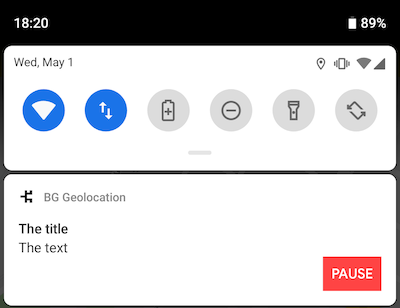
A custom layout uses three NotificationConfig options:
| Option | What it does |
|---|---|
layout |
The name of your layout file in res/layout, without .xml
|
strings |
Text for your own <TextView /> elements, keyed by android:id
|
actions |
The android:ids of your <Button /> elements; clicks arrive in onNotificationAction
|
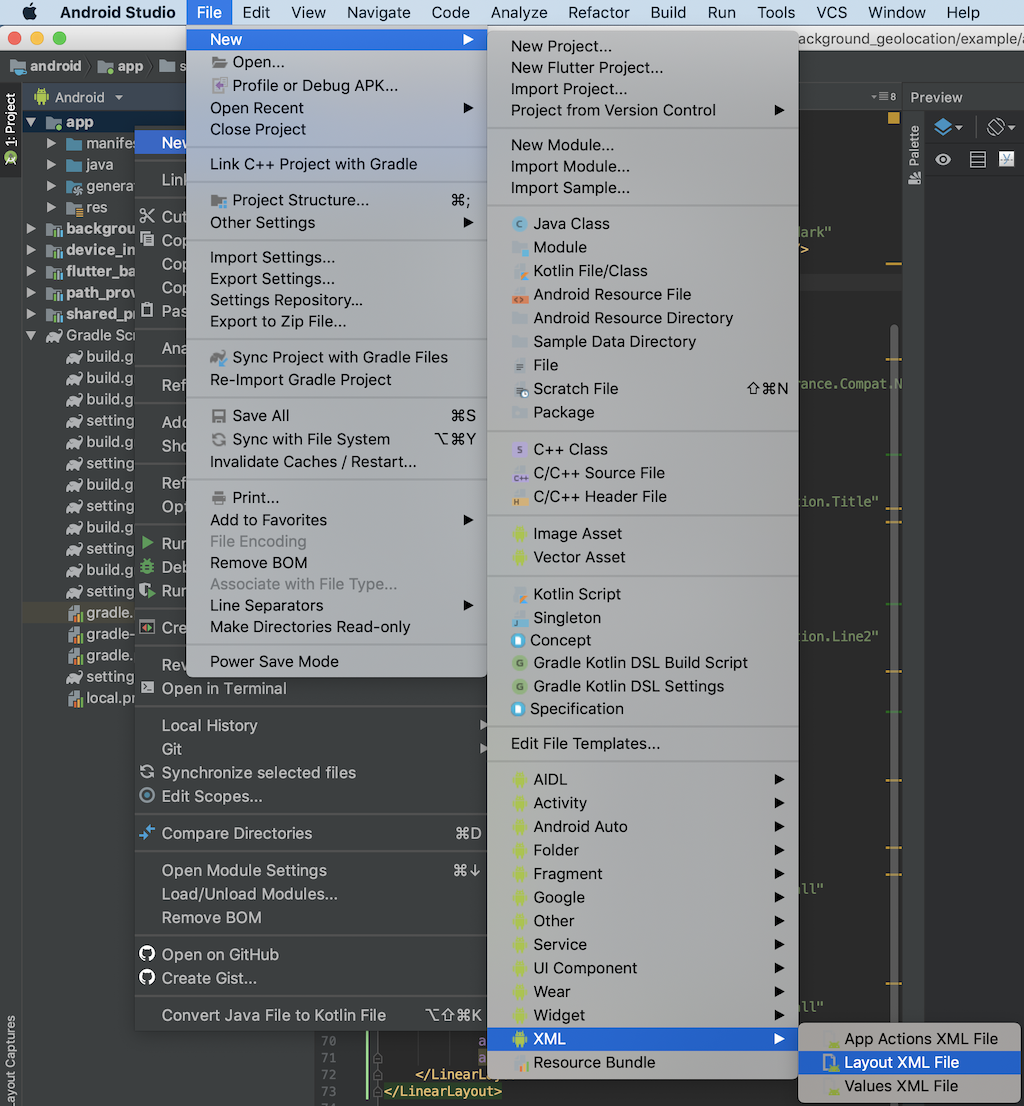
In Android Studio, select File → New → XML → Layout XML File:
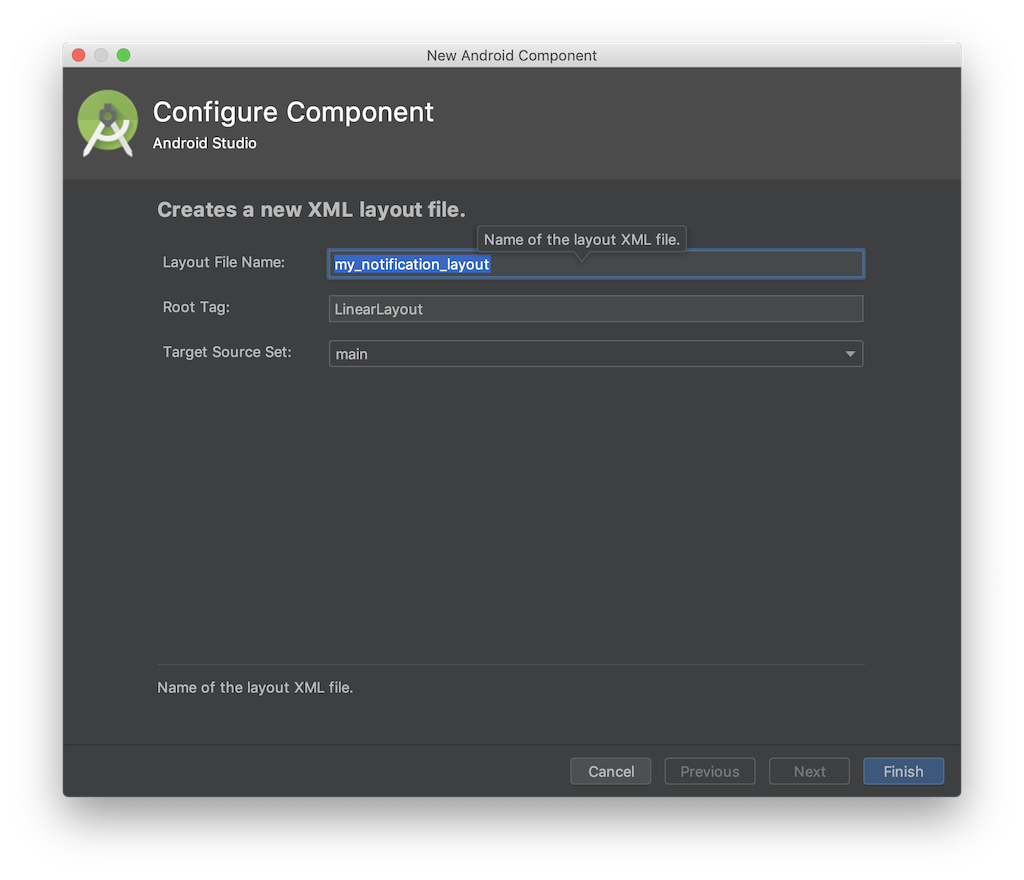
Enter a Layout File Name (for example notification_layout) and leave Root Tag as LinearLayout. The file is created at app/src/main/res/layout/notification_layout.xml:
RemoteViews, so it can contain only the views that RemoteViews supports. Use elements such as LinearLayout, FrameLayout, RelativeLayout, TextView, ImageView and Button. ConstraintLayout and your own custom views do not work in a notification.
You will mostly be adding <TextView />, <ImageView /> and <Button /> elements. The SDK finds each element by its android:id.
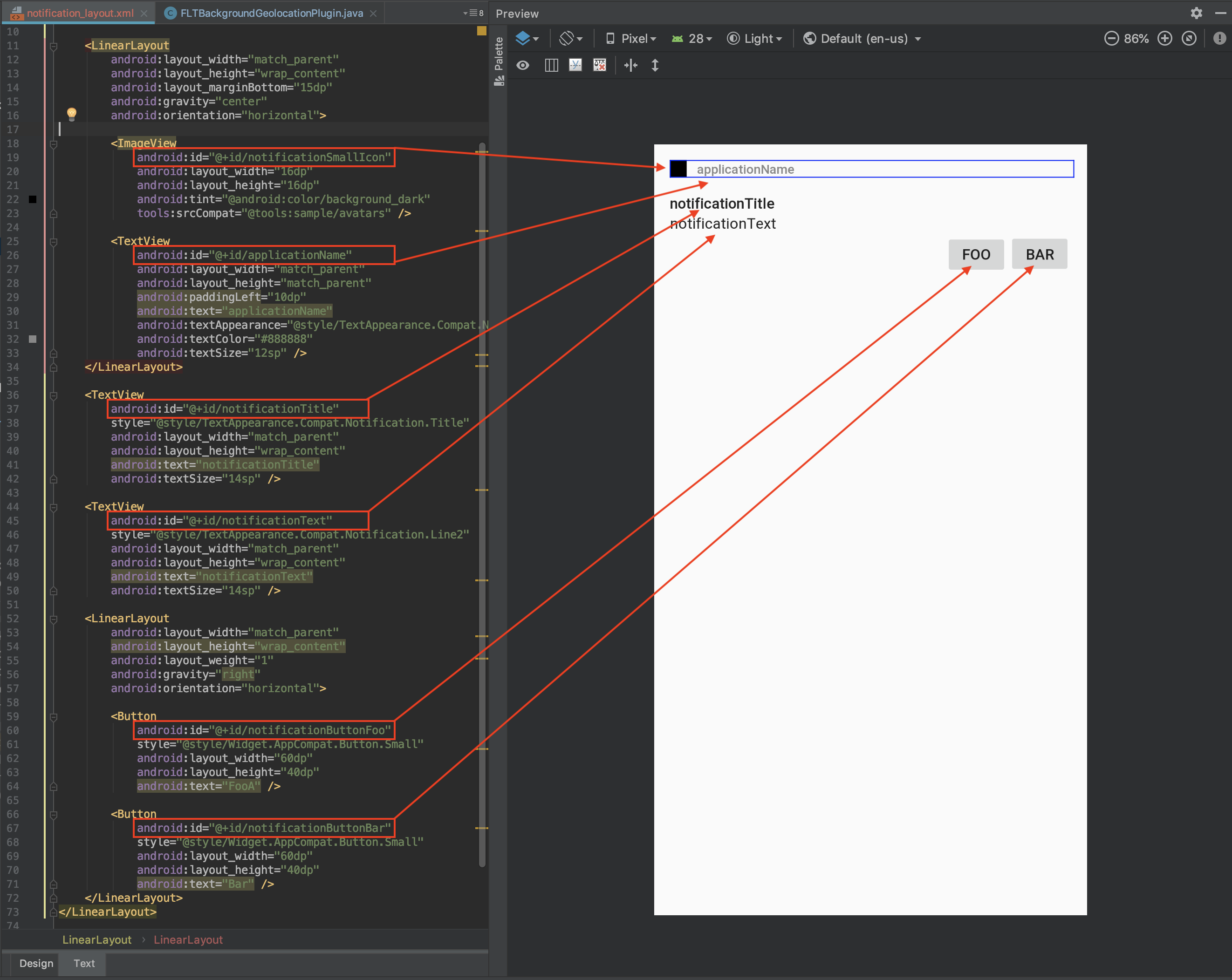
When the SDK renders your layout, it looks for these ids and fills each one it finds:
android:id |
Filled with |
|---|---|
applicationName |
Your app's name (the android:label in AndroidManifest.xml) |
notificationTitle |
app.notification.title (your app's name if title is empty) |
notificationText |
app.notification.text |
notificationSmallIcon |
app.notification.smallIcon (defaults to your app icon) |
notificationLargeIcon |
app.notification.largeIcon (left alone when largeIcon is not set) |
Every id is optional: leave out any element you don't want.
Add any <TextView /> with an id of your choice:
<TextView
    android:id="@+id/myCustomElement"
    android:layout_width="match_parent"
    android:layout_height="wrap_content"
    android:text="myCustomElement" />
Then fill it with app.notification.strings, a map from android:id to text. See Step 3.
Add a <Button /> for each action:
<Button
    android:id="@+id/notificationButtonFoo"
    style="@style/Widget.AppCompat.Button.Small"
    android:layout_width="60dp"
    android:layout_height="40dp"
    android:text="Foo" />
Then list each button's id in app.notification.actions and listen for clicks with onNotificationAction. See Step 3.
The ids of your own elements can be any name. The SDK looks each one up by the name you give in strings or actions. The examples on this page prefix them with notification only to keep them apart from your app's other ids.
As a starting point, copy this into your new file:
<?xml version="1.0" encoding="utf-8"?>
<LinearLayout xmlns:android="http://schemas.android.com/apk/res/android"
    xmlns:tools="http://schemas.android.com/tools"
    android:layout_width="match_parent"
    android:layout_height="135dp"
    android:gravity="start"
    android:orientation="vertical"
    android:padding="15dp">

    <LinearLayout
        android:layout_width="match_parent"
        android:layout_height="wrap_content"
        android:layout_marginBottom="15dp"
        android:gravity="center"
        android:orientation="horizontal">

        <ImageView
            android:id="@+id/notificationSmallIcon"
            android:layout_width="16dp"
            android:layout_height="16dp"
            android:tint="@android:color/background_dark"
            tools:srcCompat="@tools:sample/avatars" />

        <TextView
            android:id="@+id/applicationName"
            android:layout_width="match_parent"
            android:layout_height="match_parent"
            android:paddingLeft="10dp"
            android:text="applicationName"
            android:textAppearance="@style/TextAppearance.Compat.Notification.Title"
            android:textColor="#888888"
            android:textSize="12sp" />
    </LinearLayout>

    <TextView
        android:id="@+id/notificationTitle"
        style="@style/TextAppearance.Compat.Notification.Title"
        android:layout_width="match_parent"
        android:layout_height="wrap_content"
        android:text="notificationTitle"
        android:textSize="14sp" />

    <TextView
        android:id="@+id/notificationText"
        style="@style/TextAppearance.Compat.Notification.Line2"
        android:layout_width="match_parent"
        android:layout_height="wrap_content"
        android:text="notificationText"
        android:textSize="14sp" />

    <TextView
        android:id="@+id/myCustomElement"
        android:layout_width="match_parent"
        android:layout_height="wrap_content"
        android:text="myCustomElement" />

    <LinearLayout
        android:layout_width="match_parent"
        android:layout_height="wrap_content"
        android:layout_weight="1"
        android:gravity="end"
        android:orientation="horizontal">

        <Button
            android:id="@+id/notificationButtonFoo"
            style="@style/Widget.AppCompat.Button.Small"
            android:layout_width="60dp"
            android:layout_height="40dp"
            android:text="Foo" />

        <Button
            android:id="@+id/notificationButtonBar"
            style="@style/Widget.AppCompat.Button.Small"
            android:layout_width="60dp"
            android:layout_height="40dp"
            android:text="Bar" />
    </LinearLayout>
</LinearLayout>
The android:text values are placeholders for the layout preview. The SDK replaces them when it renders the notification.
Android limits the height of a custom notification. See Create a custom notification layout. Check your layout on a device in both its collapsed and expanded states.
val bgGeo = BGGeo.instance

// Listen for clicks on the buttons listed in app.notification.actions.
bgGeo.onNotificationAction { buttonId ->
    when (buttonId) {
        "notificationButtonFoo" -> { /* Handle [Foo] */ }
        "notificationButtonBar" -> { /* Handle [Bar] */ }
    }
}.storeIn(subscriptions)

// Within a coroutine scope, e.g. lifecycleScope.launch { }
bgGeo.ready {
    app.notification.layout = "notification_layout"  // res/layout/notification_layout.xml
    app.notification.title = "The title"
    app.notification.text = "The text"
    app.notification.strings = mapOf(
        "myCustomElement" to "My custom element text"
    )
    app.notification.actions = listOf(
        "notificationButtonFoo",
        "notificationButtonBar"
    )
}(subscriptions is a MutableSet<EventSubscription> you close in onDestroy(), as in the Setup guide.)
To change the text while tracking, edit the configuration. The SDK re-renders the notification:
bgGeo.config.edit {
    app.notification.strings = mapOf("myCustomElement" to "Updated text")
}
strings replaces the whole map, so include every custom element each time.
TSConfig config = TSConfig.getInstance(getApplicationContext());
Editor editor = config.edit();

Map<String, String> strings = new HashMap<>();
strings.put("myCustomElement", "My custom element text");

editor.app().notification()
        .setLayout("notification_layout")
        .setTitle("The title")
        .setText("The text")
        .setStrings(strings)
        .setActions("notificationButtonFoo", "notificationButtonBar");
editor.commit();

// `this` is your Activity.
BackgroundGeolocation.getInstance(this).onNotificationAction(new TSNotificationActionCallback() {
    @Override
    public void onClick(String buttonId) {
        switch (buttonId) {
            case "notificationButtonFoo":
                // Handle [Foo]
                break;
            case "notificationButtonBar":
                // Handle [Bar]
                break;
        }
    }
});(TSConfig is com.transistorsoft.locationmanager.config.TSConfig, Editor is com.transistorsoft.locationmanager.config.edit.Editor, BackgroundGeolocation is com.transistorsoft.locationmanager.adapter.BackgroundGeolocation and TSNotificationActionCallback is com.transistorsoft.locationmanager.adapter.callback.TSNotificationActionCallback.) Use setStrings(map) rather than setString(key, value). In SDK 4.6.0 and earlier, setString replaces the whole map with that one entry.
With app.stopOnTerminate = false, the SDK keeps tracking after your app is terminated, and the buttons on its notification keep working. The SDK does not call your onNotificationAction listener in that state. Instead, with app.enableHeadless = true, each click goes to your headless task as a NOTIFICATIONACTION event, whose payload is the button id. With enableHeadless off, the click is dropped. See Android Headless Mode.
Set logger.logLevel to warning or higher, then watch the SDK's log with adb logcat -s TSLocationManager. These lines are warnings and errors, so at the default level, off, the SDK writes none of them:
| Log line | Meaning |
|---|---|
Could not find custom notification layout '<name>' in app/src/main/res/layout |
No layout named <name>. Use the file name without .xml. The SDK falls back to its standard notification. |
Failed to find TextView resource: <id> |
A key in app.notification.strings matches no android:id in your app. |
Failed to find Button resource in notification_layout for notification-action: <id> |
An entry in app.notification.actions matches no android:id in your app. |
Failed to find ImageView id: notificationLargeIcon in notification layout |
You set app.notification.largeIcon, but your layout has no notificationLargeIcon element. |
Failed to decode app.notification.largeIcon (vector/xml requires Drawable): <name> |
No drawable or mipmap resource matches app.notification.largeIcon, or it couldn't be loaded. |
Failed to resolve app.notification.smallIcon: <name> |
No drawable or mipmap resource matches app.notification.smallIcon. The SDK uses your app icon instead. |
The SDK finds your layout and its elements by name at runtime. If you enable resource shrinking (isShrinkResources = true), tell the shrinker to keep the layout with a keep file of your own, for example res/raw/notification_layout_keep.xml. Don't name it keep.xml: the SDK ships its own res/raw/keep.xml, and a file with that name in your app replaces it, so the shrinker can then remove the SDK's own resources:
<?xml version="1.0" encoding="utf-8"?>
<resources xmlns:tools="http://schemas.android.com/tools"
    tools:keep="@layout/notification_layout" />