
Restore a recent checkbox change while keeping later text edits. Task Query Undo watches Markdown notes in one selected folder. It keeps the old and new task line when a saved update contains one eligible completion. You can then restore that line if the current text and its adjacent lines still match.
Use it after a task query marks the wrong task as done. Review the record, open the note if needed, and select Restore line. A later paragraph elsewhere in the note stays in place. The history contains saved changes observed on this device. Rapid edits can be combined into one update.
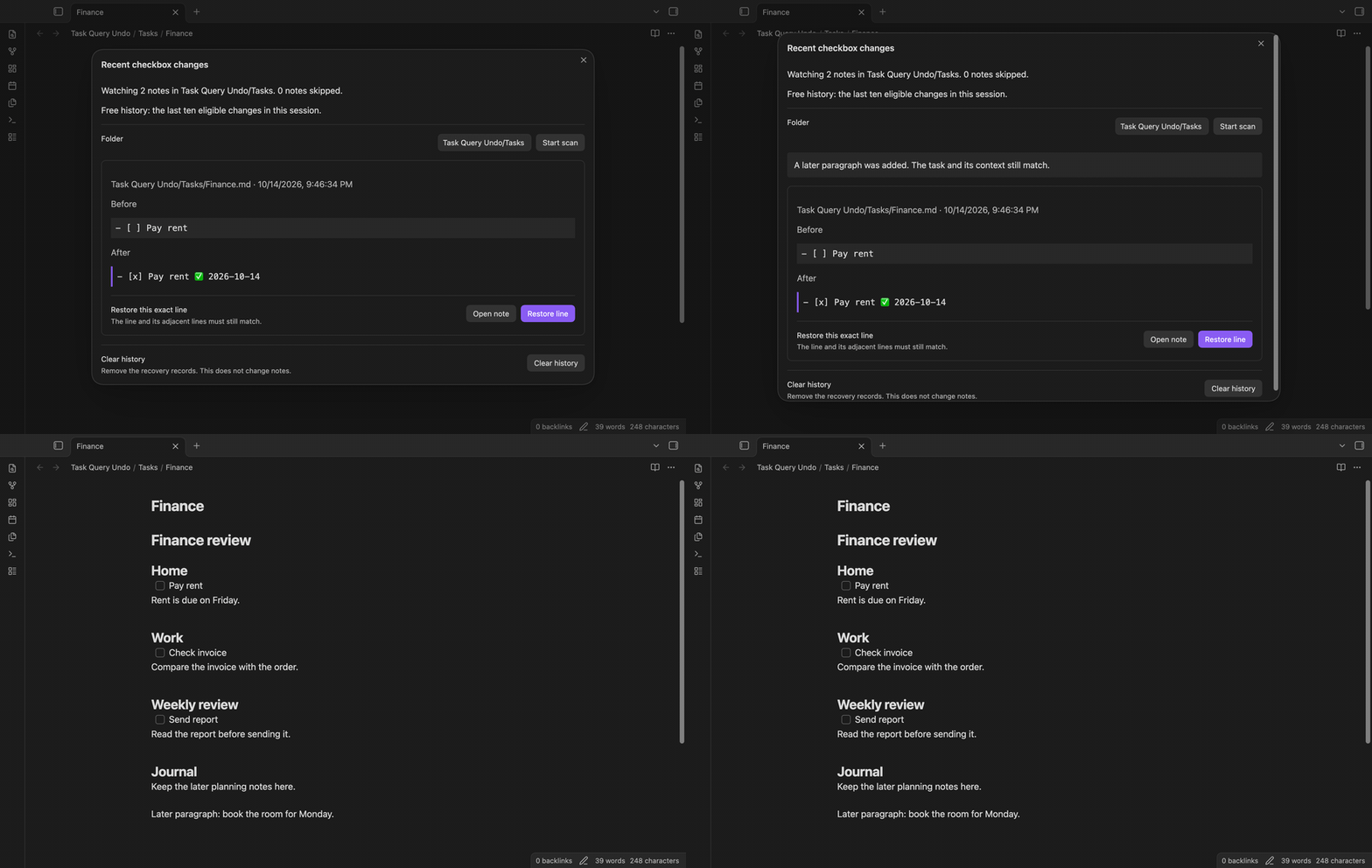
Choose a folder path such as Tasks and start the scan. Notes in its subfolders are included. The scan reads the current text without creating recovery records. Tracking begins when the scan finishes. A new or moved note needs another scan before its changes can appear.
The baseline is limited to 1 MiB per file and 20 MiB for the selected folder. The history window lists skipped files and their reasons. An empty folder path stops tracking.
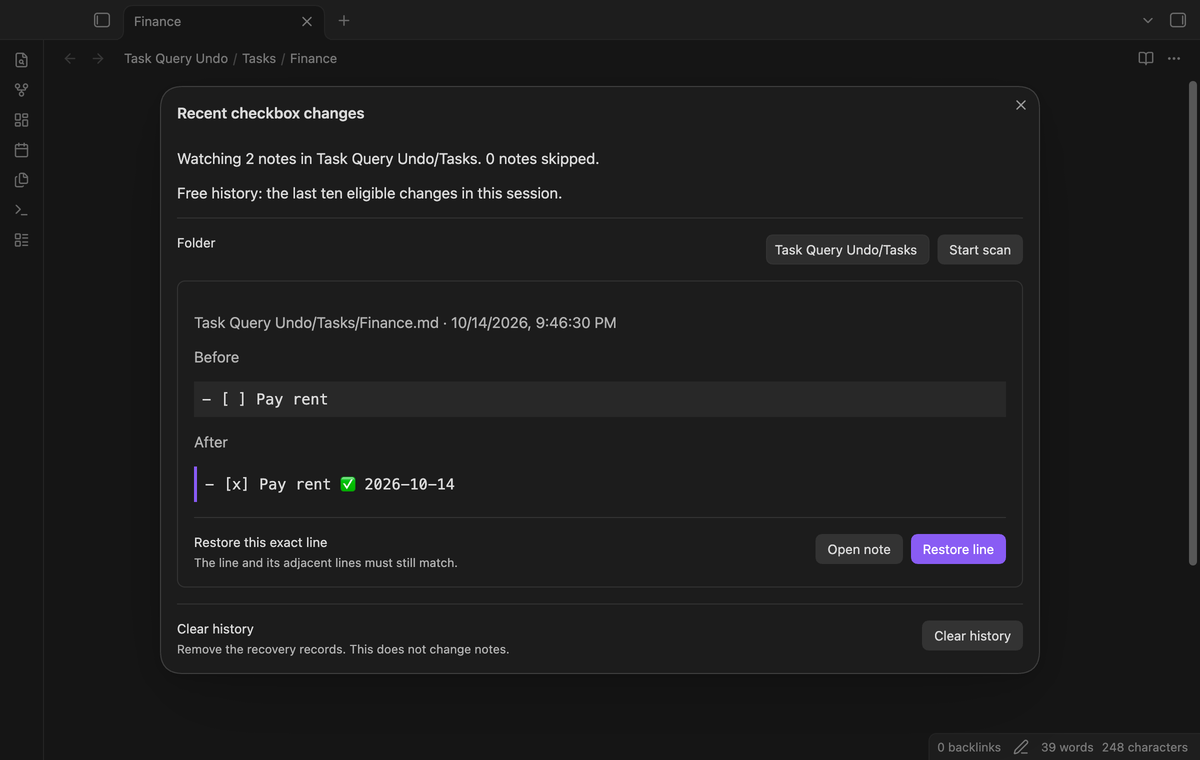
The free history keeps the last ten eligible changes for the current session. Each record shows the note path, time, old line, and new line. It accepts an ordinary bullet task changing from [ ] to [x] or [X]. A done date appended as ✅ YYYY-MM-DD can be part of that same line change.
Updates with two changed lines, inserted lines, deleted lines, or changed prose beside the completion are skipped. Tasks with a recurrence marker are excluded. The supported bullets are minus, plus, and asterisk, with up to three leading spaces.
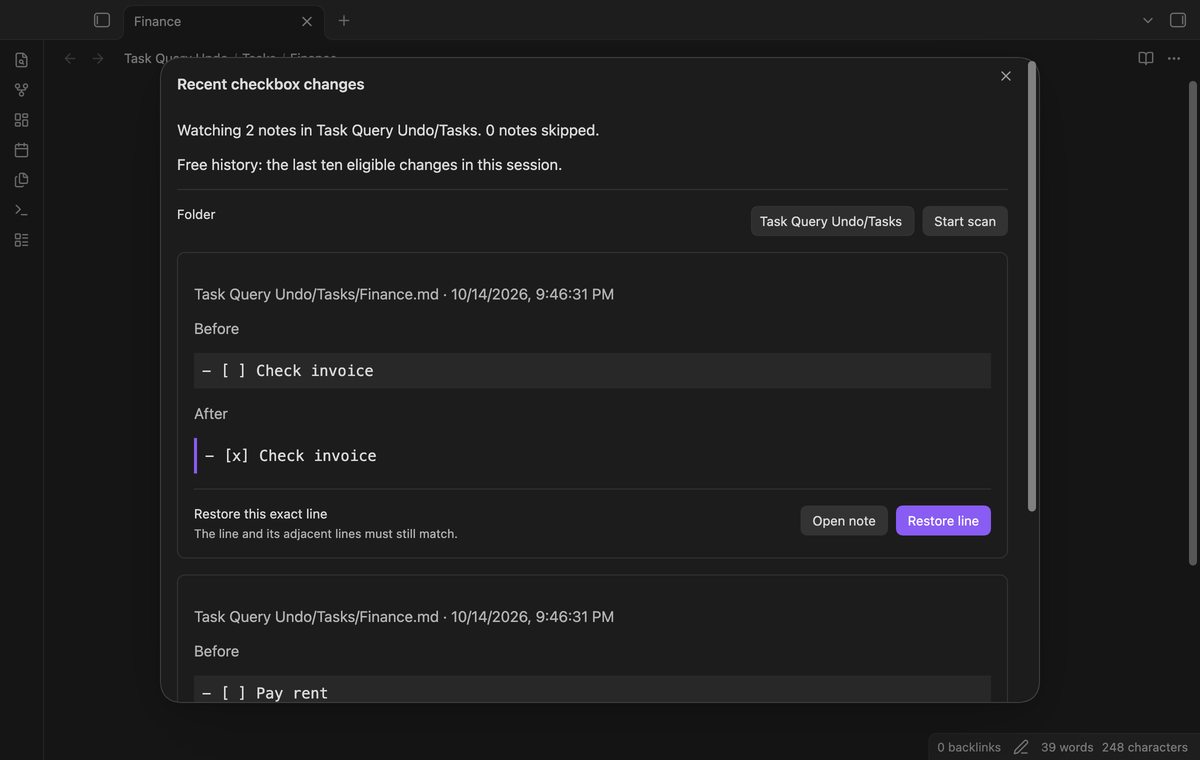
Select Restore line on a record. The plugin checks the current note inside an atomic vault update. The completed line and the line immediately before and after it must match the record. Exactly one location must match. The plugin replaces that line with its stored old text and removes the recovery record.
Text outside those adjacent lines can change without blocking recovery. A task can move down the note if its context stays intact. An added done date is removed when it was part of the recorded completion.
Recovery also checks the creation time of the note. If that time changed, recovery stops. This check helps protect a replacement note at the same path.
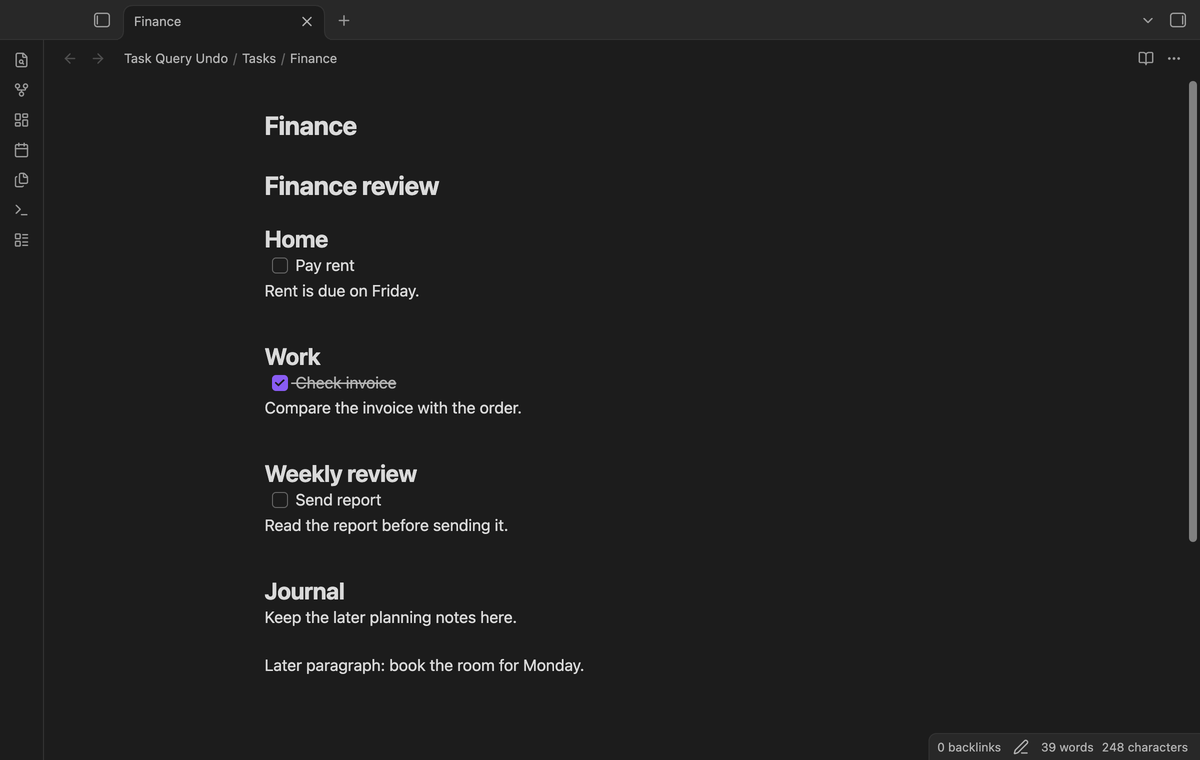
If the task text or its adjacent context changed, restore stops with a reason. It also stops when two locations have the same completed line and context. A refused restore does not write note text. The record stays available for review.
Checkboxes in frontmatter, fenced code, and indented code are excluded. If a recorded task is later placed inside a fence, recovery is refused. The plugin does not attempt to merge conflicting task edits.
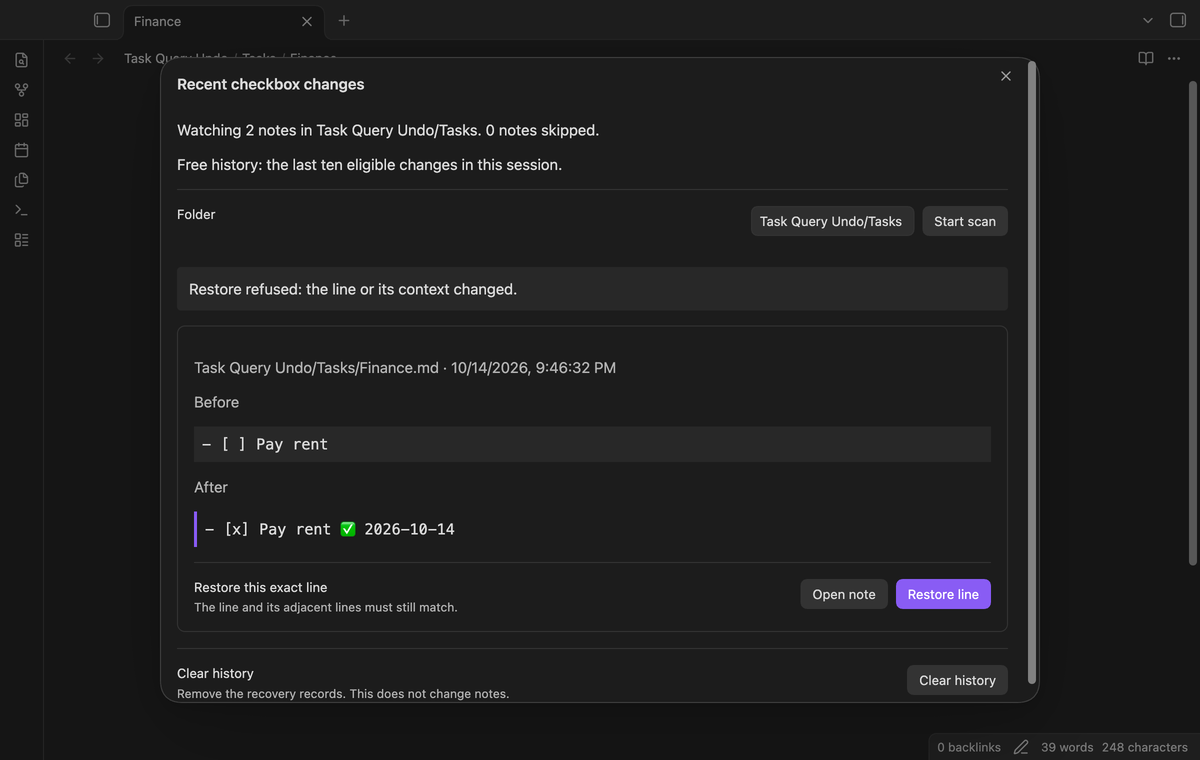
Pro keeps up to 100 records across restarts, subject to a 20 MiB history size limit. Older records are removed when a limit is reached. Recovery text is stored in device local storage for this vault. A cached eligible sponsorship check is required to load it after a restart.
The free session history stays available without payment. Turning Pro off reduces the visible history to ten records. Clear history removes the saved recovery records without editing the source notes.
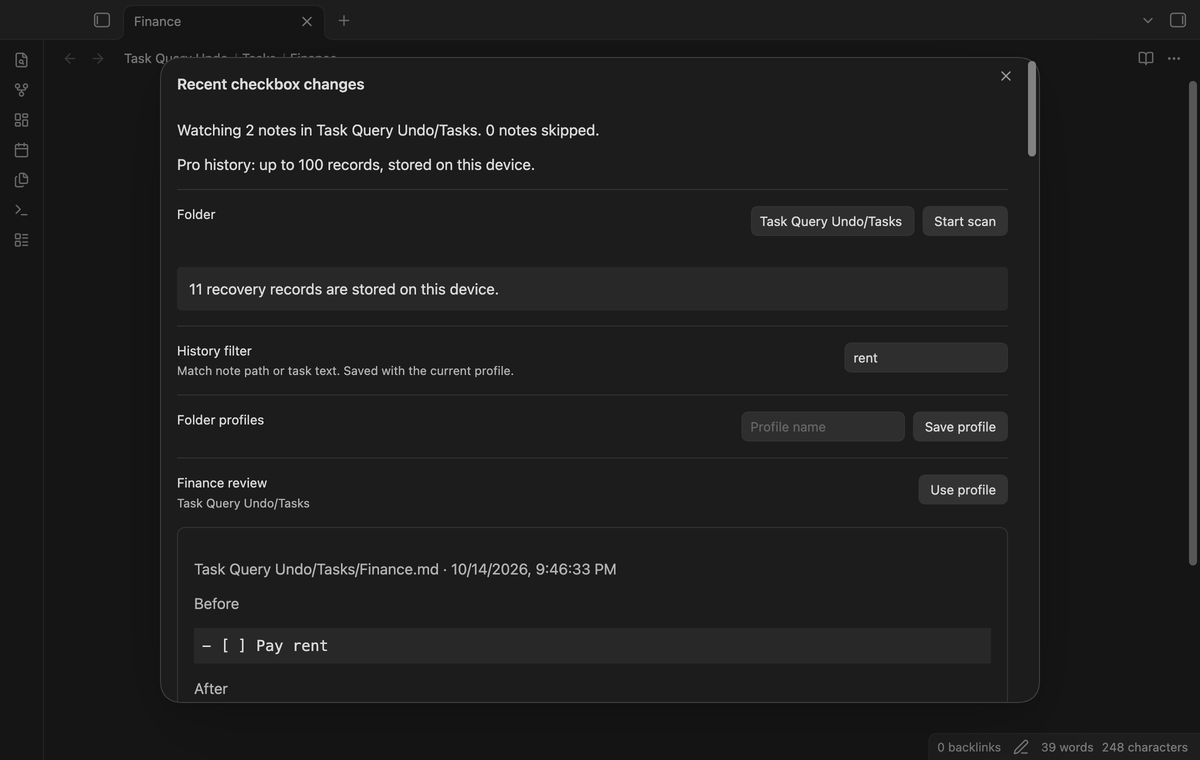
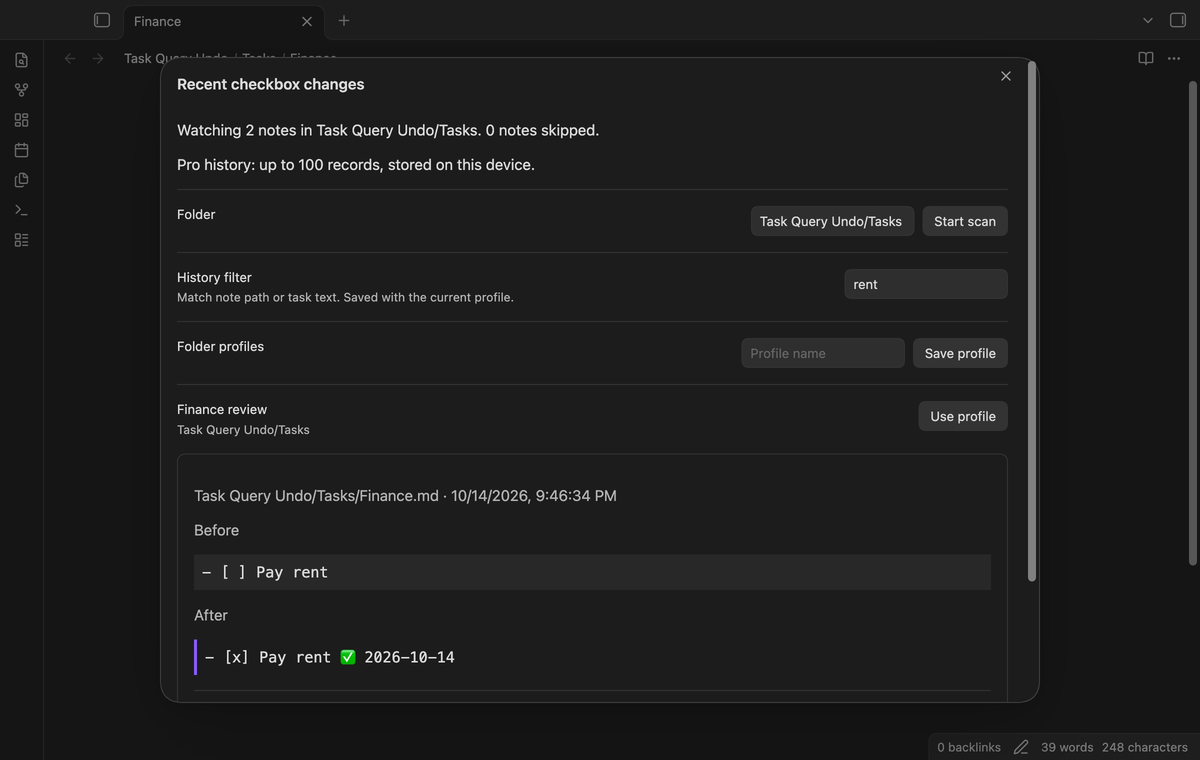
Save a name for the current folder and history filter. Use profile selects that folder and starts a new baseline scan. Up to 20 profiles are retained. A filter matches note paths or task text without case sensitivity. It changes the visible records, rather than which changes are observed.
Profiles and filters are saved in the plugin settings. They remain saved when Pro is off, but the profile actions and filter require Pro. The selected folder itself is a free setting.
For a manual install, copy main.js, manifest.json, and styles.css from the release into <vault>/.obsidian/plugins/task-query-undo/. Enable Task Query Undo in Community plugins. It requires Obsidian 1.13.4 or later.
This repository contains the source and tests. Build with npm ci followed by npm run build in the exported repository.
- Open the plugin settings and enter a folder path relative to the vault root.
- Select Start scan. Wait for the history window to show its watching status.
- Complete one ordinary task, then run Show recent checkbox changes from the command palette.
- Compare Before and After. Select Open note to inspect the source, or Restore line to attempt recovery.
Start the baseline scan again after adding notes to the folder. Repeated scans replace the baseline and retain existing history records. Recovery checks the current file when you select the button.
Selected folder controls the scan scope. Baseline scan starts a new comparison point. Checkbox history opens the review window. The same scan and history actions are available as commands. No default hotkeys are assigned.
Pro controls are in the Pro section. Sponsor on GitHub opens the publisher page. Sign in with GitHub starts device sign-in. Refresh checks the sponsorship again. Sign out disables Pro. The history window contains profile, filter, and clear controls.
No. It observes saved vault changes. Rapid changes can arrive together and be skipped. Sync changes can look like local changes. Use the native Undo command for editor history and a backup for broader recovery.
Physical phones and tablets, live GitHub payments, live device sign-in, and third-party task query plugins have not been tested. Tests simulate the saved task edits those plugins can produce. Live sync conflicts and a device power failure during persistence have not been tested. End-to-end checks ran on macOS. Linux and Windows were not run locally.
Free recovery text stays in memory for the session. Pro recovery text goes to local storage on this device. Folder paths and filters go in the plugin settings file, which a vault sync tool may copy. No task text is sent to GitHub.
The core features are free. Pro features need a GitHub Sponsors sponsorship of theluckystrike: $5 a month or more, or $15 once. A total payment of $15 meets the payment requirement for Pro without further payment. Sign-in and the checks below still apply. Your notes stay readable and editable with or without Pro.
GitHub handles the payment. Sponsor at https://github.com/sponsors/theluckystrike. You need no account for the free features. Pro needs the GitHub account that sponsors.
Until you select "Sign in with GitHub" in the settings, Task Query Undo makes no network requests. Sign in uses the GitHub device flow. Task Query Undo sends its public client ID and the scope read:user to https://github.com/login/device/code and shows you a code. While you enter the code at https://github.com/login/device, it asks https://github.com/login/oauth/access_token every few seconds to check the sign-in status. The scope permits profile reads only. GitHub needs this access to show the sponsorship tier. It grants no repository scope and no write access.
After sign in, Task Query Undo sends one query to https://api.github.com/graphql. It checks if the signed-in account sponsors theluckystrike. It asks for the tier and the total payment to theluckystrike. The plugin reuses a successful check for 7 days. Failed checks can retry after 6 hours. Select Refresh to request an earlier check. It sends no note content, file names or other vault data, and it has no telemetry.
After a successful check, Pro can work offline for up to 14 days. Sign out or a negative sponsorship answer turns Pro off. The plugin stores the GitHub token through the secret storage API of Obsidian. It does not put the token in its saved settings or its local sponsorship data. The local storage of this device keeps your GitHub login, the tier and the time of the last check. Sign out clears the token. You can also revoke the access in your GitHub settings, under Applications.
Report a problem in this repository's issues. Include the app version, the refusal message, and a small sample note with private text removed. State whether the update changed one line or inserted another task. The source is available under the MIT license.