A input overlay for OBS and other broadcast software.
Note
hello, this project is pretty much just something i made for myself and a few friends,.. im going to try to fix bug etc as best as i can but keep in mind that im not that skilled of a dev so expect updates to roll out slowly or eventually to stop due to lack of time
-
WebSocket connection with authentication with support to stream your inputs to a secondary PC (for example a dedicated streaming PC)
-
Hall effect keyboard support via the AnalogSense SDK ported to py
Keyboards/Devices
- Everything by Wooting
- Everything by NuPhy
- Everything by DrunkDeer
- Razer Huntsman V2 AnalogR
- Razer Huntsman Mini AnalogR
- Razer Huntsman V3 ProR
- Razer Huntsman V3 Pro MiniR
- Razer Huntsman V3 Pro TenkeylessR
- Keychron Q1 HEP, F
- Keychron Q3 HEP, F
- Keychron Q5 HEP, F
- Keychron K2 HEP, F
- Lemokey P1 HEP, F
- Madlions MAD60HEP
- Madlions MAD68HEP
- Madlions MAD68RP
- Redragon K709HEP
R Razer Synapse needs to be installed and running for analogue inputs to be received from this keyboard.
P The official firmware only supports polling, which can lead to lag and missed inputs.
F Custom firmware with full analog report functionality is available.Tested devices:
- Wooting 60HE
- Redragon K709HE
All other devices are theoretical and have not been tested. If you have a one of these devices and it works please open a pr to update the readme (or if its brokey open an issue or pr with the fix)
-
Customizable layouts and lables (lables support html img src tags although not officialy)
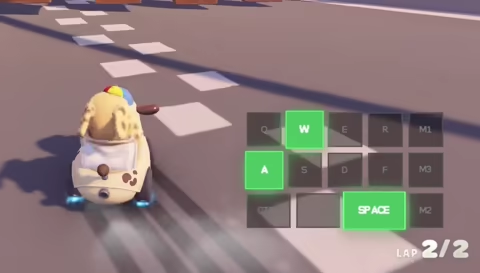 |
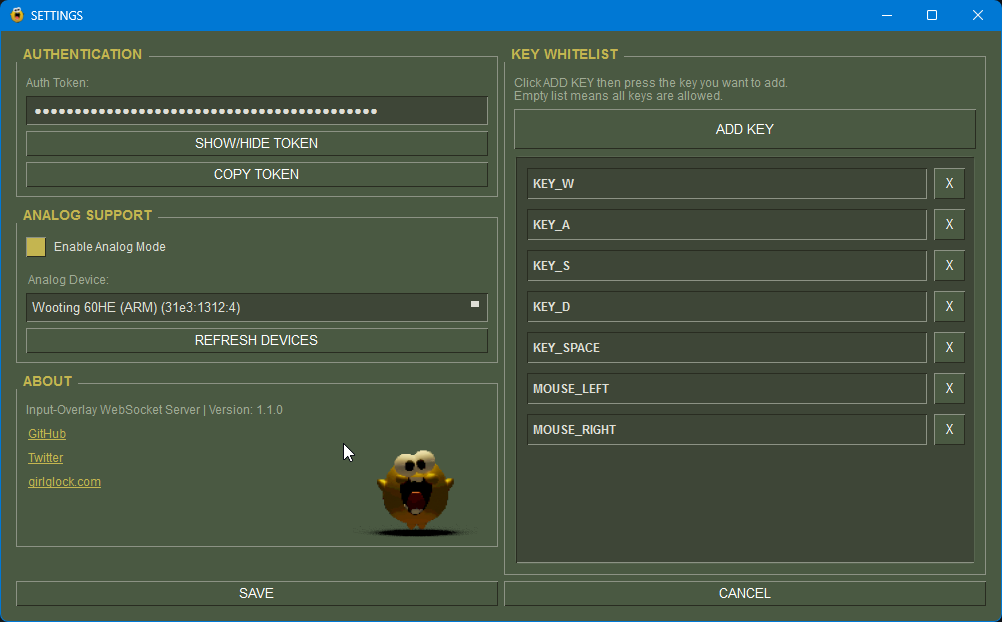 |
- get the input-overlay-ws server
- run it and right click the tray icon to open the settings
- copy your auth token
- paste the token in the auth token field above
- configure your overlay to your liking, then click the
⎘ copy urlbutton and paste the copied url as an OBS browser source
(you can change it to whatever you like)
tip: you can configure the key whitelist in the server settings to ensure you are only sending keys over your network that are configured in the overlay
(eg. from gaming to streaming pc)
- open the input-overlay-ws server settings and enable the http ser(run the ws server on your gaming pc)
- change the address in to the address of your gaming pc
runipconfigin cmd and copy the local IPv4 address (usually 192.168.0.1 or 192.168.X.X with X being 0-255) - click the
open in browserbutton inside the http serli> - enter the gaming pc's address in both the input-overlay-wsthe hosted configurator
- click the
⎘ copy urlbutton to copy your hosted overlay url from the hosted configurator and add it as a browser source in your OBS running on the streaming pc
Note
the released binaries are built via GitHub Actions already... you only need this if you want to build from source yourself
1. install dependencies
python -m pip install --upgrade pip
pip install pyinstaller -r ws-server/requirements.txt
2. build (run from the ws-server/ dir)
Windows:
python -m PyInstaller --onedir --windowed --noupx \
  --add-data "assets;assets" \
  --add-data "services;services" \
  --add-data "../index.html;web" \
  --add-data "../style.css;web" \
  --add-data "../scripts;web/scripts" \
  --icon="assets/icon.ico" \
  --name="input-overlay-ws" \
  --hidden-import=services.analog \
  --hidden-import=services.consts \
  --hidden-import=services.logger \
  --hidden-import=services.utils \
  --hidden-import=services.dialogs \
  --hidden-import=services.settings \
  --hidden-import=services.tray \
  --hidden-import=services.rawinput \
  --hidden-import=winotify \
  --hidden-import=certifi \
  --hidden-import=markdown \
  --manifest admin.manifest \
  input-overlay-ws.py
Linux:
python -m PyInstaller --onedir --windowed --noupx \
  --add-data "assets:assets" \
  --add-data "services:services" \
  --add-data "../index.html:web" \
  --add-data "../style.css:web" \
  --add-data "../scripts:web/scripts" \
  --icon="assets/icon.ico" \
  --name="input-overlay-ws" \
  --hidden-import=services.analog \
  --hidden-import=services.consts \
  --hidden-import=services.logger \
  --hidden-import=services.utils \
  --hidden-import=services.dialogs \
  --hidden-import=services.settings \
  --hidden-import=services.tray \
  --hidden-import=certifi \
  --hidden-import=markdown \
  input-overlay-ws.py
the output will be inside dist/input-overlay-ws/