
A small macOS/Linux/Windows video editor on top of your system ffmpeg. Load one or more videos, cut and reorder them on a timeline, nudge a clip's audio to fix desync, preview the result, and export it with your own ffmpeg presets. Every ffmpeg and ffprobe call goes through CliWrap. The preview runs on libmpv.
Built with C#, .NET 10 and Avalonia 12.
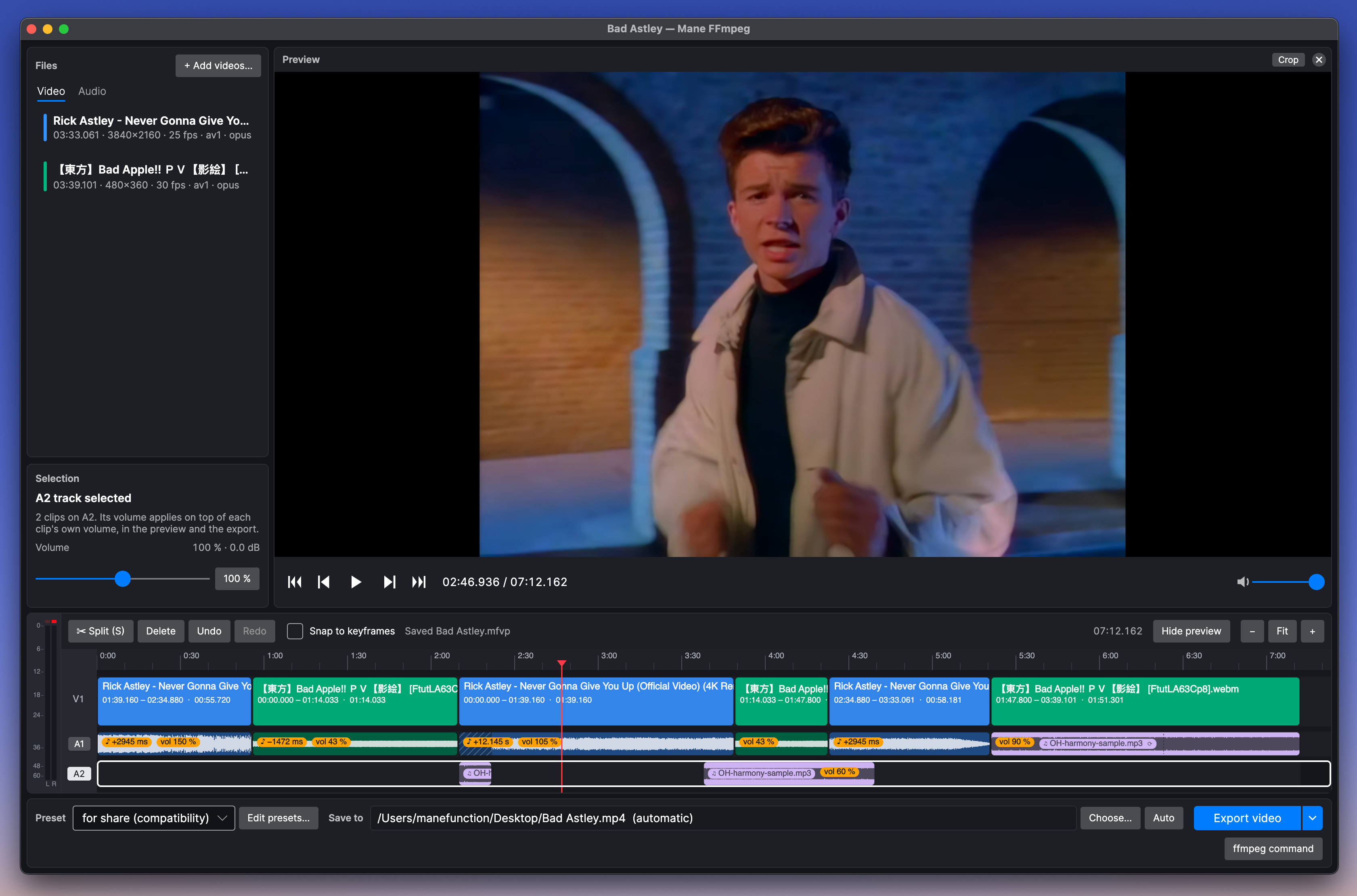
- Timeline
- A video row (V1), a linked audio row (A1) and a second audio track (A2) for background music, with waveforms.
- Split at the playhead (S), delete, drag clips to reorder, and drag clip edges to trim. Cuts land on whole frames.
- Undo and redo, zoom, and scroll.
- Files
- The Video tab lists videos. The Audio tab lists audio files, each in its own pastel color. Files are sorted into tabs by what they contain. Videos dropped on the Audio tab, or picked in Add audio…, are added for their sound.
- Double-click a file to preview it on its own.
- Audio replacement
- Drag an audio file from the Audio tab, or from Finder, onto a clip to play it instead of the clip's sound. It starts at the clip's start and affects only that clip. To replace the sound of part of a video, split it first.
- Drag the audio row to shift the new sound, the same as a clip's own audio. Splitting a clip continues the sound across both halves.
- Loop audio (in Selection) repeats the file, so the clip has no silence even when the sound is shifted. Use original audio restores the clip's own sound.
- A2 and volume
- Drag an audio file from the Audio tab, or from Finder, onto the A2 row to mix it in over the timeline's own sound (background music, a voice-over). Drag A2 clips to move them and their edges to trim them (hold Shift to snap where the playhead snaps), split them with S and delete them like V1 clips. A2 clips keep their place on the timeline when V1 is edited; what runs past the timeline's end is dimmed and isn't exported.
- Selection has a volume slider (0–200 %) for the selected V1 or A2 clips, with a button that applies it more widely: to the other clips of the same video that play its own sound, or, for an audio file, everywhere that file plays (clips it replaces on A1, and its A2 clips).
- The preview mixes A1 and A2 and applies the volumes live, as the export will.
- Audio offset
- Drag a clip on the audio row, use Alt+←/→, or type milliseconds in the inspector.
- The offset slips the clip's audio. Clip edges stay put, and the sound comes from slightly earlier or later in the same file, so cuts never open gaps.
- Silence is added only where the shifted audio runs past the start or end of the file (hatched on A1).
- "Use this offset for all clips of this video" shifts a whole recording.
- Crop
- Click Crop above the preview (or press C) and drag on the picture: drag inside the rectangle to move it, drag an edge or corner to resize it, or drag outside it to draw a new one. Hold Shift to keep its shape, or pick one (Original, 16:9, 9:16, 4:3, 4:5, 1:1). The size in output pixels is shown on the rectangle.
- Done (Enter or Esc) shows the cropped picture in the preview. One crop applies to the whole export, and each drag can be undone.
- Preview
- Smooth playback, exact seeking and frame stepping via libmpv.
- The timeline plays as a single virtual file (an mpv EDL with separate video and audio streams), so cuts and audio offsets sound exactly as they will be exported.
- Double-click a video in the list to preview it on its own, mark In/Out (I/O) and add the range (Enter).
- Presets
- Raw ffmpeg output options, editable in Presets → Edit Presets…. Built in:
- for storage (balanced) (default):
-c:v libx265 -crf 23 -preset slow -pix_fmt yuv420p10le -x265-params aq-mode=3:psy-rdoq=1.0:no-sao=1 -c:a copy→.mp4. 10-bit HEVC tuned to keep detail, so moving objects don't smear. - for share (compatibility):
-c:v libx264 -crf 20 -preset medium -profile:v high -pix_fmt yuv420p -c:a aac -b:a 192k -movflags +faststart→.mp4. Everyday video for messengers and social media: H.264 + AAC plays everywhere and starts before it finishes downloading. - harsh compression:
-c:v libx265 -crf 28 -preset slow -c:a copy→.mp4. Smaller files, softer in motion. - copy (w/o encode):
-c:v copy -c:a copy→ same container as the source - copy to mp4 (w/o encode):
-c:v copy -c:a copy→.mp4. The same stream copy, for sources in another container.
- for storage (balanced) (default):
- Add, duplicate, delete, or restore the built-ins.
- Raw ffmpeg output options, editable in Presets → Edit Presets…. Built in:
- Export
- The progress bar, ETA, speed and Cancel button all stay inside the window.
- A system notification appears when an export finishes or fails.
- The computer doesn't go to sleep on its own while an export runs. The display can still turn off.
- "ffmpeg command" shows the exact commands that will run.
- Projects
*.mfvpfiles are readable JSON. They store edits, the export choice and the window layout, but no media.- Source paths are saved both absolute and relative to the project, so you can move a folder that holds the project and its videos together. Missing files can be relinked.
- Compact mode
- The Compact button or ⇧⌘C hides the video preview and shrinks the window from the top, so the timeline and export controls stay where they are on screen. The video list and selection inspector sit side by side, with play/pause in the timeline toolbar.
- Only audio is decoded while compact. The mode is saved with the project.
- Updates
- At launch the app checks GitHub for a newer release and shows the changelog since your version.
- Update downloads it, checks its checksum and restarts into the new version. Each window asks to save first, and saved projects open again. Install on Quit waits until you quit instead.
- "Do not remind for this version" stays quiet until the next release. Settings → Check for updates at startup turns the check off. Check for Updates… in the app menu looks on demand.
- Several windows
- File → New Window. Each window is its own project with its own player and export, so you can export in one window while editing in another.
Download the latest build from the Releases page. The builds are self-contained, so you don't need .NET. You still need ffmpeg (and libmpv on macOS and Linux), see Requirements.
- macOS:
mane-ffmpeg-<version>-osx-arm64.zipfor Apple Silicon orosx-x64for Intel. Unzip it and move Mane FFmpeg.app to Applications. The app is signed ad hoc but not notarized, so macOS blocks the first start. Runxattr -dr com.apple.quarantine "/Applications/Mane FFmpeg.app", or allow it in System Settings → Privacy & Security. - Linux:
mane-ffmpeg-<version>-linux-x64.tar.gzorlinux-arm64. Runtar xf mane-ffmpeg-*.tar.gz && ./mane-ffmpeg/install.sh. It installs for the current user into~/.local/opt/mane-ffmpeg, with a menu entry, the.mfvpfile type and amane-ffmpegcommand in~/.local/bin. - Windows:
mane-ffmpeg-<version>-win-x64.ziporwin-arm64. Unzip it anywhere you can write to (not Program Files, so it can update itself) and run Mane FFmpeg\ManeFfmpeg.exe. The app isn't signed, so SmartScreen asks on the first start: More info → Run anyway. libmpv comes with it (libmpv-2.dll, an LGPL build of mpv; seeTHIRD-PARTY-NOTICES.txt).
| macOS | Linux | Windows (10, 11) | |
|---|---|---|---|
| ffmpeg + ffprobe (5.0+) | brew install ffmpeg |
sudo apt install ffmpeg (or your distro's package) |
winget install Gyan.FFmpeg (or Scoop, Chocolatey, any build) |
| libmpv (0.33+) for preview; built on FFmpeg 4.4+ to hear A2 there | IINA.app installed (its libmpv is used), or brew install mpv |
sudo apt install libmpv2 · dnf install mpv-libs · pacman -S mpv |
included |
| Notifications | built in (osascript) |
notify-send (libnotify) or gdbus |
built in (toasts through Windows PowerShell) |
| Staying awake during exports | built in (IOKit power assertion) | systemd-inhibit (systemd) |
built in (power request) |
The app finds ffmpeg in your PATH and the usual install folders: /opt/homebrew/bin, /usr/local/bin, /usr/bin and similar on macOS and Linux; winget's, Scoop's and Chocolatey's command folders on Windows. Apps started from Finder don't get your shell PATH, so this matters. You can also set the paths in Settings.
When ffmpeg (or, on macOS, libmpv) is missing, the app offers to install it at startup, or later from Settings → Install Missing Components…:
- On macOS it uses Homebrew. If Homebrew itself is missing, its official installer opens in Terminal first, because it asks for your password.
brew installthen runs inside the dialog with its output shown. On macOS versions Homebrew no longer supports, it builds from source, which can take an hour or more. - On Windows it uses winget, which comes with Windows as App Installer. If winget is missing, the Microsoft Store opens on App Installer's page first.
winget install Gyan.FFmpegthen runs inside the dialog.
Without libmpv, editing and exporting still work. The preview pane then shows an install hint.
You need the .NET 10 SDK. On Intel Macs, where Homebrew would compile it, the official script is simplest:
curl -sSL https://dot.net/v1/dotnet-install.sh | bash -s -- --channel 10.0   # installs to ~/.dotnet
export DOTNET_ROOT=$HOME/.dotnet PATH=$HOME/.dotnet:$PATH
dotnet run --project src/ManeFfmpeg.UI # run
dotnet test # unit + ffmpeg integration tests
scripts/package-macos.sh # → build/macos-<rid>/Mane FFmpeg.app
scripts/package-linux.sh # → build/linux-<rid>/mane-ffmpeg-<version>-<rid>.tar.gz
scripts/package-windows.sh # → build/windows-<rid>/mane-ffmpeg-<version>-<rid>.zip (needs 7-Zip)The Windows package cross-builds from macOS or Linux. It downloads the pinned libmpv build named at the top of the script and checks its SHA-256.
The preview player's tests run against a headless libmpv and are skipped when it can't be loaded. With IINA's copy on macOS, start the run with DYLD_FALLBACK_LIBRARY_PATH=/Applications/IINA.app/Contents/Frameworks:$HOME/lib:/usr/local/lib:/usr/lib dotnet test.
The packaged apps are self-contained, so no .NET install is needed to run them. The macOS bundle registers the .mfvp file type, so double-clicking a project opens it. Settings has a button that registers or unregisters .mfvp projects with the app. On macOS it sets the Launch Services default; on Linux it installs the mime type and sets the default app for the current user; on Windows it registers the file type for the current user (if you picked another app for .mfvp in Open with, Windows keeps your choice). When projects aren't registered, the app offers to register them at startup, after the setup step. That prompt has a "Do not show anymore" checkbox, which Settings can undo.
The planner (src/ManeFfmpeg.Core/Ffmpeg/ExportPlanner.cs) picks one of four strategies. The exact commands are shown in the export bar.
| Situation | What runs |
|---|---|
| One untouched clip (whole file, no offset) | Your preset as-is: ffmpeg -i SRC <preset> OUT |
| One trimmed or offset clip, preset copies audio | The audio is cut losslessly first, then muxed with the encoded video, so -c:a copy is kept |
| Several clips or offsets, video encoded | One -filter_complex with trimmed inputs, per-clip audio slip (adelay/apad/atrim) and concat. -c:a copy falls back to the preset's audio fallback (default -c:a aac -b:a 256k) |
| Video copied (copy (w/o encode)) | ffconcat stream copy. Cuts start on the keyframe at or before each in point (turn on Snap to keyframes to see exact cuts). With audio offsets or replaced audio, only the audio is re-encoded |
Some details:
- Clips from differently sized sources are scaled and padded to the first clip's size and frame rate.
- A crop is cut from that joined picture with
crop=W:H:X:Y(even numbers, so 4:2:0 encodes), before the preset's own-vf. A copied picture can't be cropped, so presets that copy video refuse a cropped project. -tag:v hvc1and-movflags +faststartare added for HEVC in MP4/MOV, so QuickTime can play the file.- MPEG-TS and other containers with unreliable seeking are handled by seeking early and trimming exactly.
- Replaced audio is always re-encoded, using the preset's audio fallback when the preset copies audio. Audio-only files
are decoded from their start and trimmed by sample, because MP3 seeks land on estimated times. Looped audio repeats
exactly one file length with
aloop. - A clip whose volume is changed gets a
volumefilter, and its audio is re-encoded. A2 is built over the whole timeline (each clip cut to the sample, silence in between) and added to the clips' audio withamix=normalize=0, a plain sum, so neither track is turned down. With stream copy, A2 under each clip starts where that clip's copied video starts (its keyframe).
The integration tests check A/V sync of real exports. They use synthetic video with a flash and a beep every 2 s, then measure where the flashes and beeps land after cutting, reordering and offsetting.
| Key | Action |
|---|---|
| Space / K | Play / pause |
| ← / → | Previous / next frame |
| Shift+← / → | ∓1 second |
| J / L | ∓5 seconds |
| ↑ / ↓ | Previous / next cut |
| Home / End | Start / end |
| S (or B) | Split at the playhead |
| Delete / Backspace | Delete the selected clips |
| Alt+← / → | Audio 10 ms earlier / later |
| Alt+Shift+← / → | Audio 1 frame earlier / later |
| I / O / Enter | Mark In / Out / add the range (source preview) |
| C | Crop the picture on the preview; Enter or Esc finishes |
| Esc | Finish cropping / back to the timeline / clear the selection; closes Presets, Settings and message dialogs (as Cancel) |
| ⌘Z / ⇧⌘Z | Undo / redo (Ctrl on Linux and Windows) |
| ⌘N, ⌘O, ⌘S, ⇧⌘S, ⌘E, ⌘W | New window, open, save, save as, export, close |
| ⌘+ / ⌘− / ⌘0, or ⌘/Ctrl+wheel | Zoom in, zoom out, fit |
| ⇧⌘C (Ctrl+Shift+C on Linux and Windows) | Compact mode: hide the video preview (also the Compact button) |
Mouse:
- Click the ruler to seek; drag on it to scrub. Only the ruler moves the playhead: clicks on V1 and A1 select. Hold Shift while scrubbing to snap the playhead to clip edges and to where a clip's audio starts, runs out or loops (shifted or short audio inside a clip).
- Click a clip to select it; Shift extends the selection, ⌘/Ctrl toggles a clip in or out of it.
- Drag a clip to reorder it, drag its edges to trim, and drag on the audio row to slip its audio (hold Shift for fine steps).
- Drag an audio file from Files → Audio (or Finder, Explorer) onto a clip to replace its sound, or onto A2 to mix it in.
- Drag an A2 clip to move it, and its edges to trim it.
src/ManeFfmpeg.Core   model, editing, ffprobe/ffmpeg (planner, runner), waveforms, keyframes, libmpv binding, persistence
  Platforms/          everything that differs between systems: IPlatform, with MacPlatform, LinuxPlatform, WindowsPlatform
src/ManeFfmpeg.UI     Avalonia UI: windows, view models, timeline control, mpv video view
tests/                xUnit unit tests and real-ffmpeg integration tests
scripts/              macOS .app, Linux tarball and Windows zip packaging
Files on disk:
- Settings and presets:
~/Library/Application Support/Mane FFmpeg/(Linux:~/.config/mane-ffmpeg/, Windows:%APPDATA%\Mane FFmpeg\). - Caches (waveforms, the silence file used by previews):
~/Library/Caches/Mane FFmpeg/(Linux:~/.cache/mane-ffmpeg/, Windows:%LOCALAPPDATA%\Mane FFmpeg\Cache\). - Log:
~/Library/Logs/Mane FFmpeg/app.log(Linux:~/.cache/mane-ffmpeg/app.log, Windows:%LOCALAPPDATA%\Mane FFmpeg\Logs\app.log).
- libmpv from IINA. It resolves its dependencies through
@rpath, so the app needsDYLD_FALLBACK_LIBRARY_PATHset when it starts.- The packaged app sets it in
Info.plist. dotnet runrelaunches itself once with the variable set.
- The packaged app sets it in
- Stream-copy cuts. They can only start on keyframes, and boundaries may show a frame of artifacts with open-GOP sources. That's inherent to cutting without re-encoding.
- Sleeping display. The app won't start while the display is asleep, because Avalonia's macOS backend needs an active display.
- Windows, run as administrator. Windows doesn't let Explorer drop files on an app that runs as administrator, so dragging videos or audio onto the window does nothing. Add videos… and Add audio… still work, and the Files panel shows a warning. Start the app normally to drop files; it doesn't need admin rights.
- Development automation. Debug builds can be driven by a script (
MANE_FFMPEG_SCRIPT=file) for end-to-end checks. Seesrc/ManeFfmpeg.UI/Services/DebugAutomation.cs.
This repo follows the Conventional Commits specification. Changes are listed in CHANGELOG.md.


