

Self-hosted file manager & sharing with a web UI, in one Go binary - open-source alternative to Nextcloud, Dropbox and Google Drive.
Web-based file browser for local, S3, SFTP, WebDAV, FTP and SMB storage: private cloud served as S3, SFTP, NFS, WebDAV.
SSO/LDAP, multi-tenant, encrypted folders, embeddable web component, desktop app, MCP server.





English · Türkçe · Deutsch · Español · Français · 简体中文
|
🗂️ Every storage, one tree Mount what you already have side by side, and copy or cut in one storage and paste in another. Point |
🔗 Share and protect Links with a PIN, an expiry and a download limit. Trash, version history and end-to-end encrypted folders. |
|
🔑 Your accounts, your roles OIDC, LDAP / Active Directory or the Windows and Linux accounts of the server. Roles, groups, multi-tenant. |
💻 A desktop app with live folder sync Windows, Linux and macOS (Apple Silicon): an edit on either side arrives in about a second. |
|
🧩 Embeds in your product The same UI as a Vue 3 component, a React component and a |
🤖 Apps and AI agents Sandboxed apps - e-Signature, Convert, draw.io - a built-in MCP server an agent can drive, and an AI assistant in the explorer that can run fully local. |
Why filex · Coming from another tool · Self-host · Features
Tip
Look before you install: demo.filex.sh - sign in with
demo@demo.com / demo (admin role, sandbox resets nightly).
Run your own, from the folder you want to serve:
docker run -p 5212:5212 \
  -e FILEX_DEFAULT_STORAGE_DRIVER=local -e FILEX_DEFAULT_STORAGE_PATH=/srv/files \
  -v filex-data:/data -v "$PWD:/srv/files" \
  ghcr.io/brf-tech/filex:latest
Open http://localhost:5212/admin - the first run prints admin credentials and embed instructions to the console. That URL is the operator's; the people you give accounts to get http://localhost:5212/drive, the same file manager without the panel around it. For Word, Excel and PowerPoint, install the office editor app from Admin → Plugins → Apps: it edits them in the browser and needs no other container.
What that command mounts, and which user it runs as
That serves the folder you ran it in - open the UI and your files are already
there. /data is filex's own directory (SQLite database, search index, thumbnail cache),
which is why it is a named volume and not the folder you drop files into; the two are
separate on purpose. Point $PWD somewhere else, or add more storages from the admin
panel later - a bucket with several top-level folders can be mounted as one storage
per folder in one go (Storages → Add storage → Mount several folders at once).
The container runs as root by default, so what it writes into /data is root-owned;
set PUID/PGID to run it as yourself
(docs/DOCKER.md).
No Docker? Run the binary
Download the archive for your platform from the latest release, extract it and run the binary (docs/INSTALLATION.md):
# Download from https://github.com/BRF-Tech/filex/releases
./filex serve
═══════════════════════════════════════════════════════════════
filex · self-hosted file manager
═══════════════════════════════════════════════════════════════
Listening on: http://0.0.0.0:5212
Admin UI: http://0.0.0.0:5212/admin
Files UI: http://0.0.0.0:5212/drive
Embed JS: http://0.0.0.0:5212/embed.js
First run detected. Initial admin user created:
Email: admin@local
Password: <printed once>
Saved to: ~/.filex/.first-run.txt (mode 0600, shown ONCE)
Change at: /admin/dashboard?settings=1
═══════════════════════════════════════════════════════════════
For a real deployment there are Compose stacks and a Helm chart: Self-host with Compose or Helm. The image is on GitHub Packages.
Most self-hosted file managers are either too small (a directory listing with uploads) or too big (a groupware suite you deploy for the file tab). filex aims at the gap. The tour below has eight parts, each with its screenshots folded under it. Every feature in full, with its limits and the guide that documents it, is in docs/FEATURES.md.
A file manager people already know how to use.
- A navigation panel with Home · My files · Shared with me · My shares · Recent · Starred · Drafts · Trash; list, grid and gallery views; tabs, tags and a ⌘K palette.
- Presence avatars and file changes arrive live, over WebSocket.
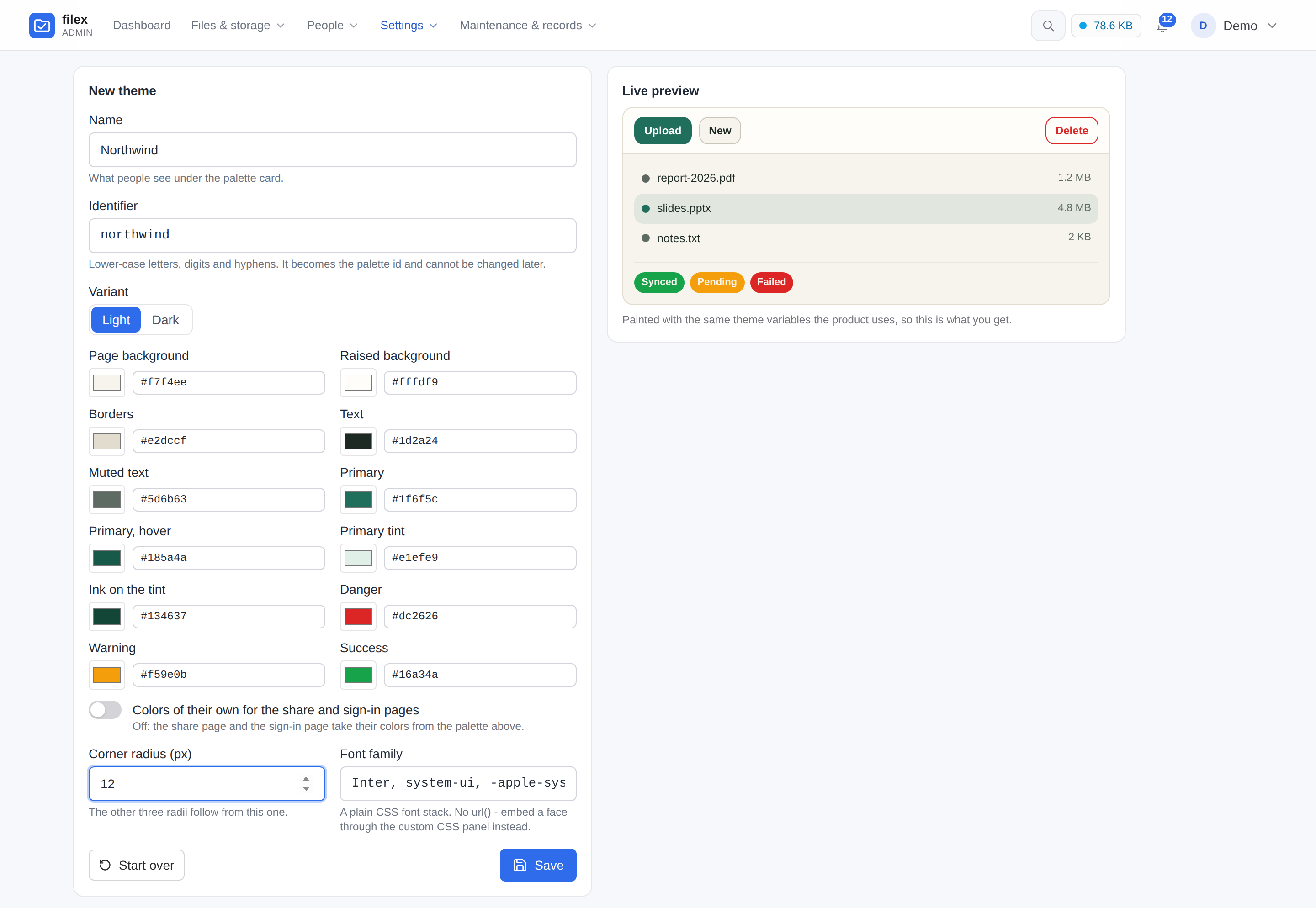
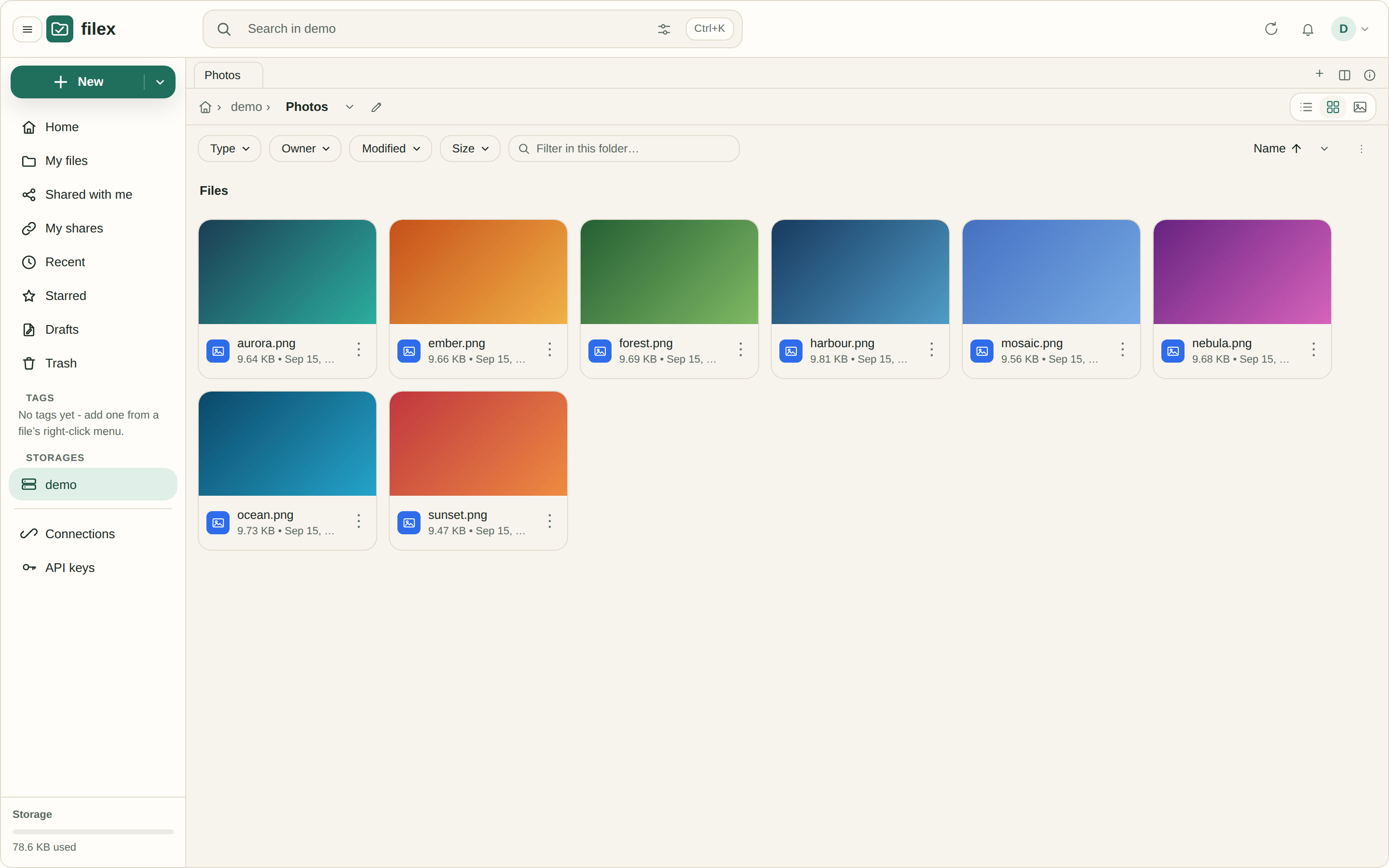
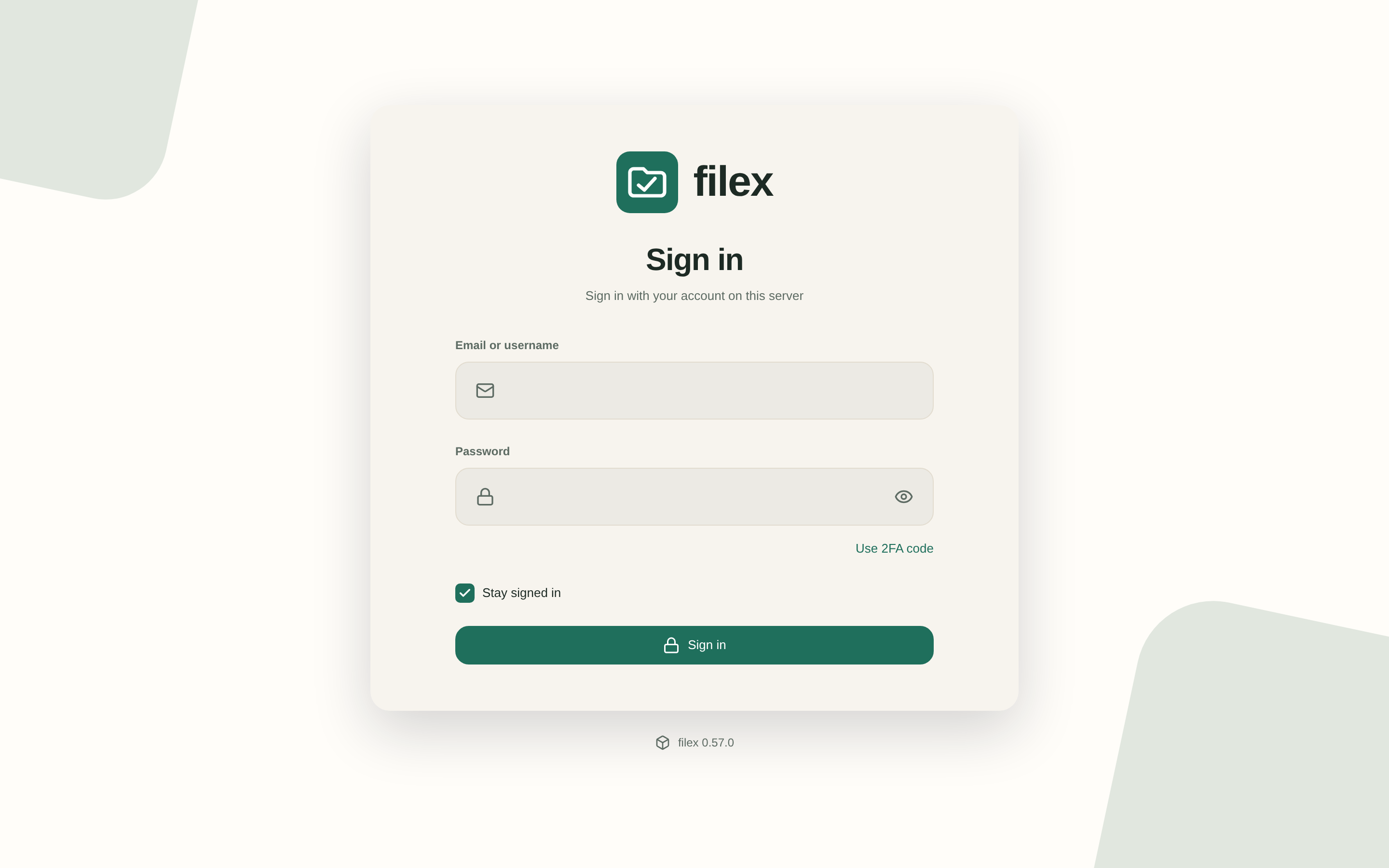
- Compose a theme in your own colours and make it the default: the sign-in page and every public link use it too, and a phone installs the web app under your instance's name and logo.
- English and Turkish are built in, other languages install as packs, and the interface turns right to left for the languages that read that way.
Every explorer feature in full: docs/FEATURES.md → The explorer.
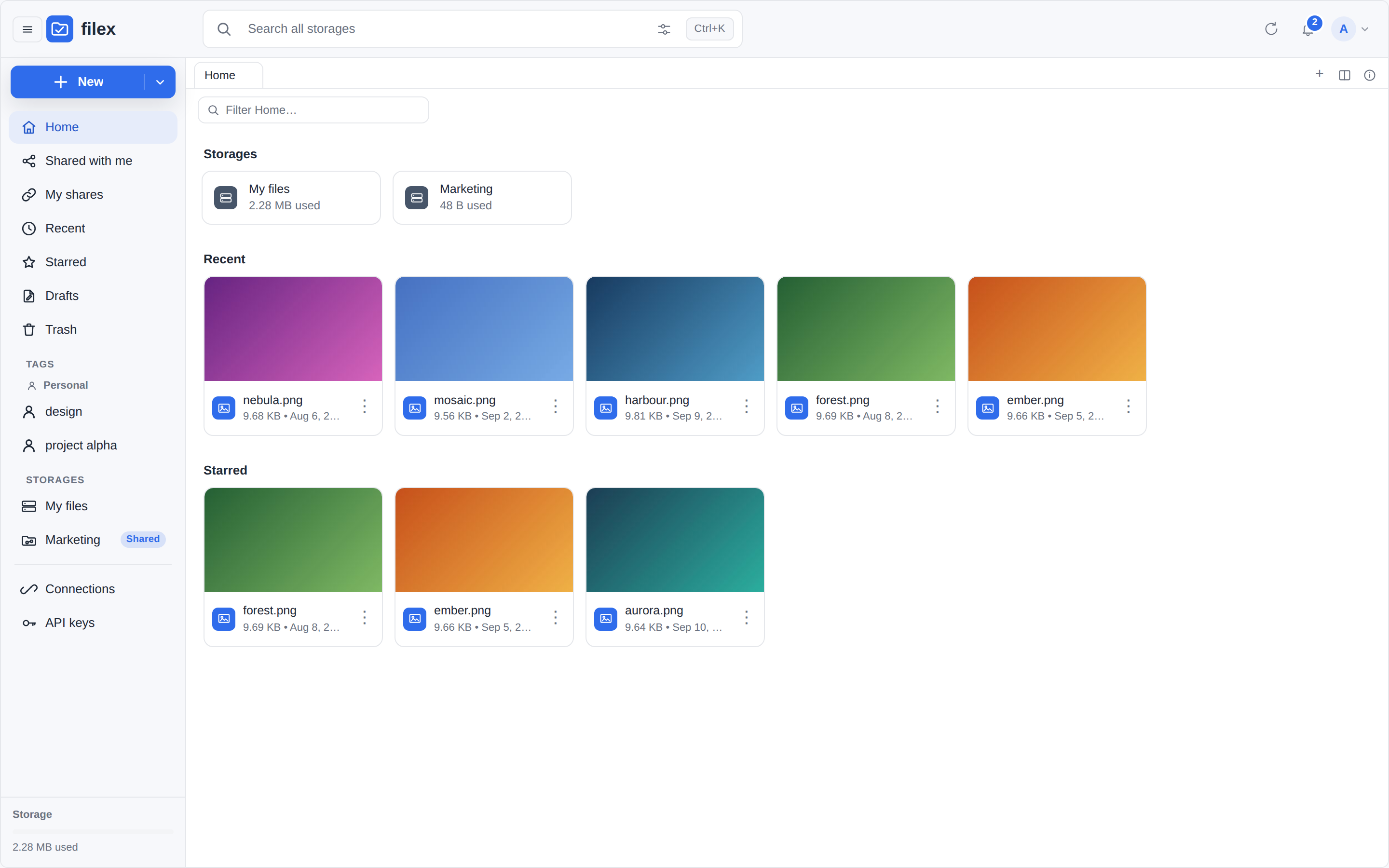
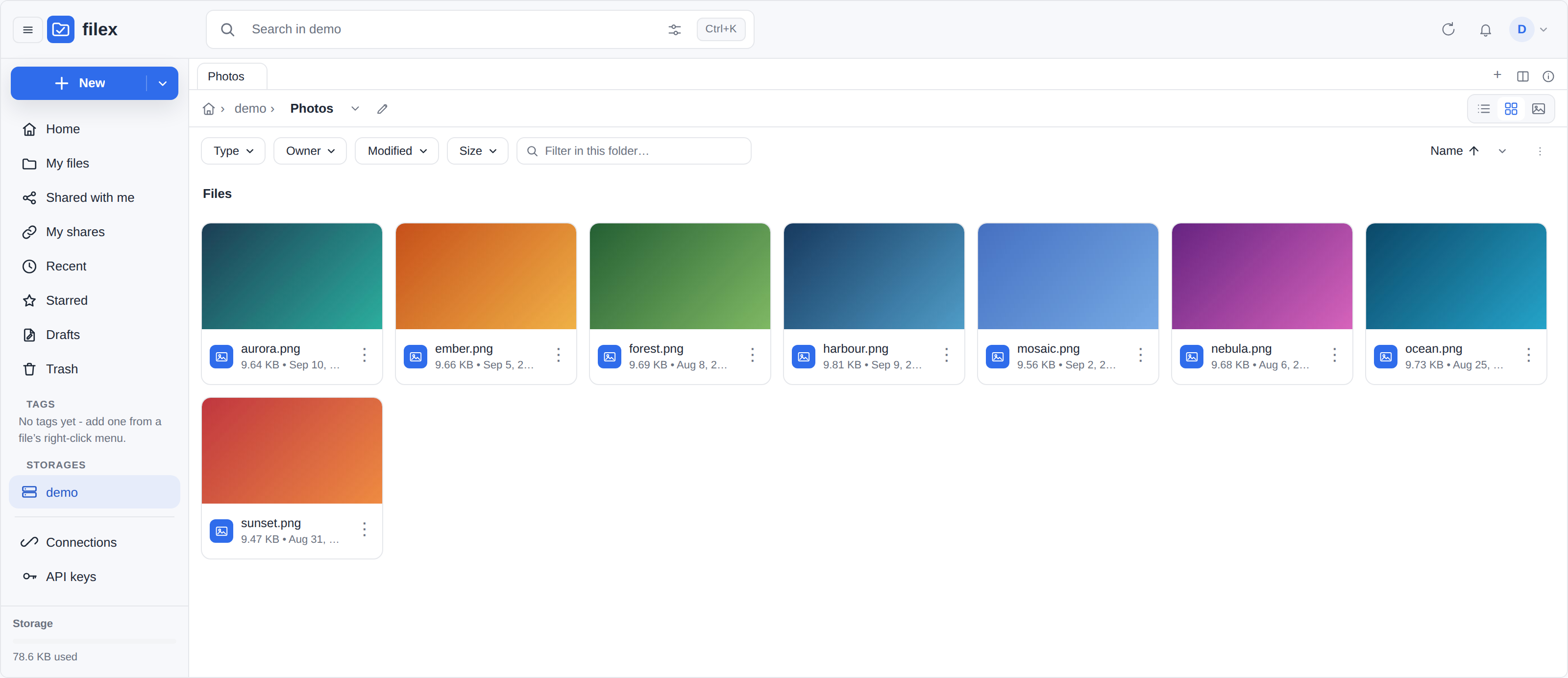
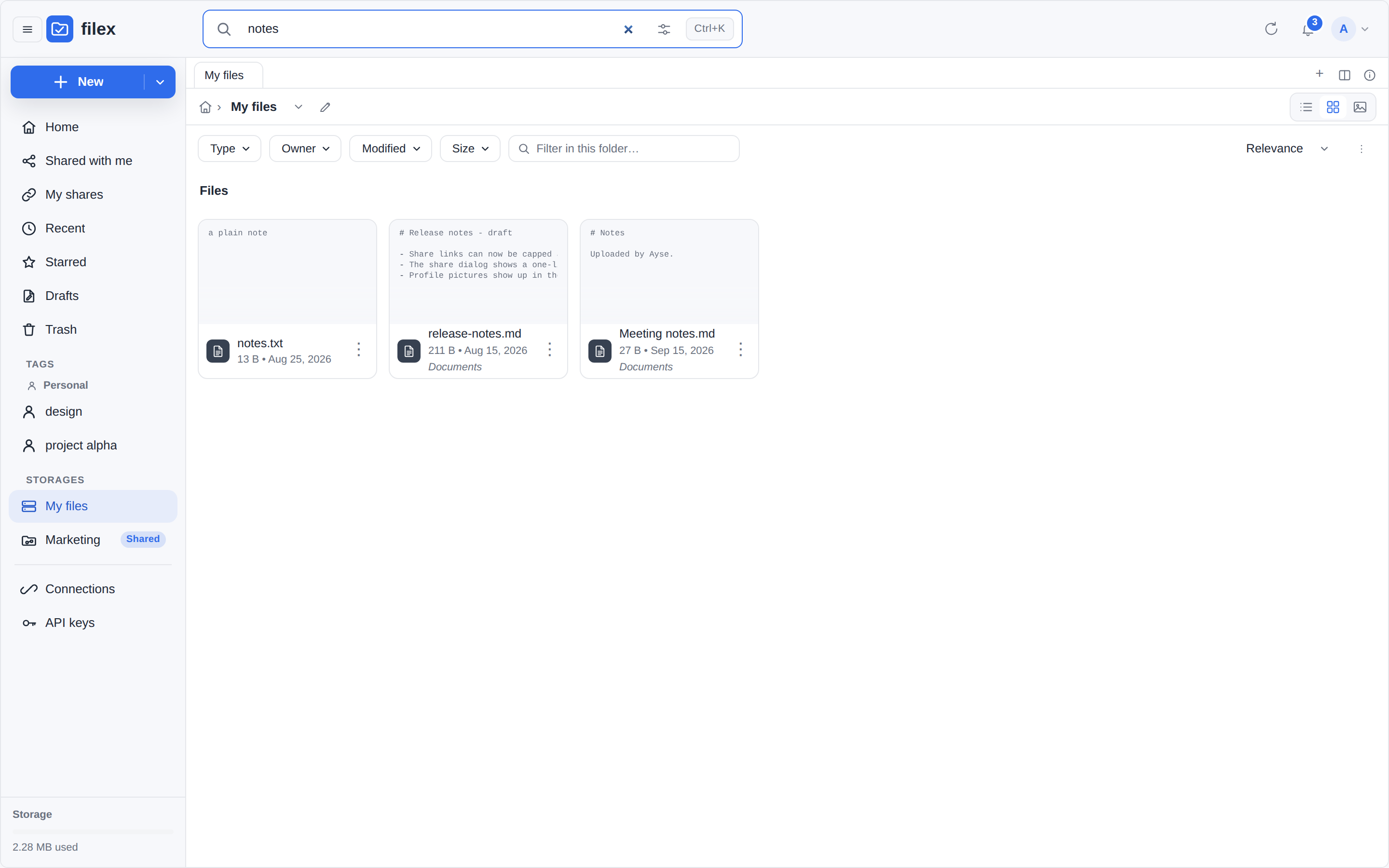
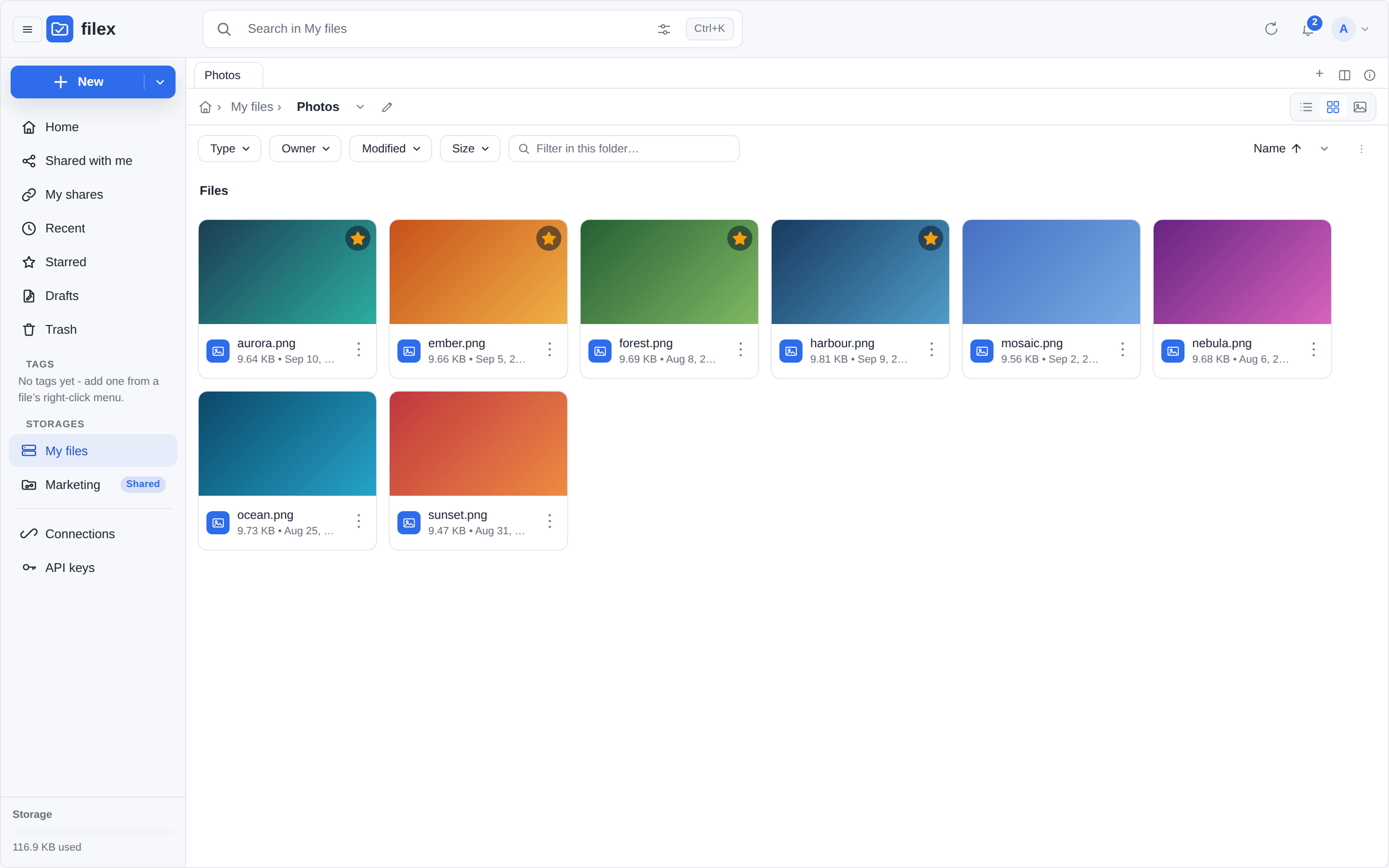
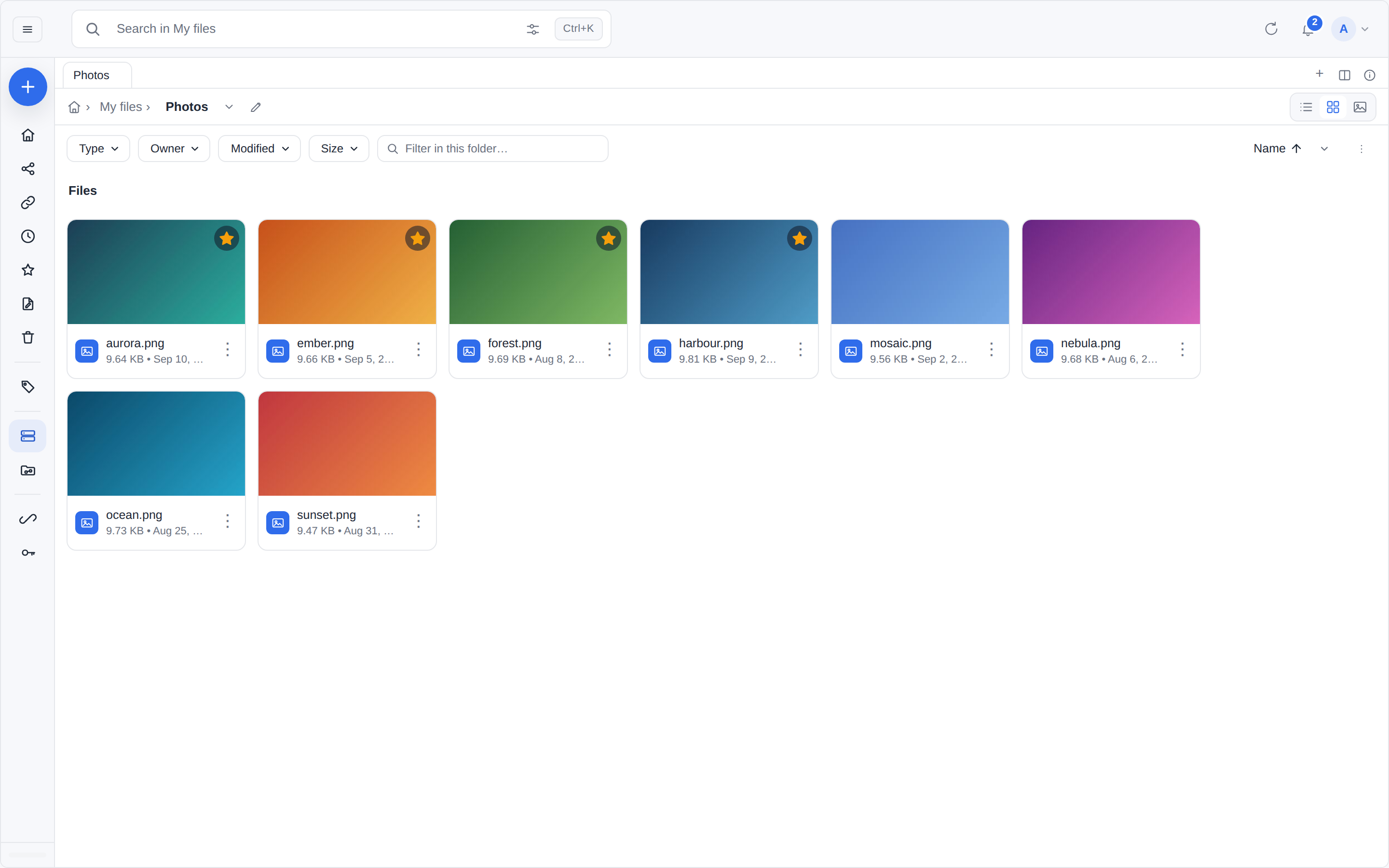
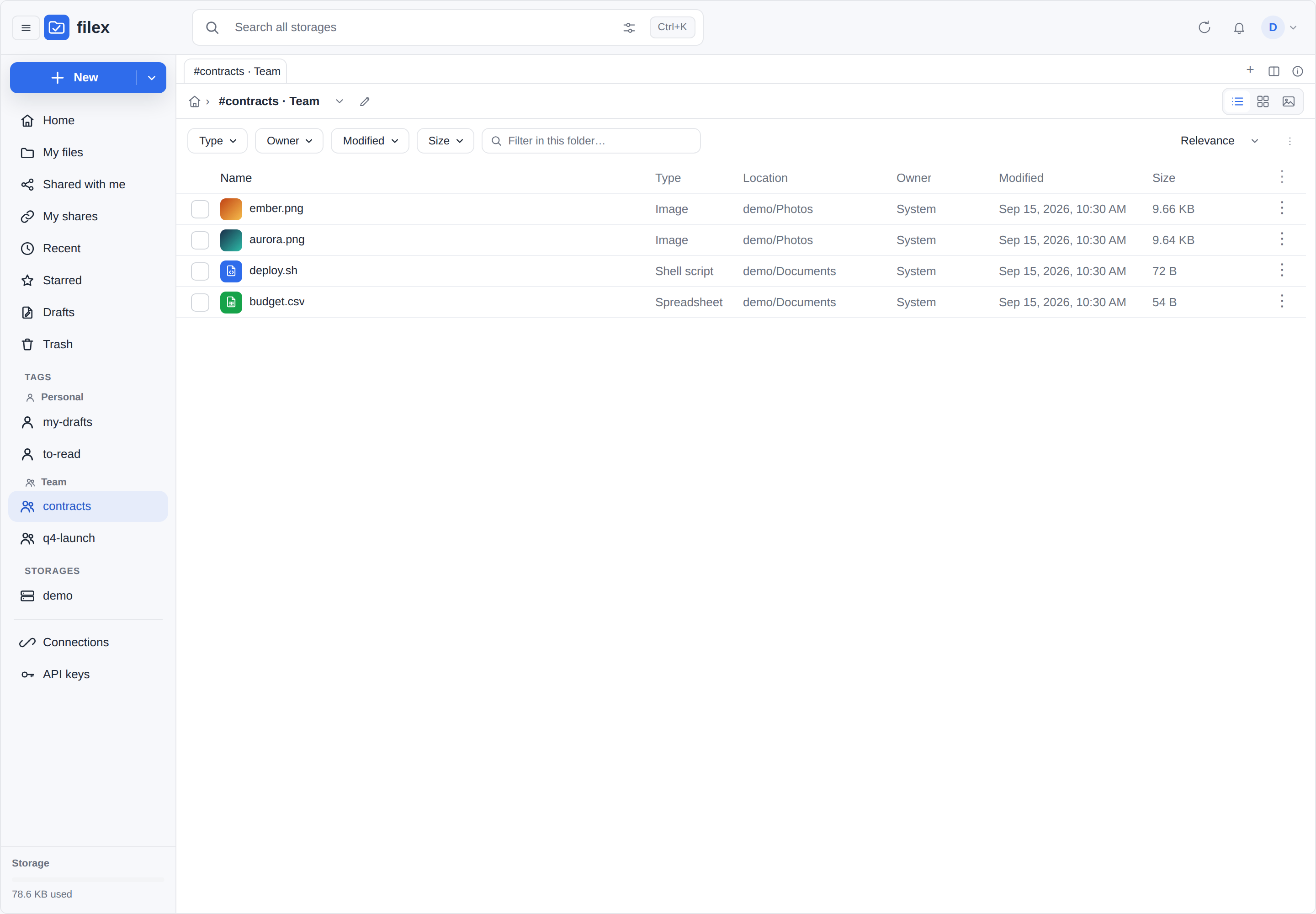
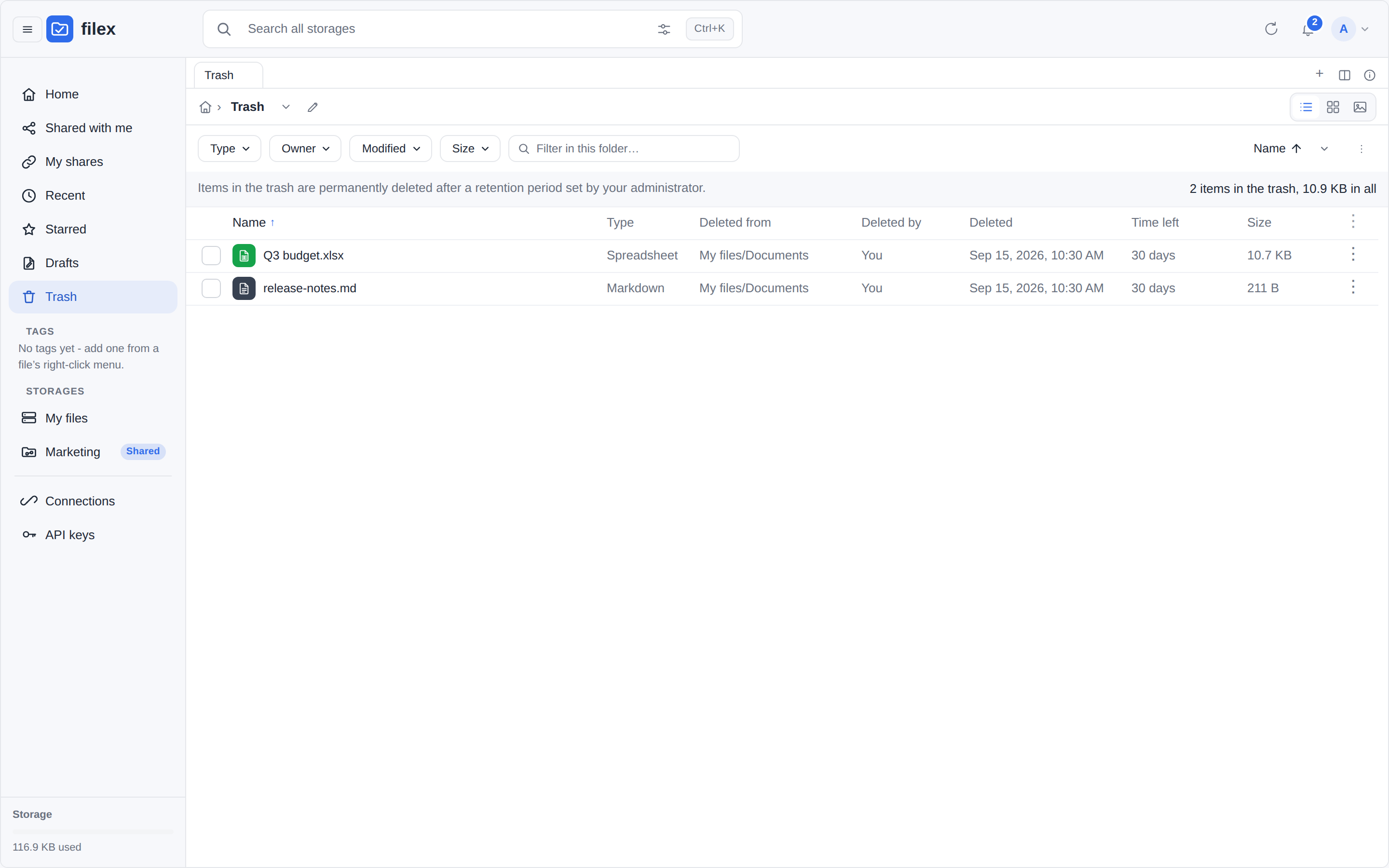
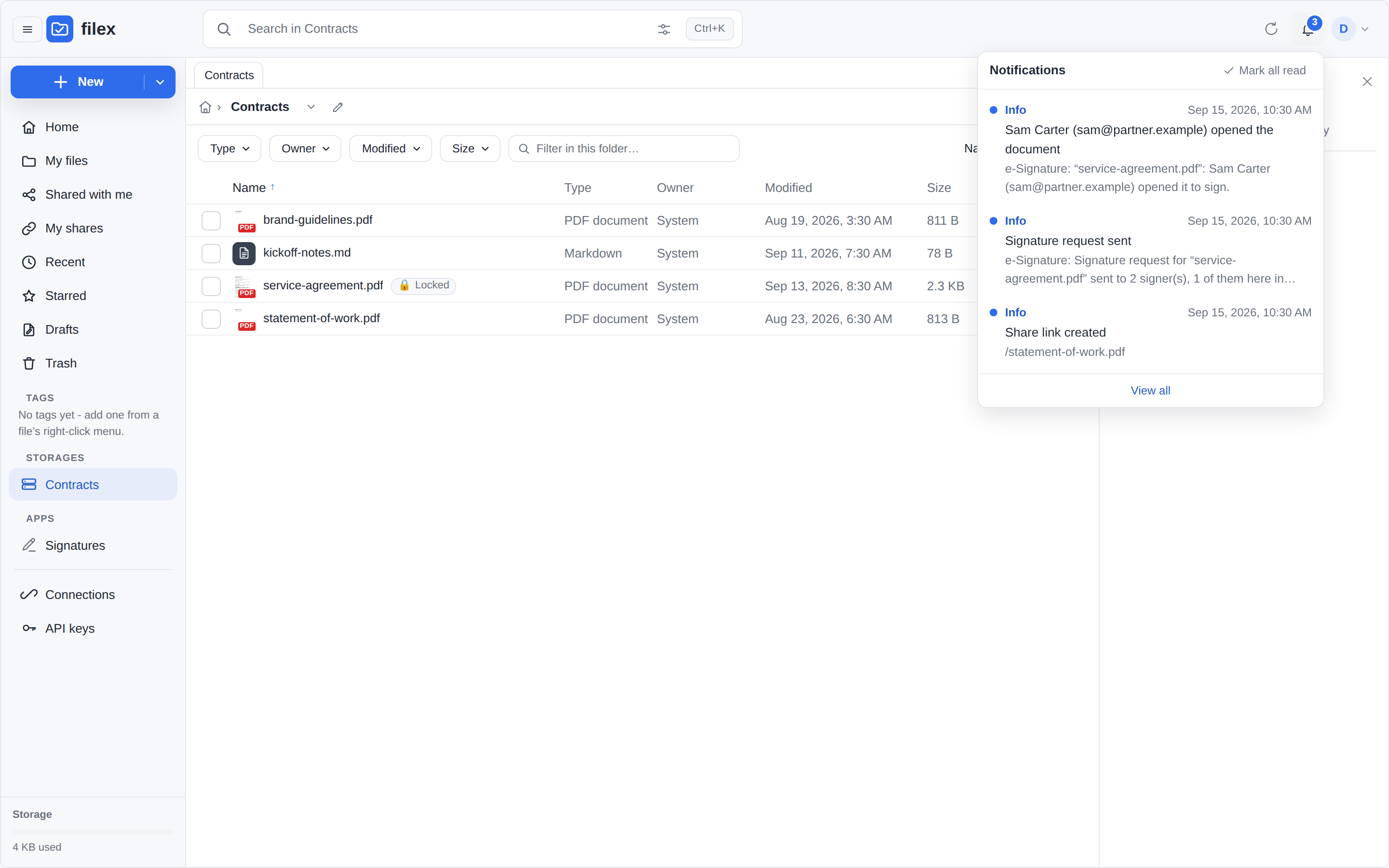
Screenshots of the explorer - the shell, search, navigation, tags, the trash, the bell, themes, symlinks, CSV in ONLYOFFICE
|
The shell - what everybody lands on |
Searching this folder; |
|
Navigation panel - Home, Shared with me, My shares, Recent, Starred, Trash, and the storages you can reach |
Collapsed to the icon rail |
|
Tags - your own, or your team's; a tag opens every file carrying it, from every folder they live in |
Trash - what was deleted, where it came from, and how long is left before it goes |
|
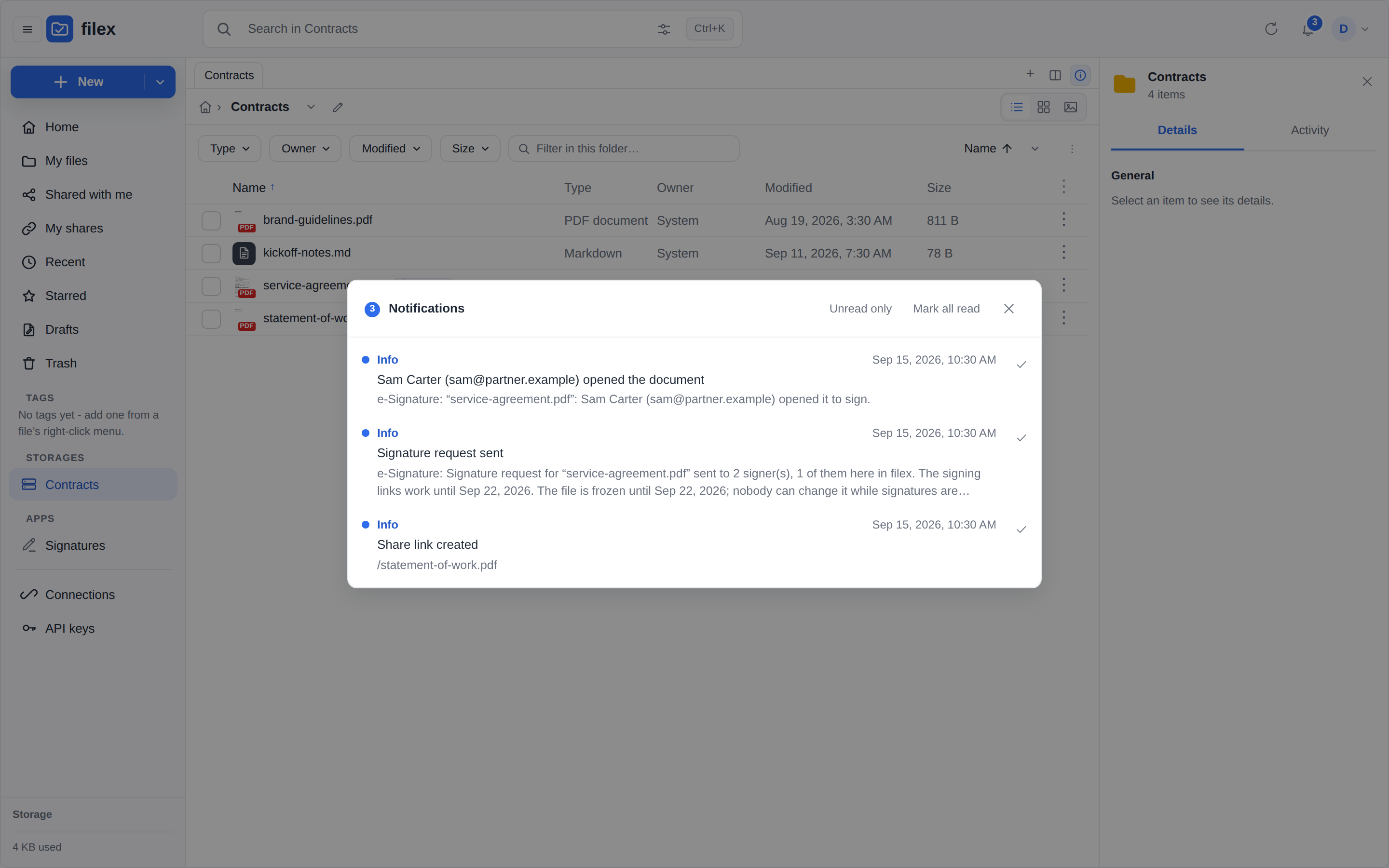
The bell - the unread count on it, every row going where it says |
All of your notifications, inside the explorer - for everybody, not only administrators |
|
Appearance - compose a theme in your own colours, previewed as you type |
Made the default, it is what everybody's explorer wears… |
|
…and the sign-in page, before anybody has signed in |
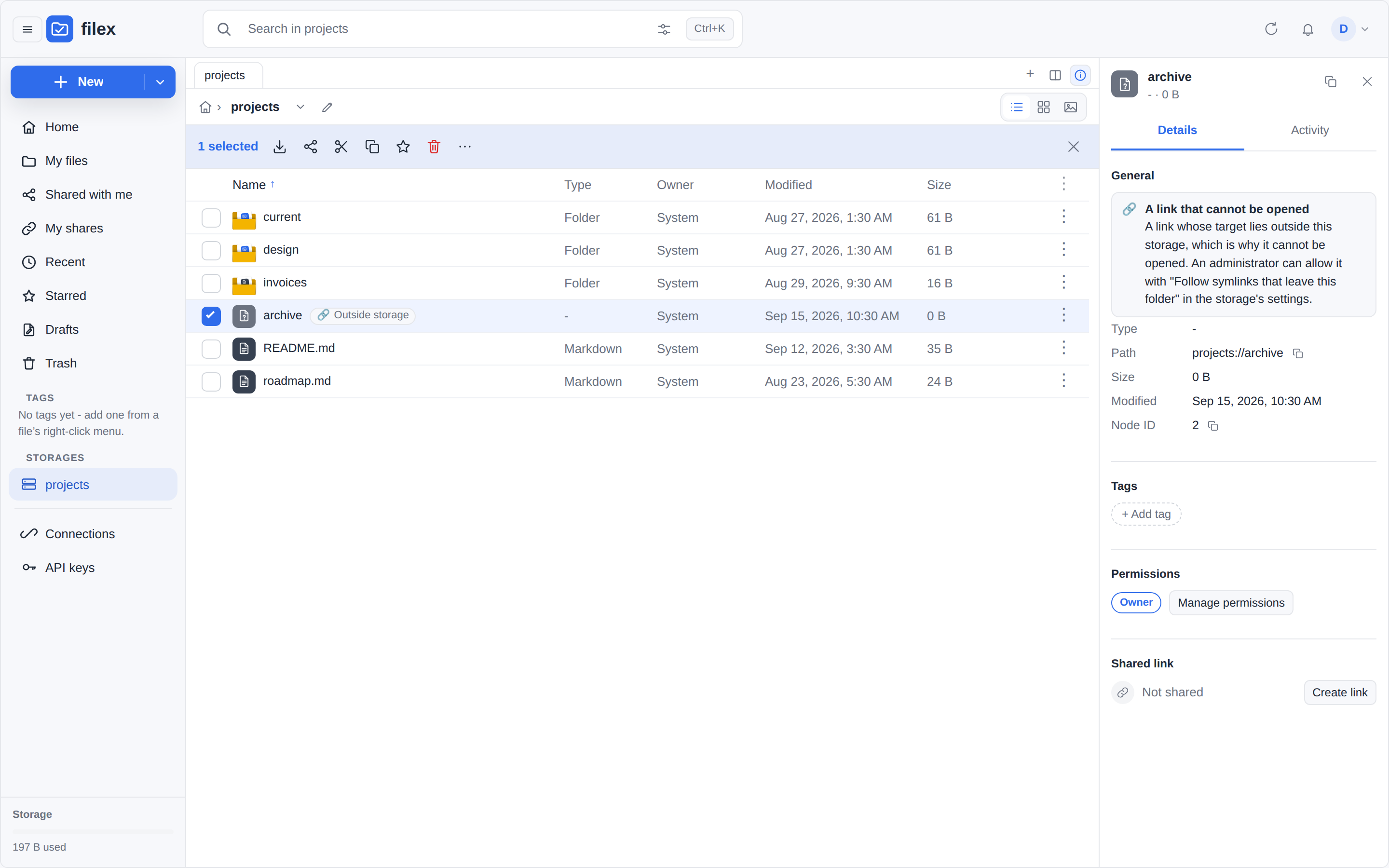
A symlink filex will not follow says so - in the listing, and in words in its details |
|
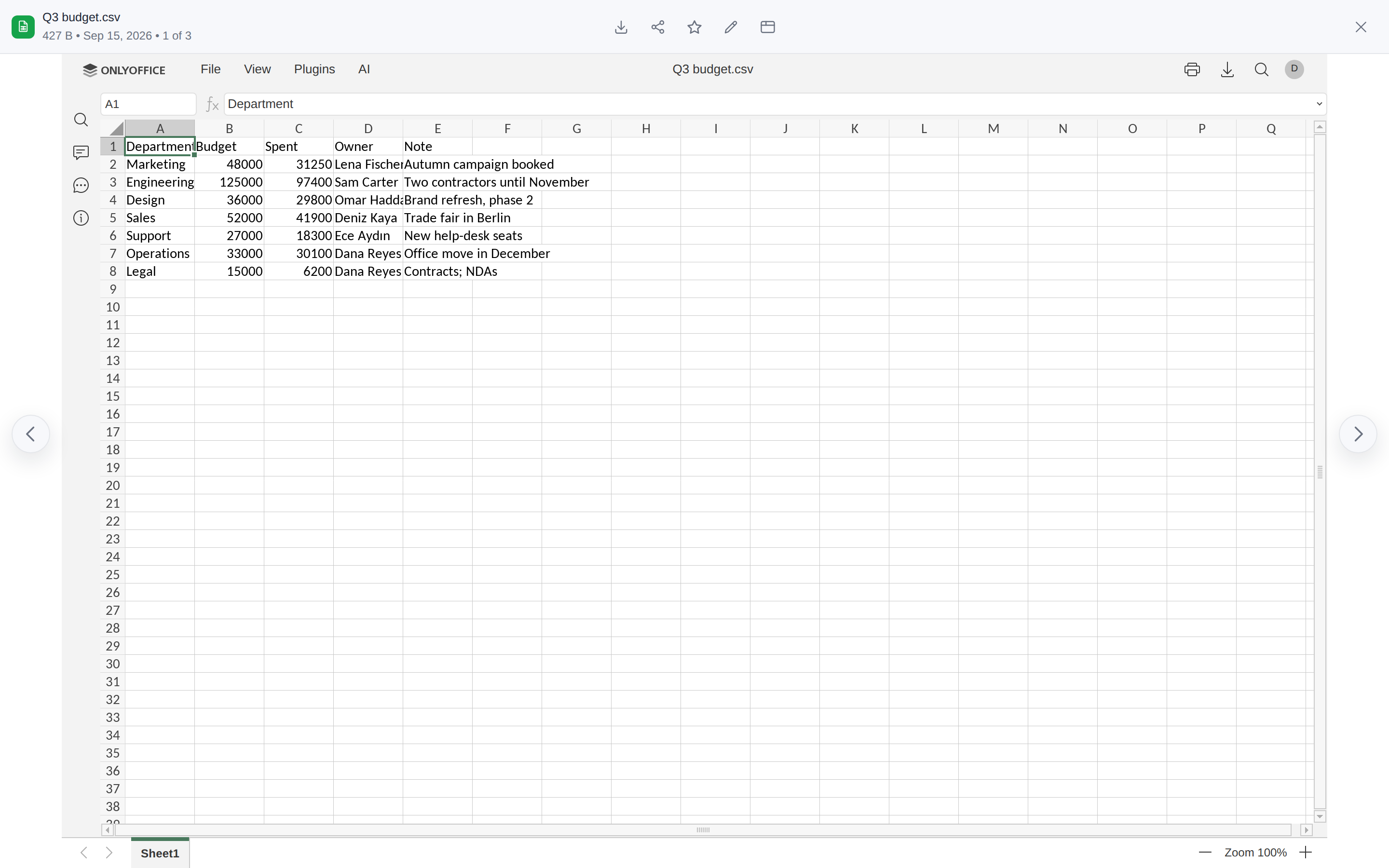
A |
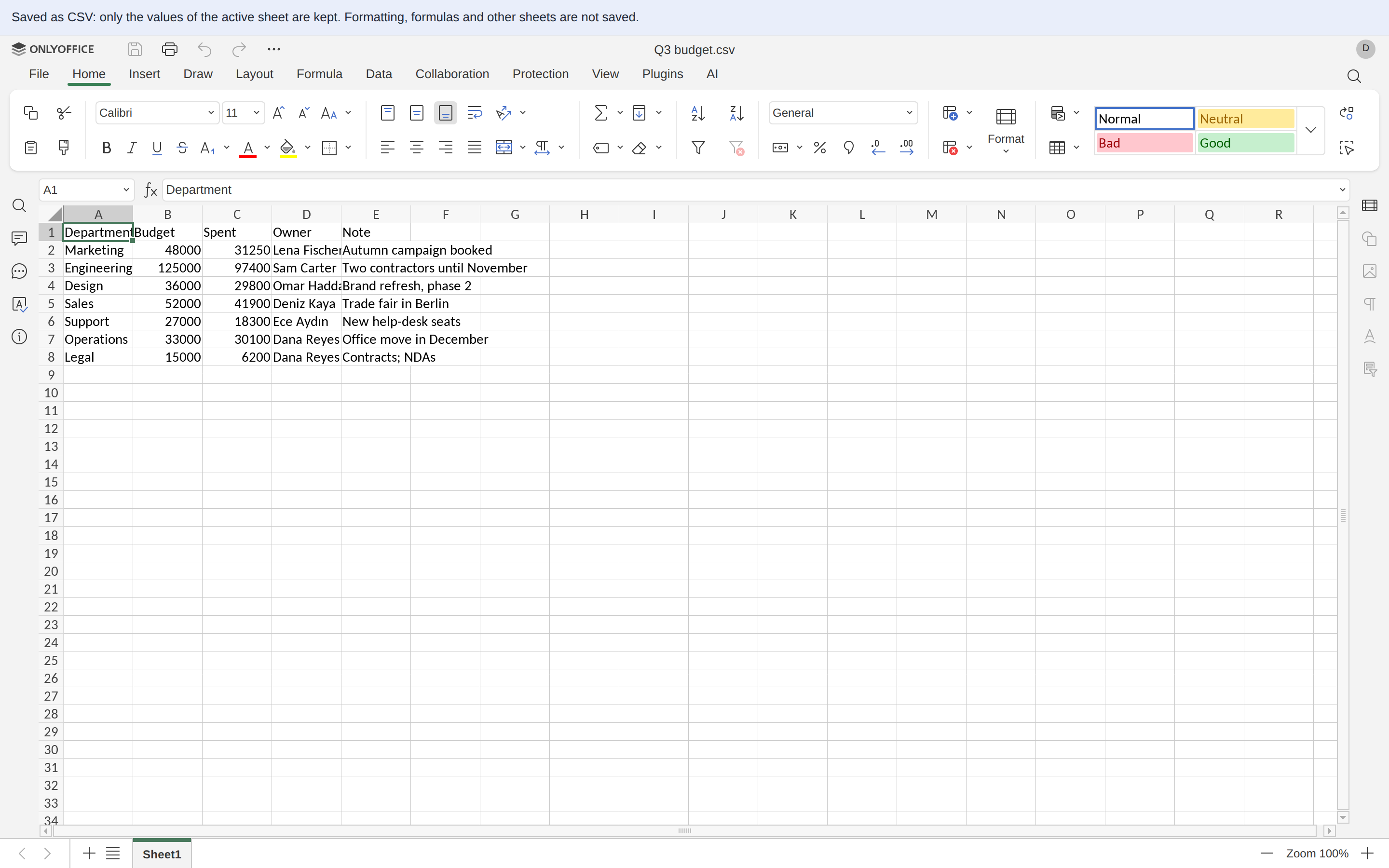
…and its editor, which says what a save as CSV keeps; the file goes back as the same kind of CSV, and the cells nobody changed keep their text - |
Every storage in one tree, and that tree reachable from anything.
- Mount local disks, S3, FTP, SFTP, WebDAV and SMB/NAS shares side by side, and copy or cut in one and paste in another.
- Reach the same tree as S3, SFTP, FTPS, NFSv3 and WebDAV: point
rclone,restic,aws s3, WinSCP or FileZilla at it. The same filex permissions (per person, group and folder), trash and quota apply as in the web UI; the POSIX bits and ACLs on the disk are not mapped to filex users. filex mountattaches a remote server over ordinary HTTPS: a folder on Linux, a drive letter on Windows (macOS is not supported).- For a storage filex does not ship, install a plugin from the admin panel or from an app store's link.
Every storage and protocol feature in full: docs/FEATURES.md → Storage and protocols.
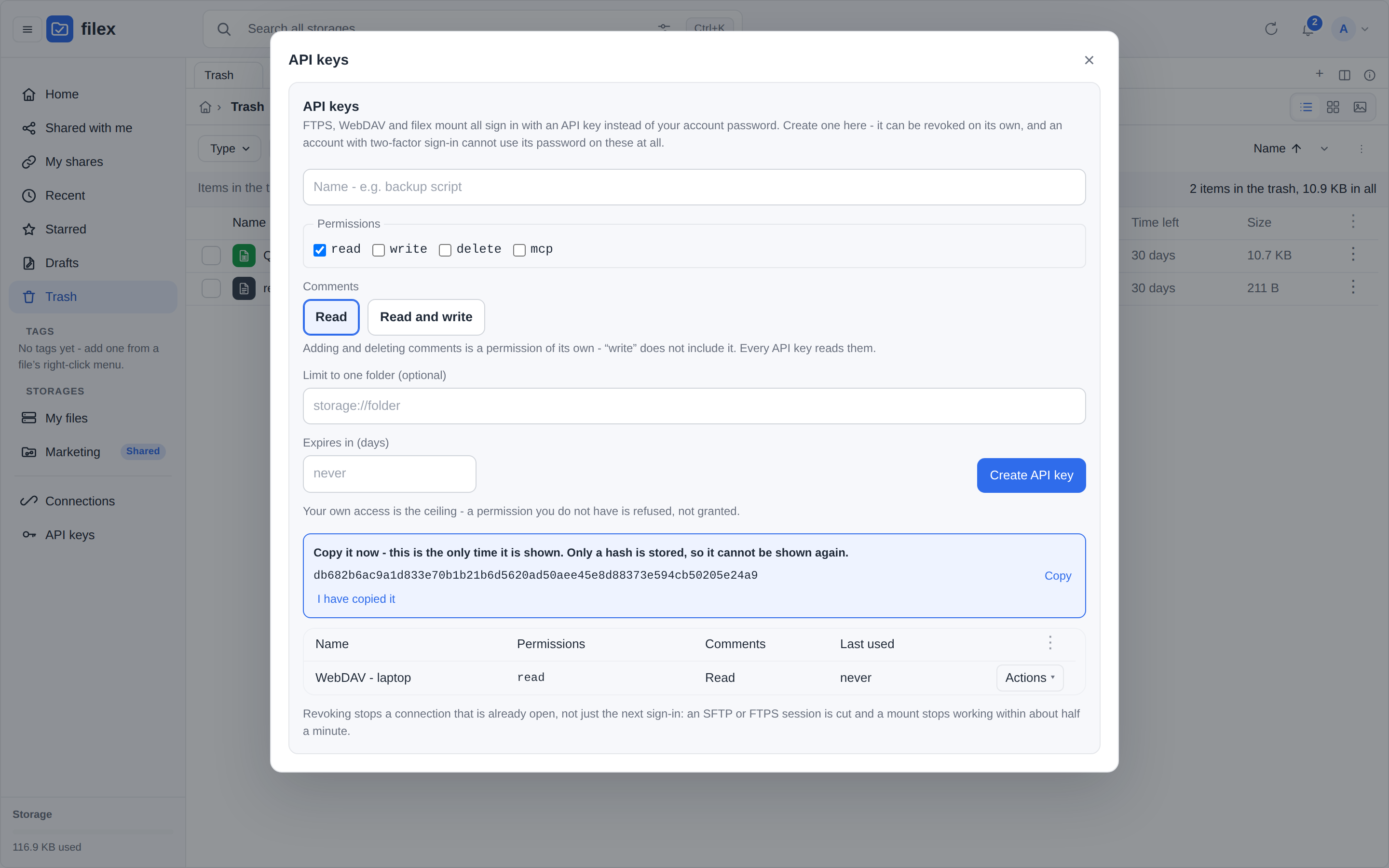
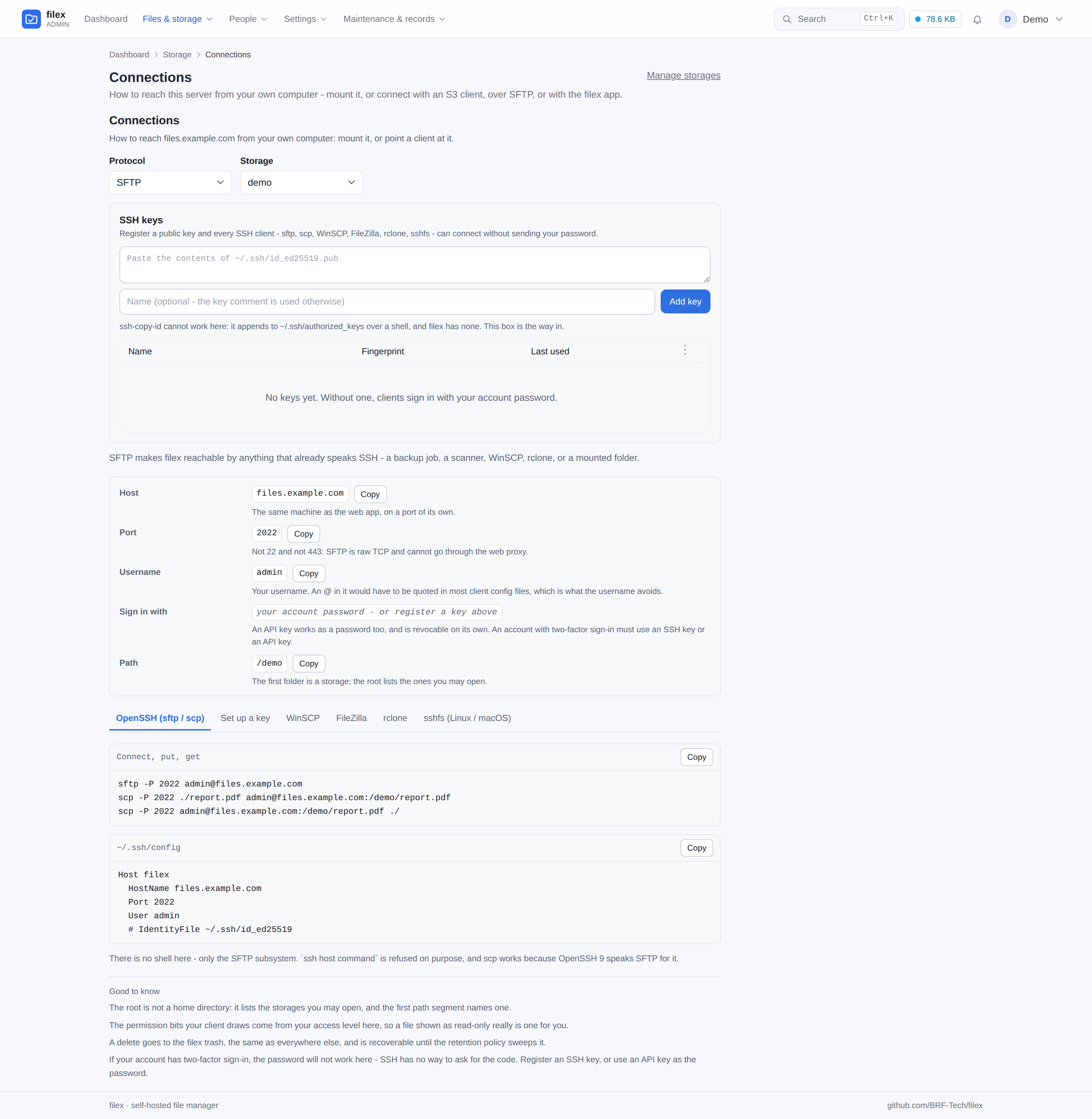
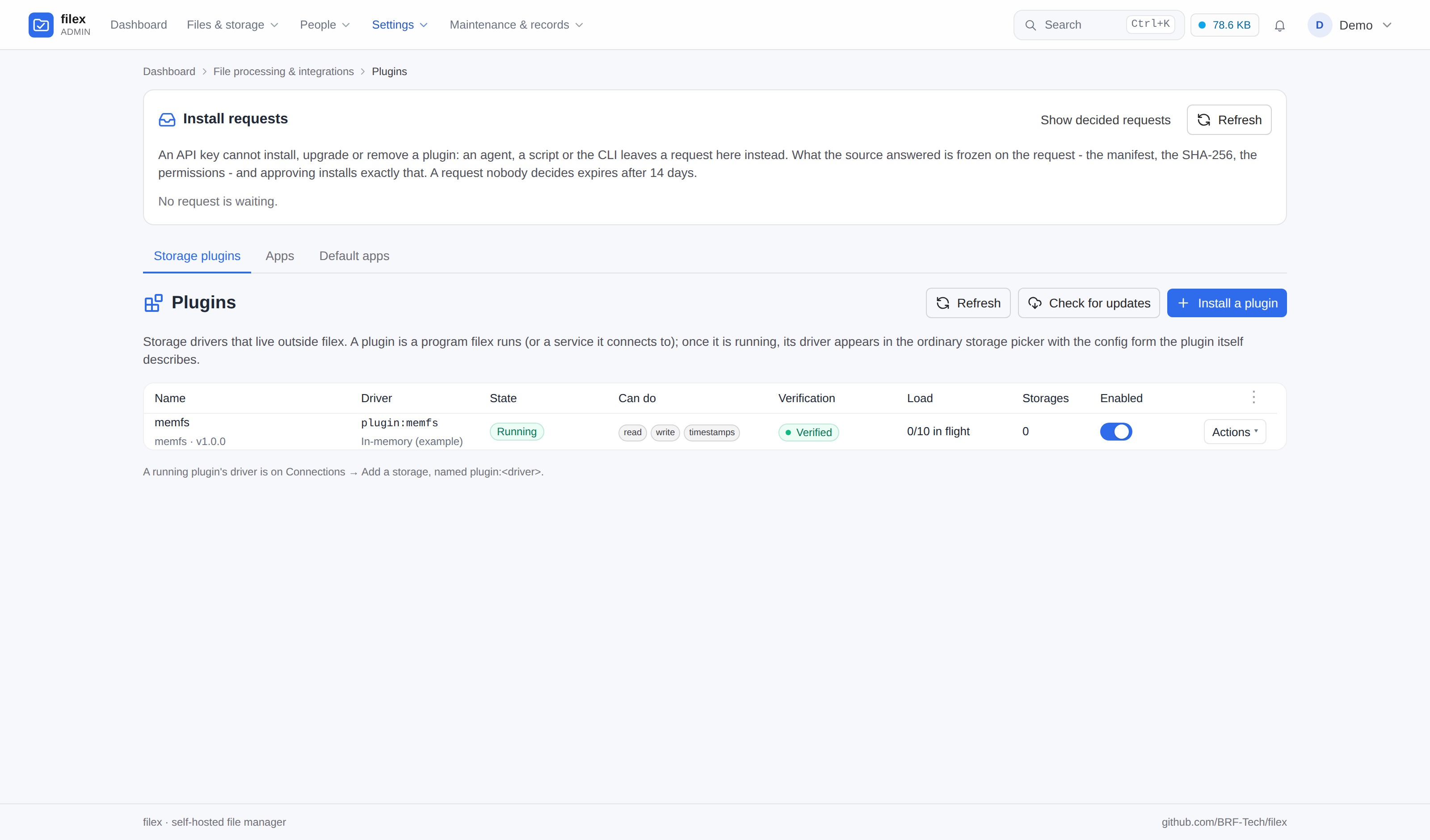
Screenshots of storage and protocols - the connection guides, API keys and a storage plugin
|
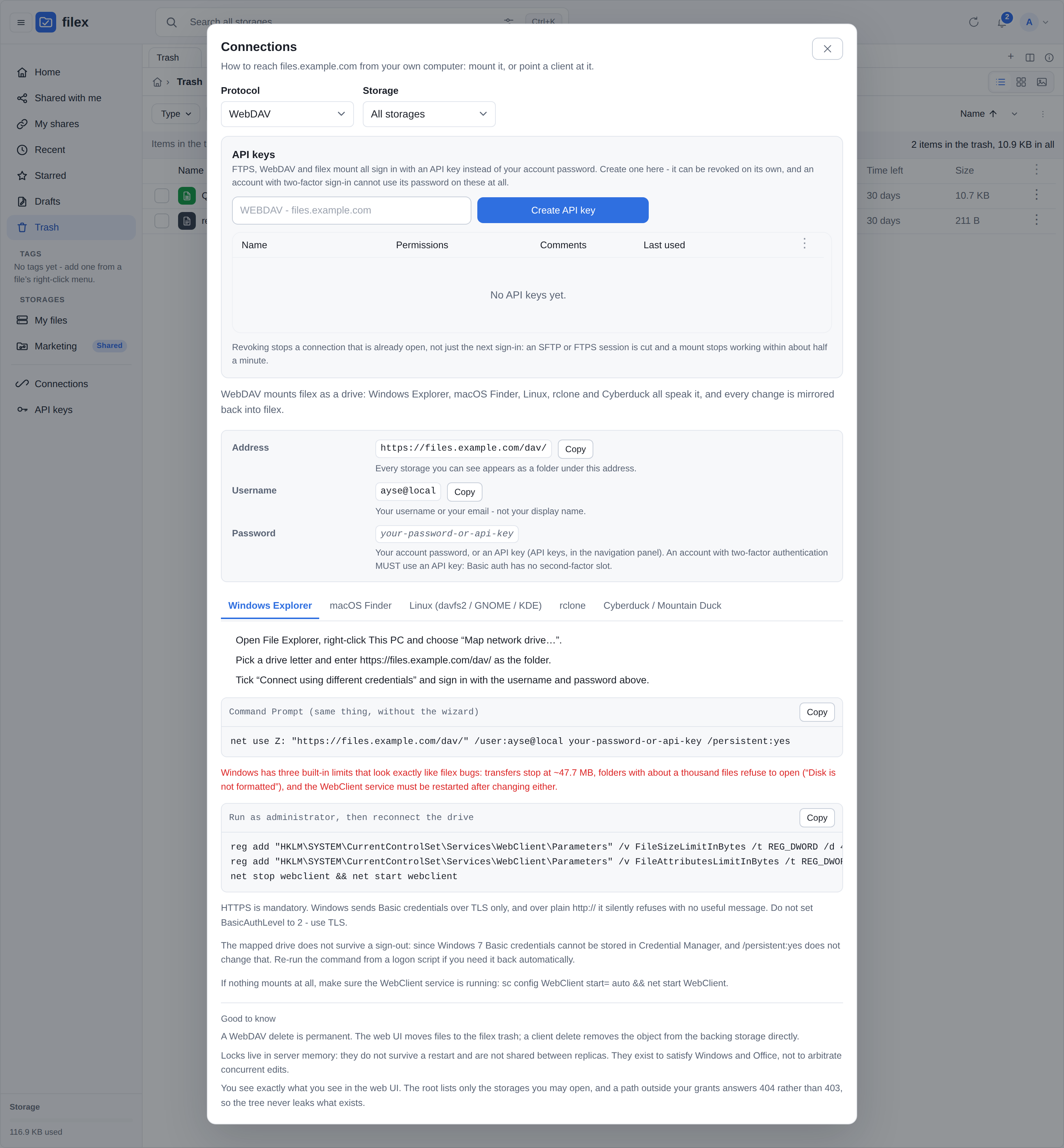
Connections - the guides, built from your deployment |
API keys - mint your own, in the explorer or in an embed (a person's session or token; an embed proxied with one shared app token does not get this entry) |
|
Reaching filex from anything - S3, SFTP, FTPS, NFS, WebDAV. Every command is built from your deployment |
A storage filex does not ship - installed as a plugin on Plugins → Storage plugins, describing its own config form |
Share with a link you can limit and revoke. Take back a wrong delete or a wrong overwrite.
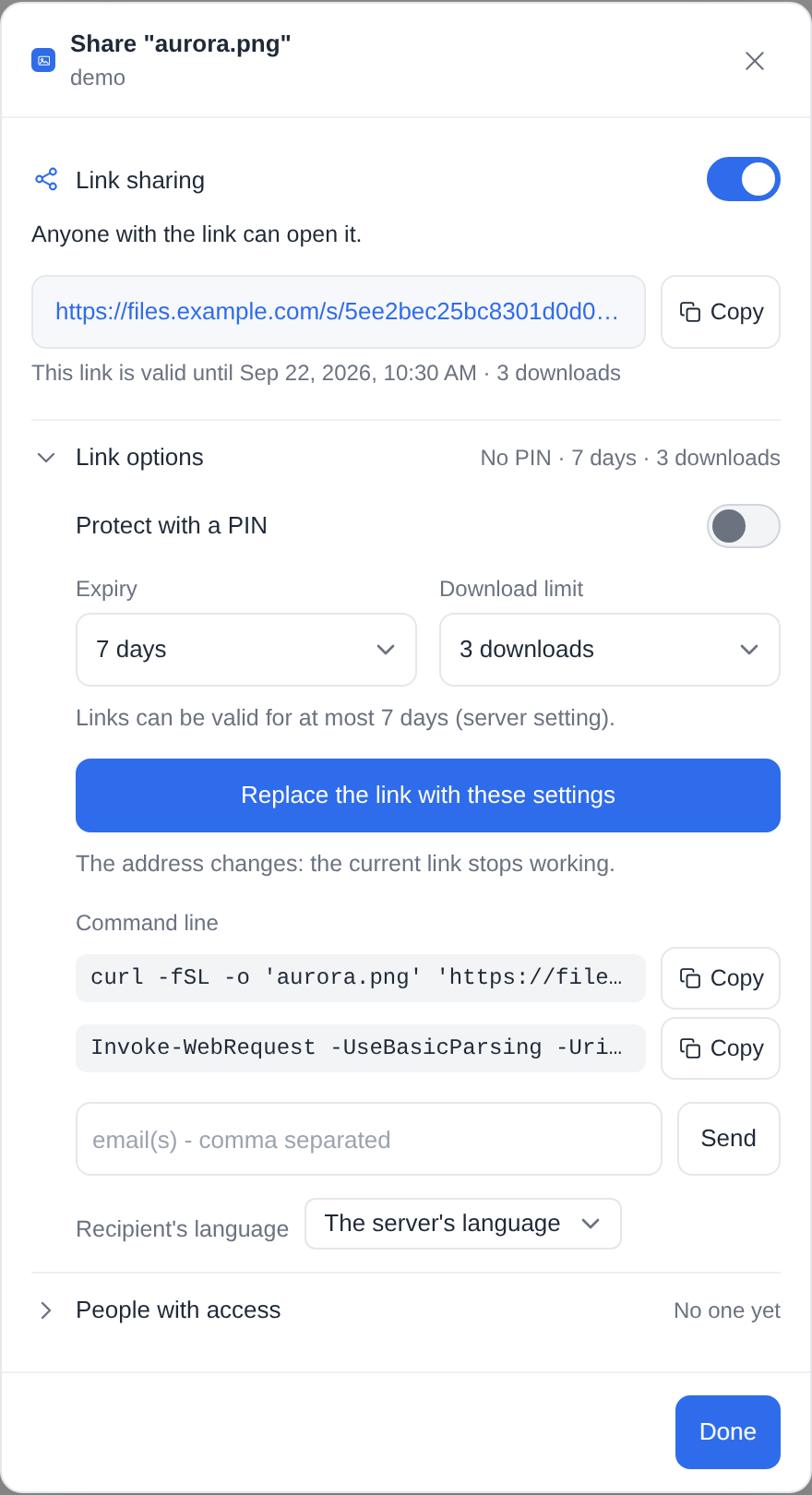
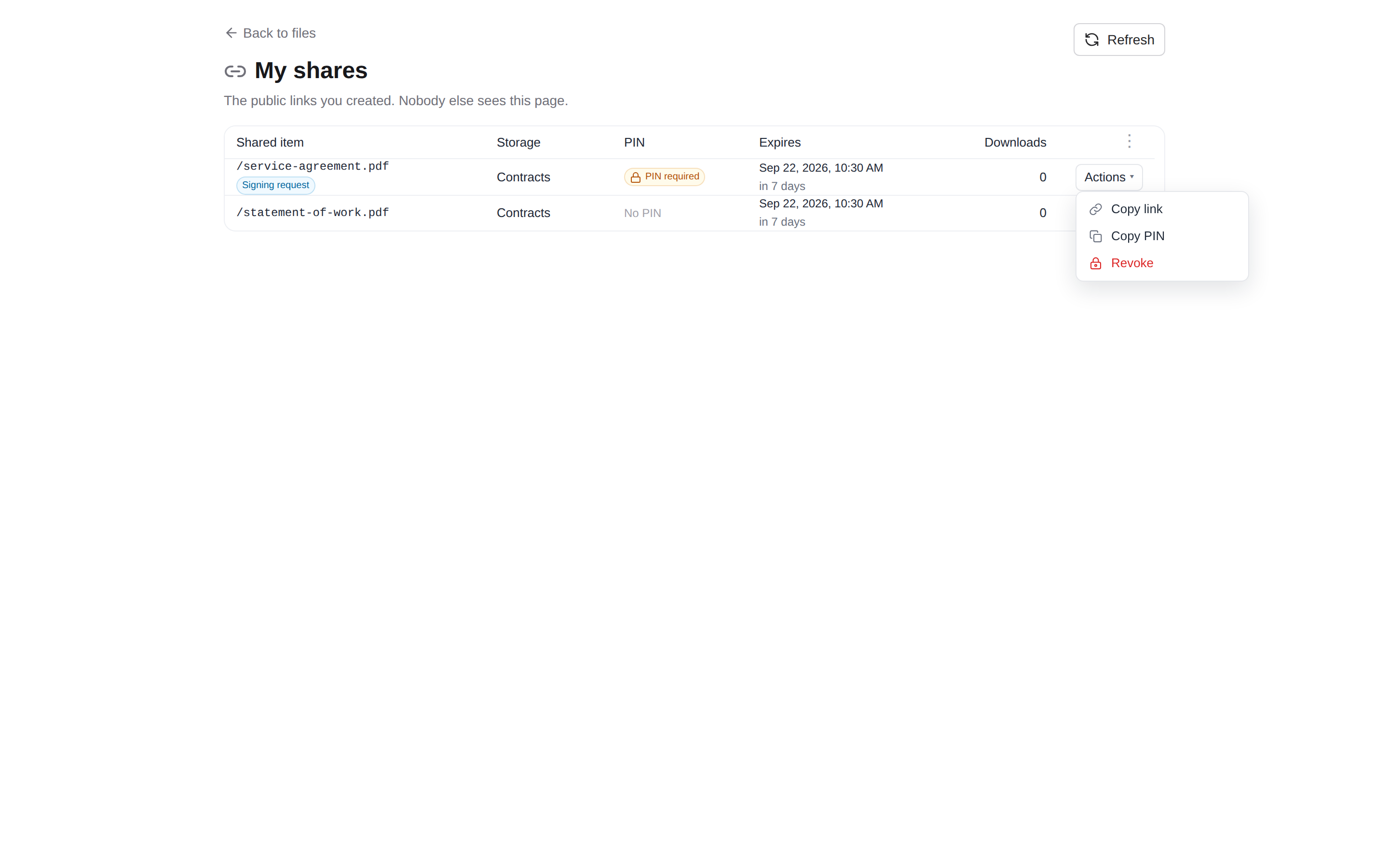
- Public links with a PIN, an expiry and a download limit, and file requests for what should come in. My shares lists every link you created, to copy or to revoke.
- Share a folder with a person or a group and it appears under their Shared with me, or give them a whole storage from its Access section, on every protocol at once. The storage needs Per-item access control (RBAC) switched on, which it is not by default.
- Deletes are reversible within a retention window and writes keep snapshots, both inside the storage you already mounted.
- End-to-end encrypted folders: encrypted in the browser, and the server never receives a key. An app you allow edits such a file in your browser, which decrypts it for the app and encrypts what it saves. Optional ClamAV scanning of every file written.
Every sharing and protection feature in full: docs/FEATURES.md → Sharing and protection.
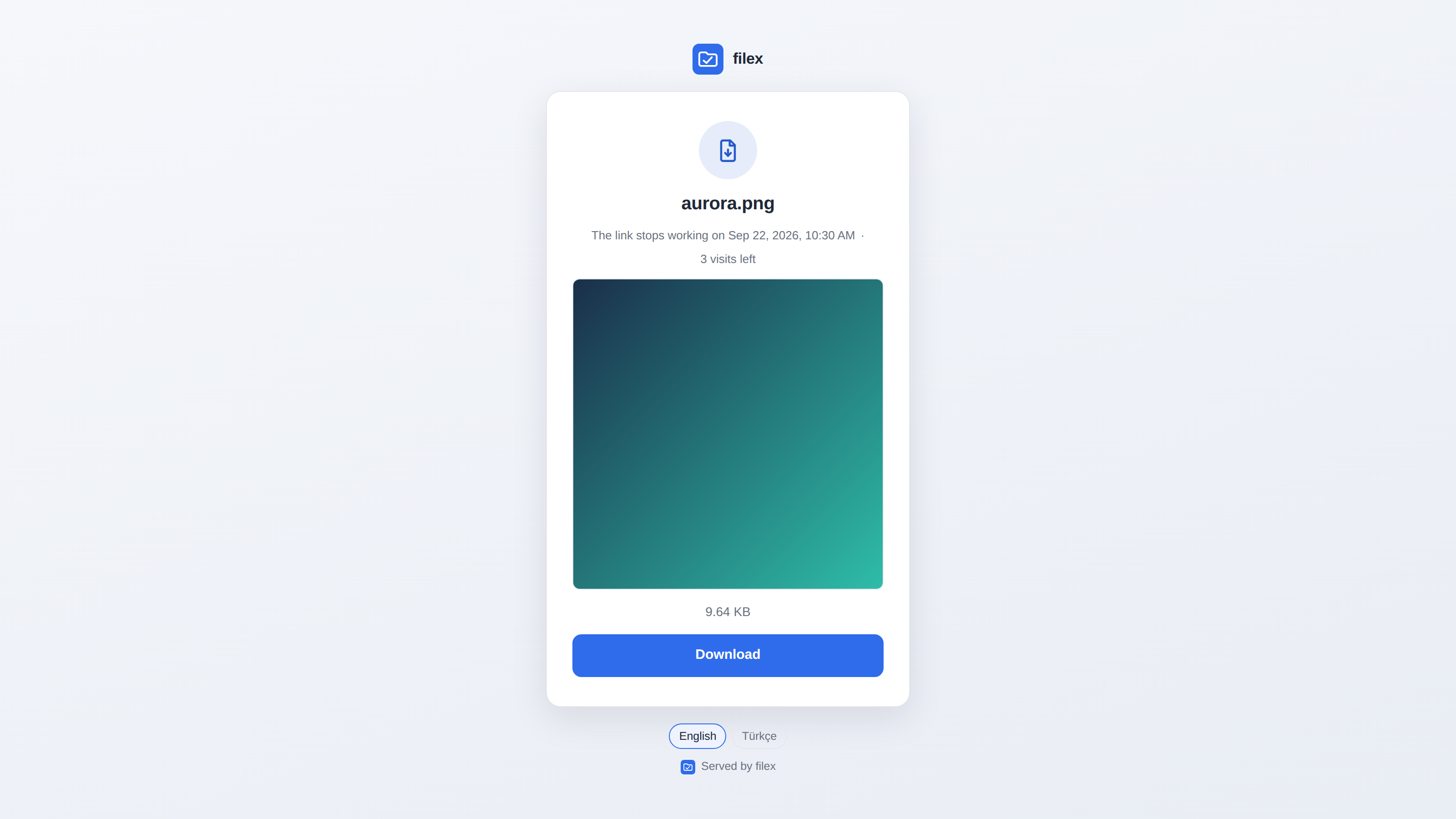
Screenshots of sharing and protection - the Share dialog, what the recipient sees, My shares, who may encrypt
|
Sharing - PIN, expiry, download limit, one-line |
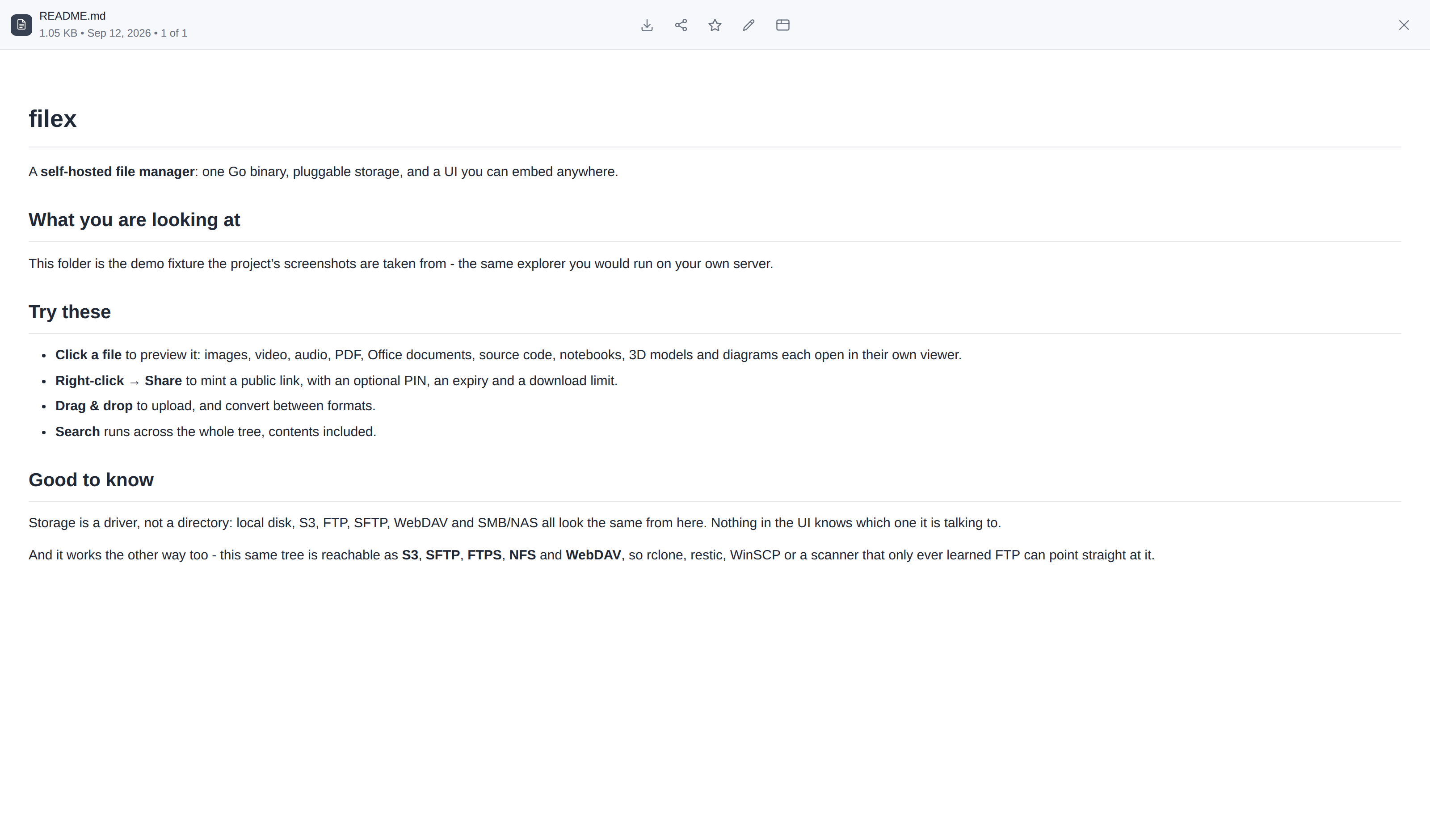
Markdown viewer |
|
…and what the person at the other end opens. filex has ONE outward-facing screen - a shared file, a folder, a file request, an app's signing page and the PIN in front of any of them are all this page, in your instance's name |
My shares - the links you created, and their PINs when you need to pass one on |
|
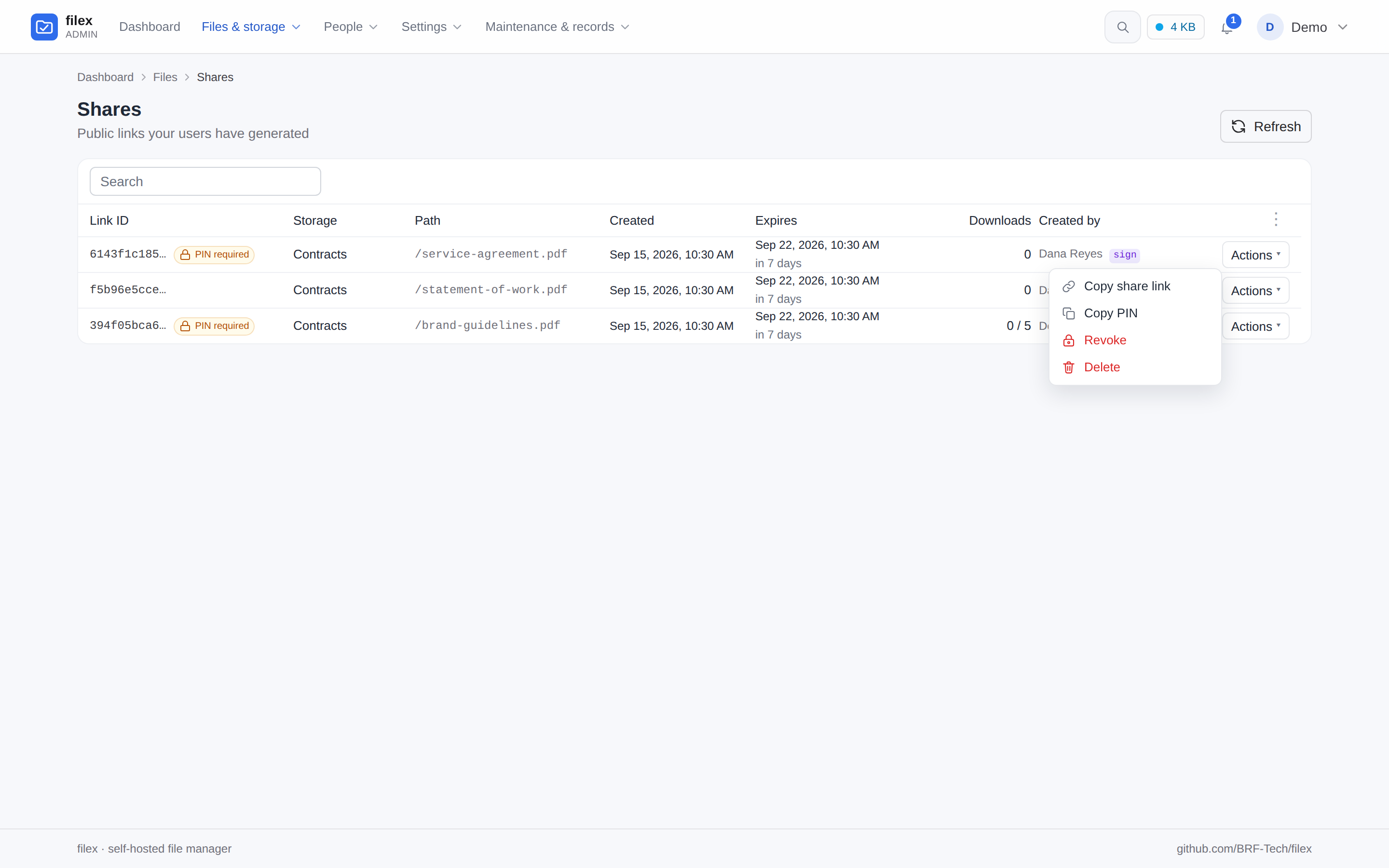
Every admin table - one pinned Actions menu per row, the same menu the explorer's ⋮ opens |
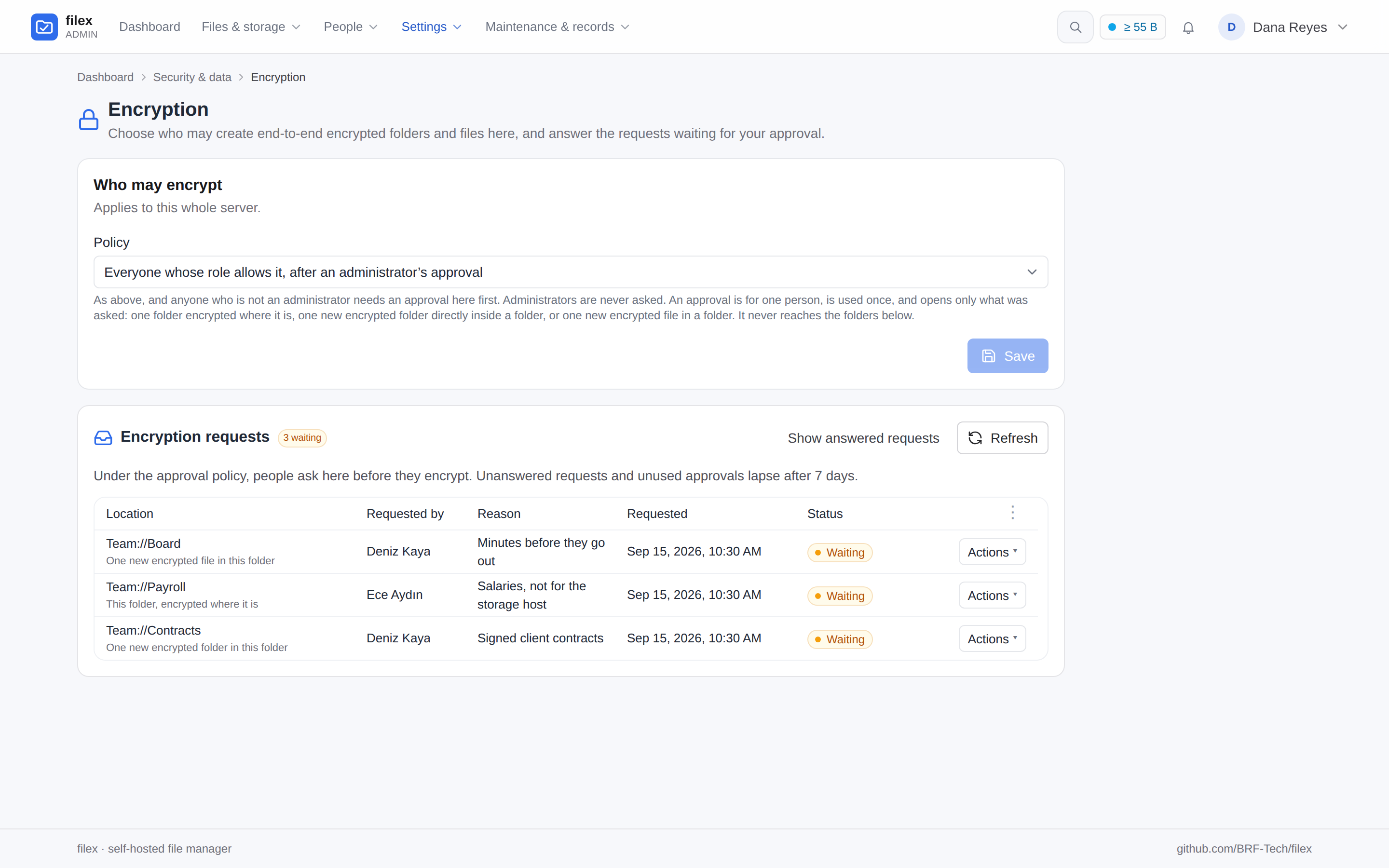
Who may encrypt - off, administrators only, everyone whose role allows it, or after an administrator's approval; the requests waiting, with who asked and why (who may encrypt) |
|
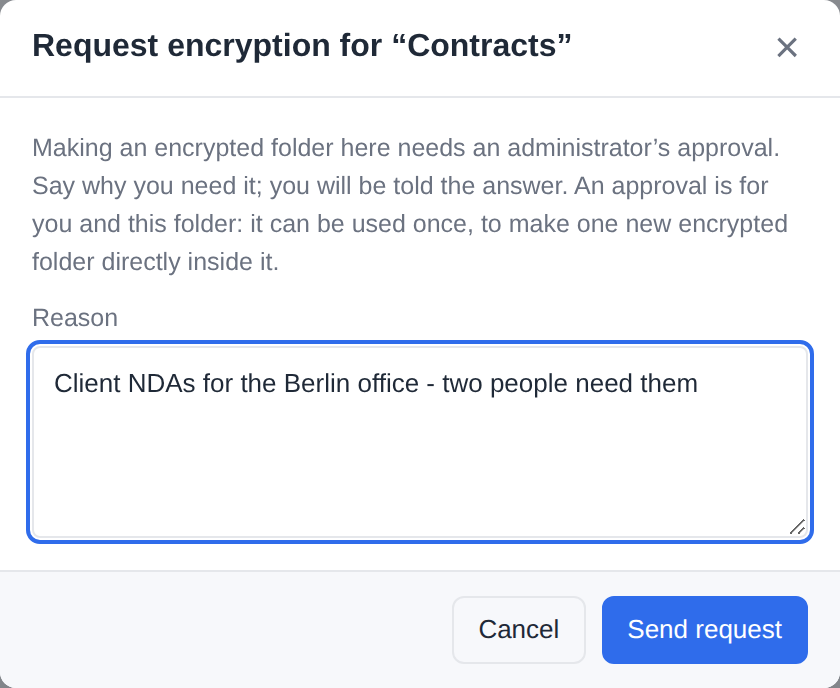
…and the person's side: the request the New folder dialog opens - one new encrypted folder, asked of an administrator with a reason |
The accounts people already have, and one role each.
- Sign in with a local password, OIDC, LDAP / Active Directory, an authenticating proxy, or the Windows or Linux account of the machine filex runs on.
- Everyone has one role - Administrator, User, Viewer or one of your own - built from named permissions. Groups carry folder access - up to a whole storage - and a role, can follow your directory's groups, and per-person exceptions beat the role.
- Guessing a password is slow: wrong passwords are counted per account and per address, on the web form, WebDAV, FTPS and SFTP alike.
- Multi-tenant by design, behind one switch: each tenant has its own sign-in providers, its own domain and certificate, and runs itself. Switched off, no screen shows a tenant.
Every feature for people and access in full: docs/FEATURES.md → People and access.
Screenshots of people and access - roles, groups, sign-in security, a locked account, the admin panel and its menu
|
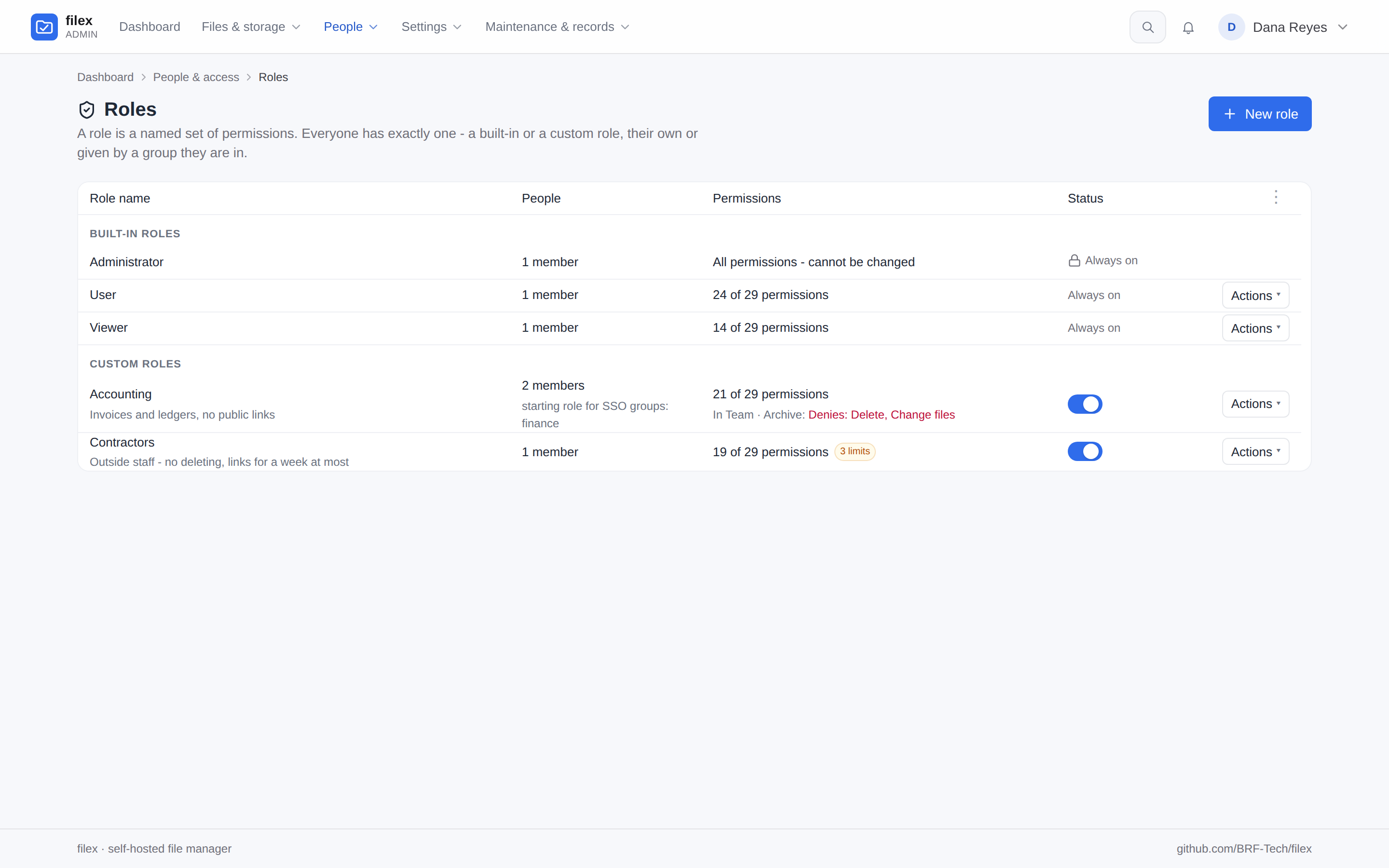
Roles - Administrator, User, Viewer and roles of your own: who holds each, what it allows, where it differs by folder, its limits (docs/PERMISSIONS.md) |
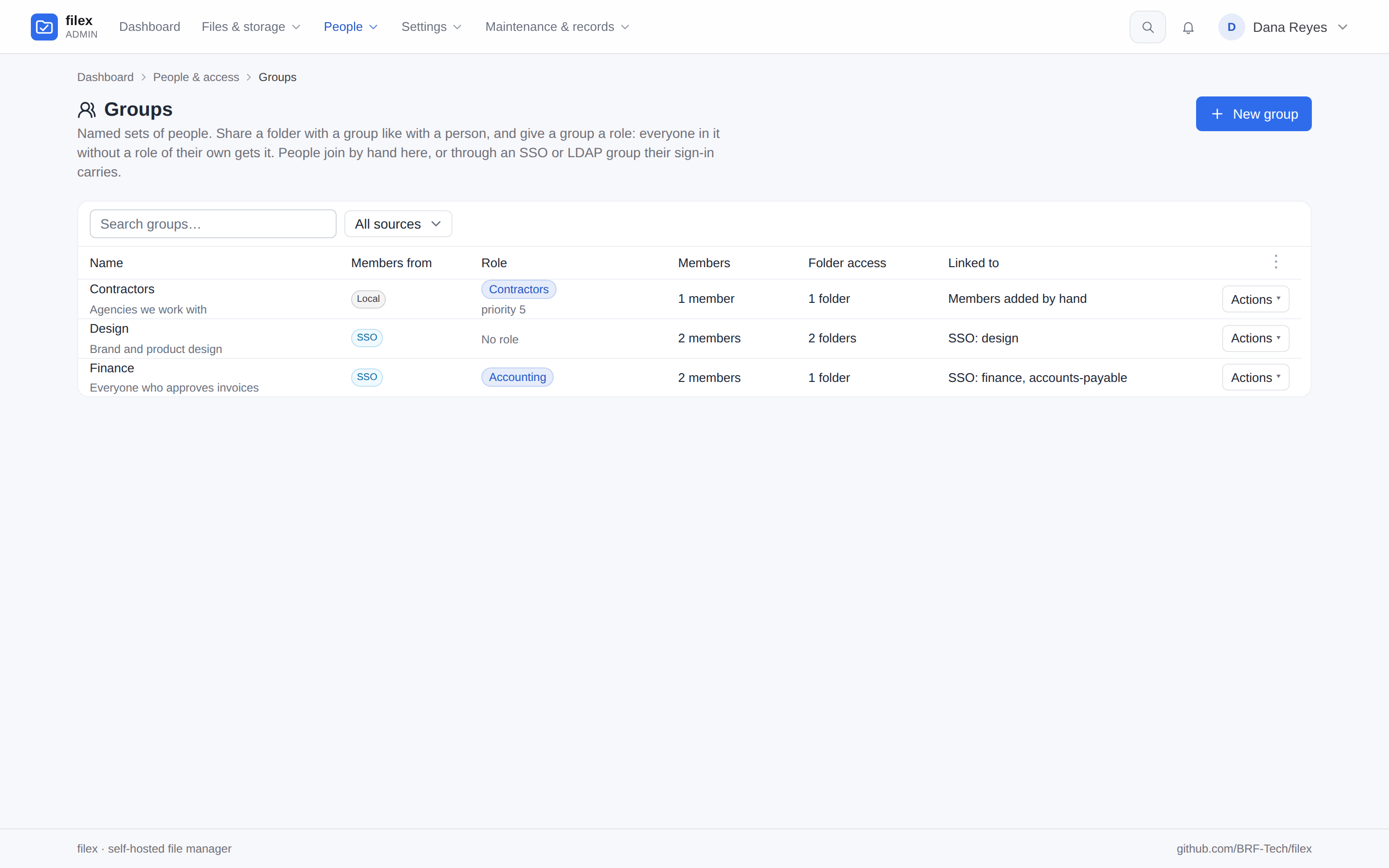
Groups - named sets of people with folder access and a role; members by hand or kept in step with the groups a sign-in carries (docs/GROUPS.md) |
|
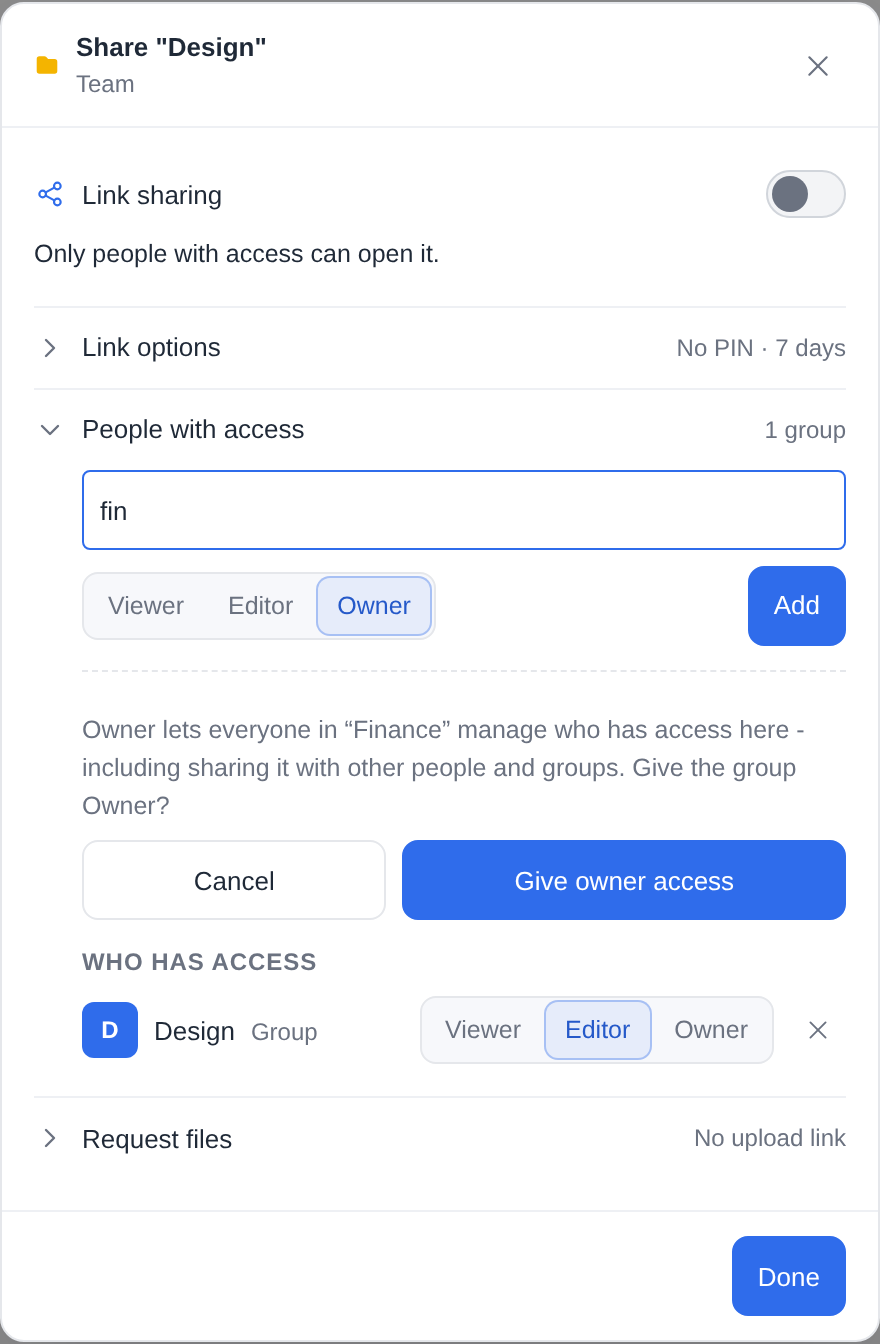
Sharing a folder with a group, beside people - Owner is asked for in the dialog, not granted by a click |
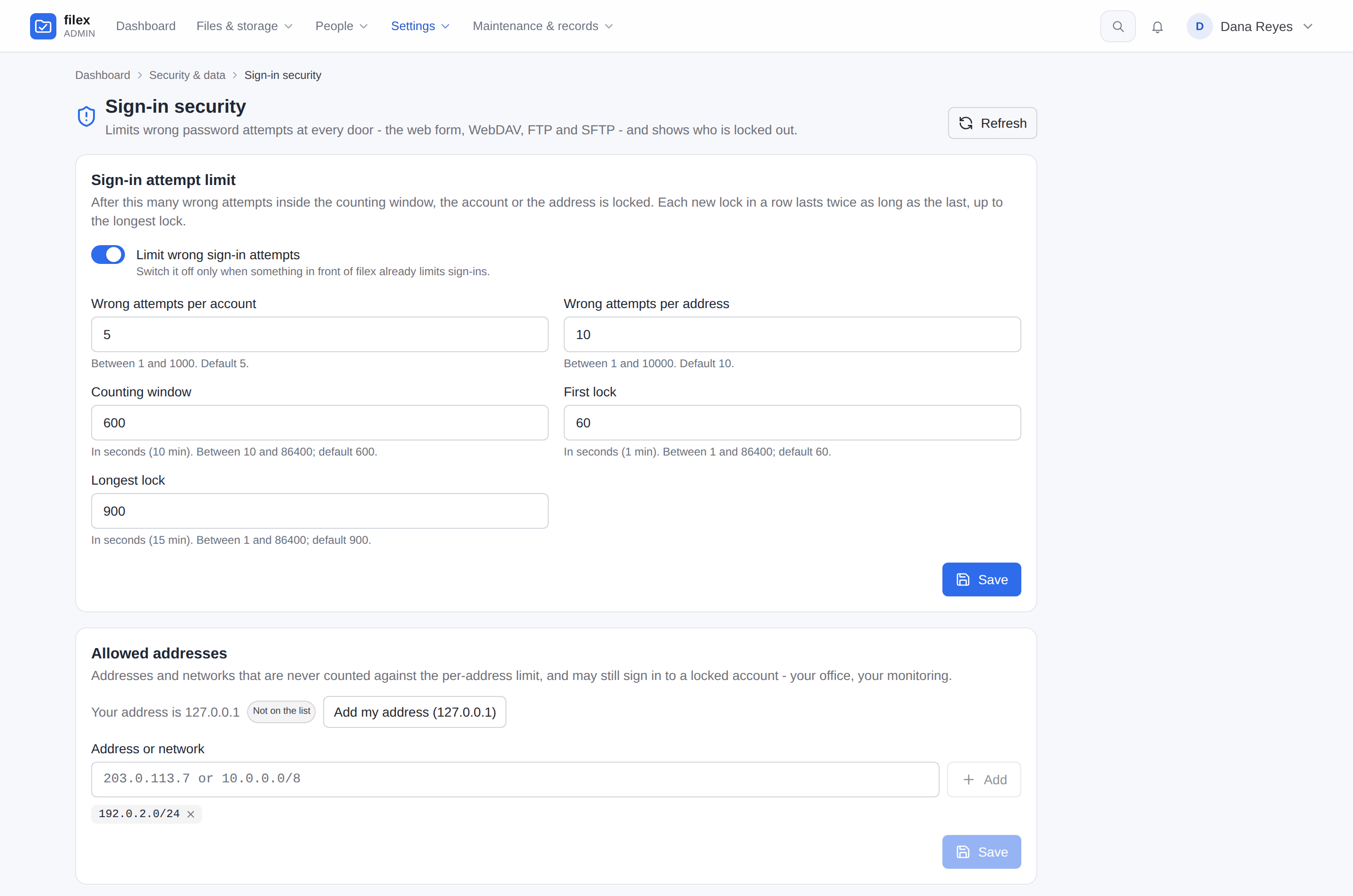
Sign-in security - the attempt limit and the addresses it never counts; trusted proxies, the locks and the sign-in trail follow on the same page (sign-in attempt limits) |
|
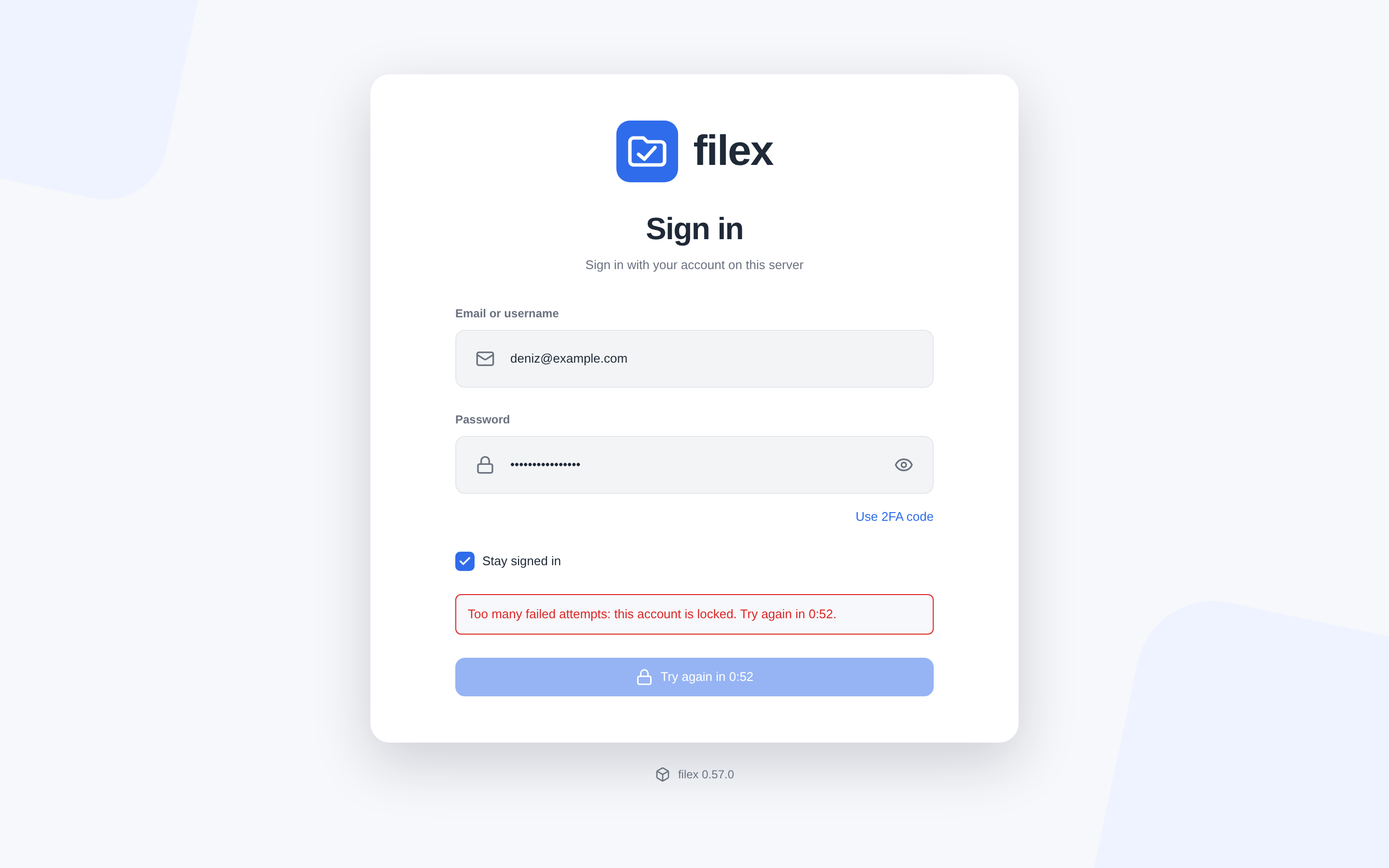
…and what a locked account's sign-in form says, counting the lock down on its button |
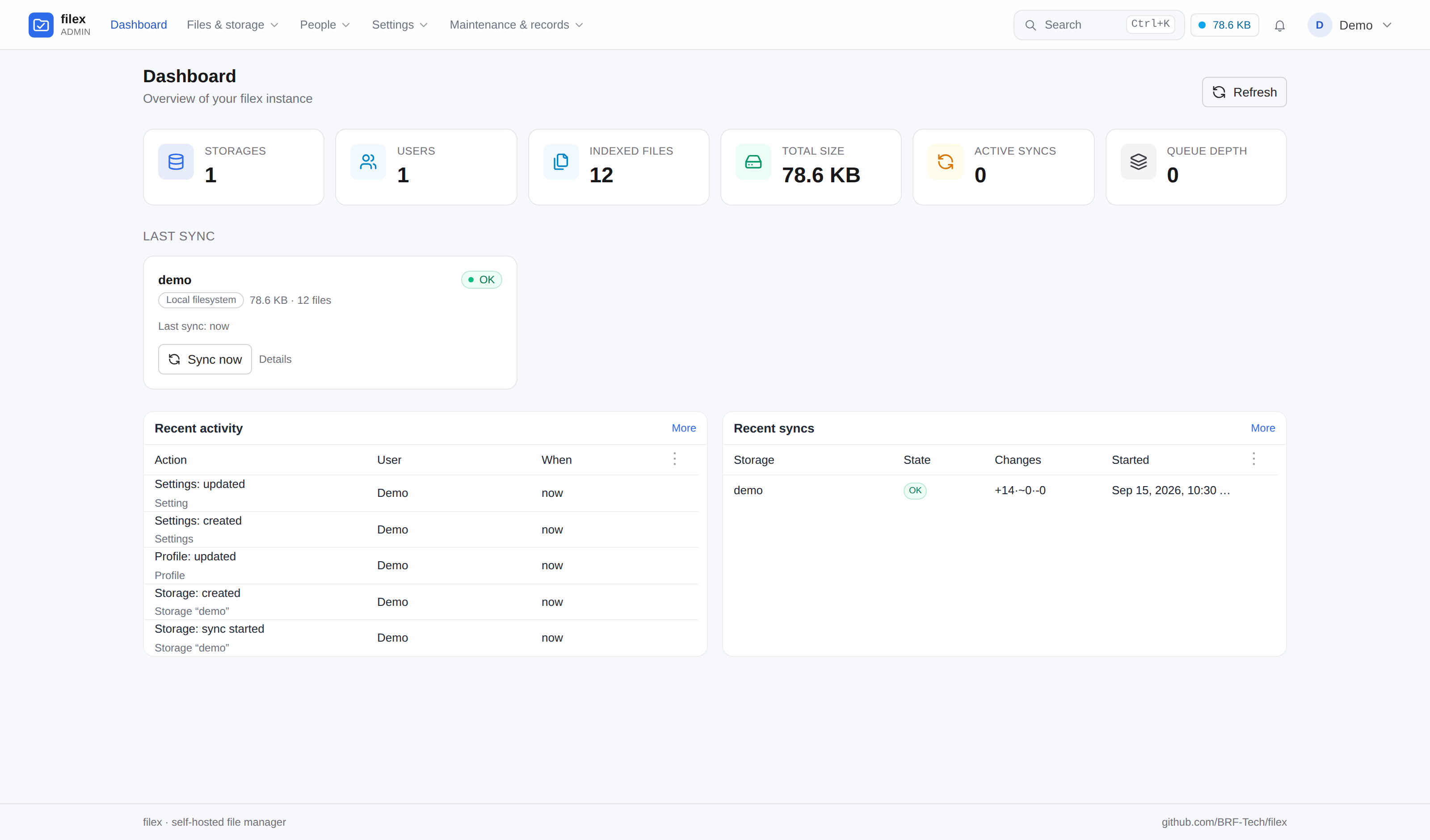
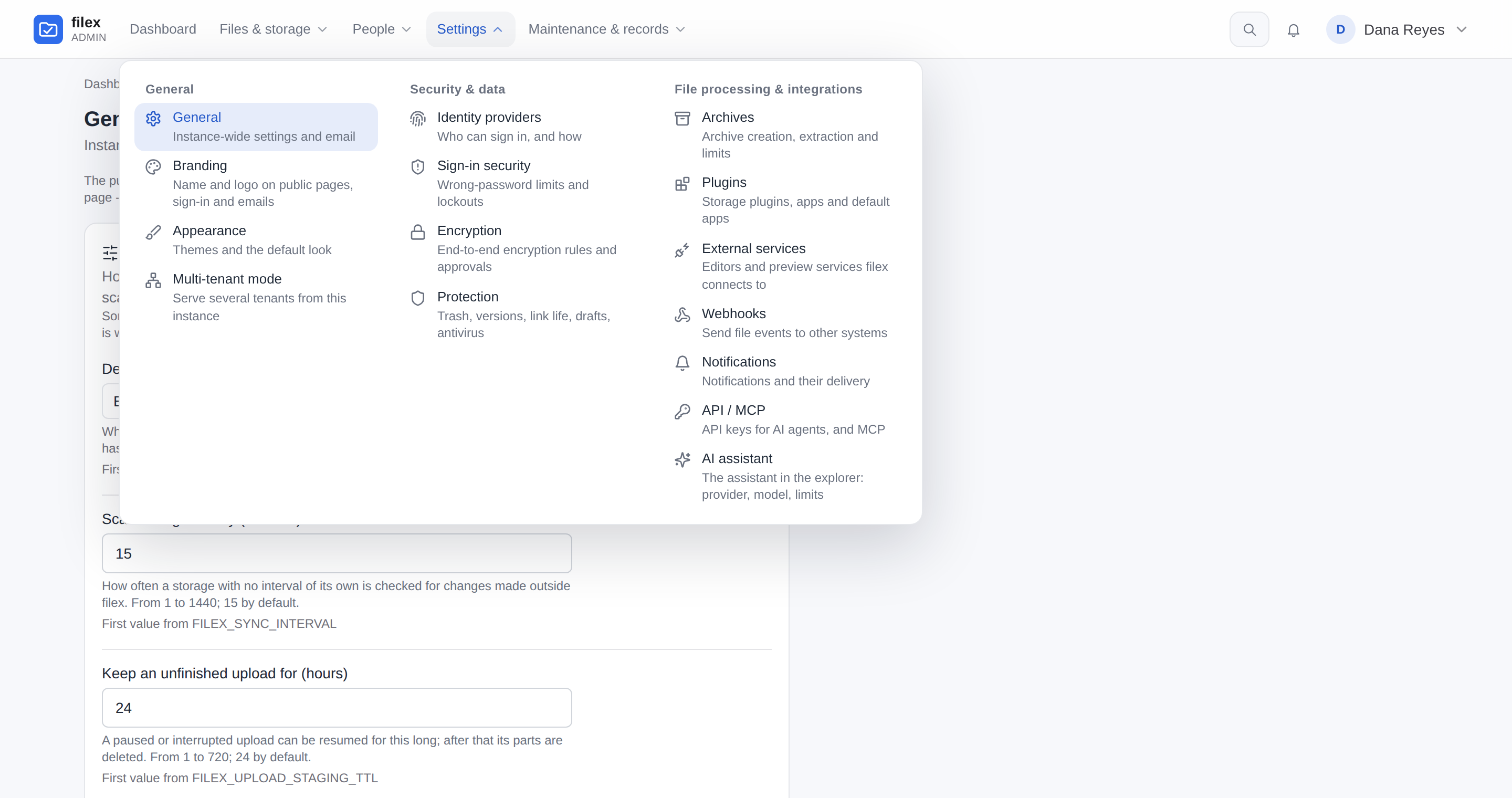
Admin panel |
|
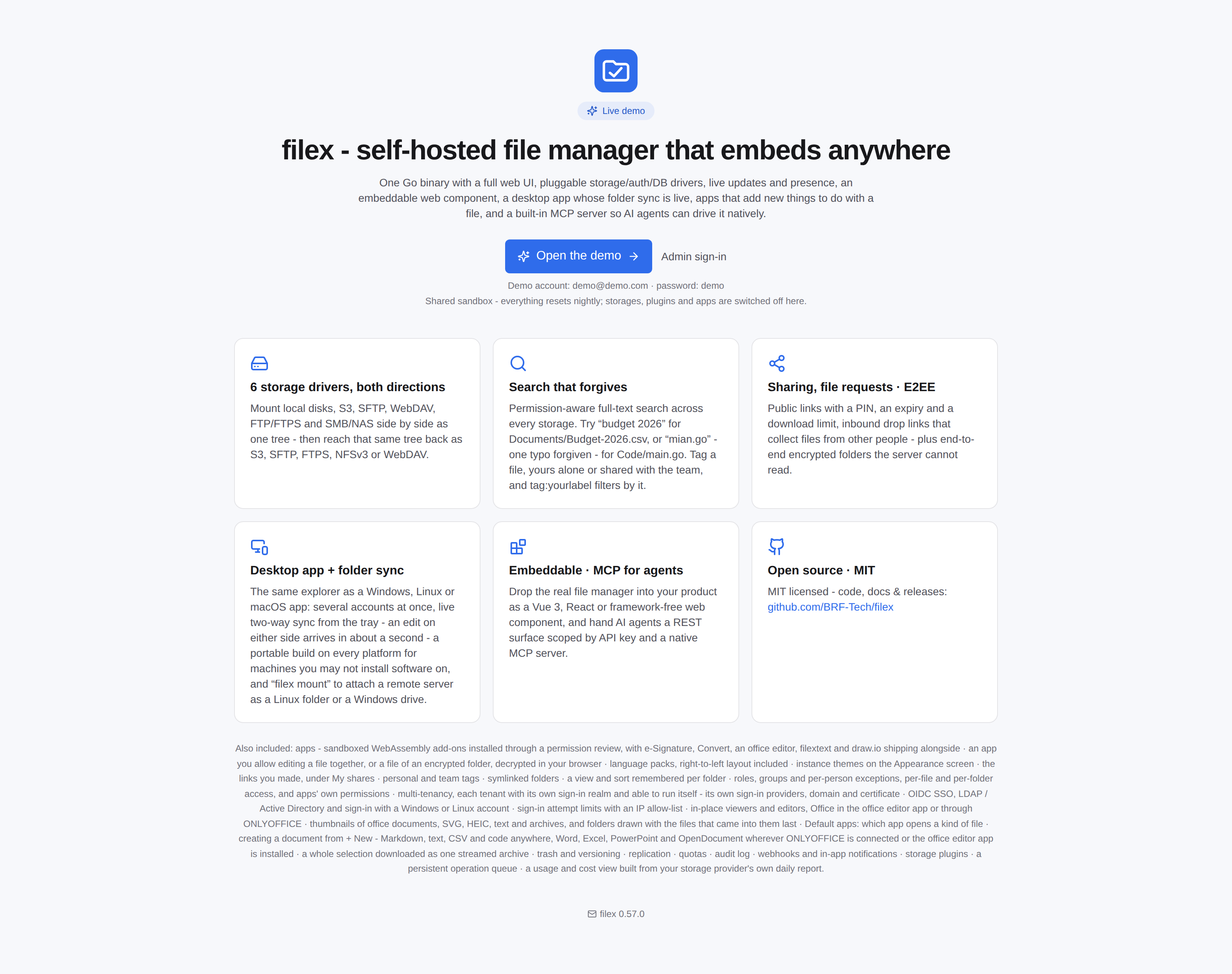
Demo landing |
The admin menu - every page in four panels, Files & storage, People, Settings (General, Security & data, File processing & integrations) and Maintenance & records, with a short line under each; a phone gets the same pages in a drawer (docs/ADMIN-PANEL.md) |
Folders on your computer stay in step with the server, live.
- A Windows, Linux and macOS (Apple Silicon) app: the same explorer in a window, with several accounts or tenants side by side.
- Right-click a folder → Keep on this computer and it stays in step with the server in both directions, in about a second. Everything else stays online-only in the window.
- It signs in through your browser, so SSO and MFA behave as they do on the web, and it opens Office documents from your own disk in the editor your server runs - and any kind of file an app on one of your servers opens.
- Headless machines get the same engine:
filex syncandfilex client.
Install it from the Microsoft Store (Windows 10/11) or the Snap Store (Ubuntu and other Linux with snapd):


or with a package manager:
brew install brf-tech/filex/filex-app       # macOS 13+ (Apple Silicon), Homebrew tap BRF-Tech/homebrew-filex
sudo snap install filex-app                 # the same snap as the badge above
More about installing it, and the CLI - the Store build, winget, the release downloads, Linux, arm64, the client commands
The Store build (filex File Manager) is the one Windows copy that is code-signed -
Microsoft signs it - and the Store keeps it up to date. The desktop app's winget package
(BRFTech.filex-app) is waiting for its first review by the winget moderators - until it is
accepted a release leaves the submission as it is - so winget install BRFTech.filex-app
does not find it yet.
Installer, portable .exe, AppImage, .deb, .rpm and .dmg are attached to the
latest release - not code-signed yet,
so expect a SmartScreen prompt from the Windows installer. Details:
docs/DESKTOP.md. The CLI alone: brew install brf-tech/filex/filex,
or winget install BRFTech.filex on Windows (docs/CLI.md).
On Linux the .deb and .rpm need nothing; on Ubuntu 23.10 and later an AppImage needs a
one-time AppArmor profile (AppImage on recent Ubuntu),
and the Snap runs inside the snap's strict confinement
(The snap and the sandbox). Every release builds
for arm64 too: the server, the images, and the desktop app on Linux, Windows on Arm and Apple
Silicon (docs/INSTALLATION.md → ARM (arm64)). Everything the
app does: docs/FEATURES.md → Desktop app, phone and CLI.
The same binary is also a client for servers, scripts and headless machines:
filex client login --url https://files.example.com
filex client upload build/report.pdf docs://ci-artifacts/
filex client mv docs://ci-artifacts/report.pdf archive://2026/   # across storages, waits for the job
filex client run convert convert docs://data/table.csv --param target=xlsx

filex sync add ~/Documents/work docs://work   # the engine the desktop app uses
filex sync run --watch 30s
See docs/CLI.md and docs/SYNC.md.
A real file manager inside your own product.
The same UI ships as a Vue 3 component, a React component and a framework-agnostic
<filex-explorer> web component, backed by your own filex server. A confined token locks it
to a per-tenant folder, and the backend enforces that, not the widget. The web component
takes two lines:
<script type="module" src="https://cdn.jsdelivr.net/npm/@brftech/filex/dist/filex.js"></script>
<filex-explorer api-base="http://localhost:5212" sidenav connections ui-profile="simple"></filex-explorer>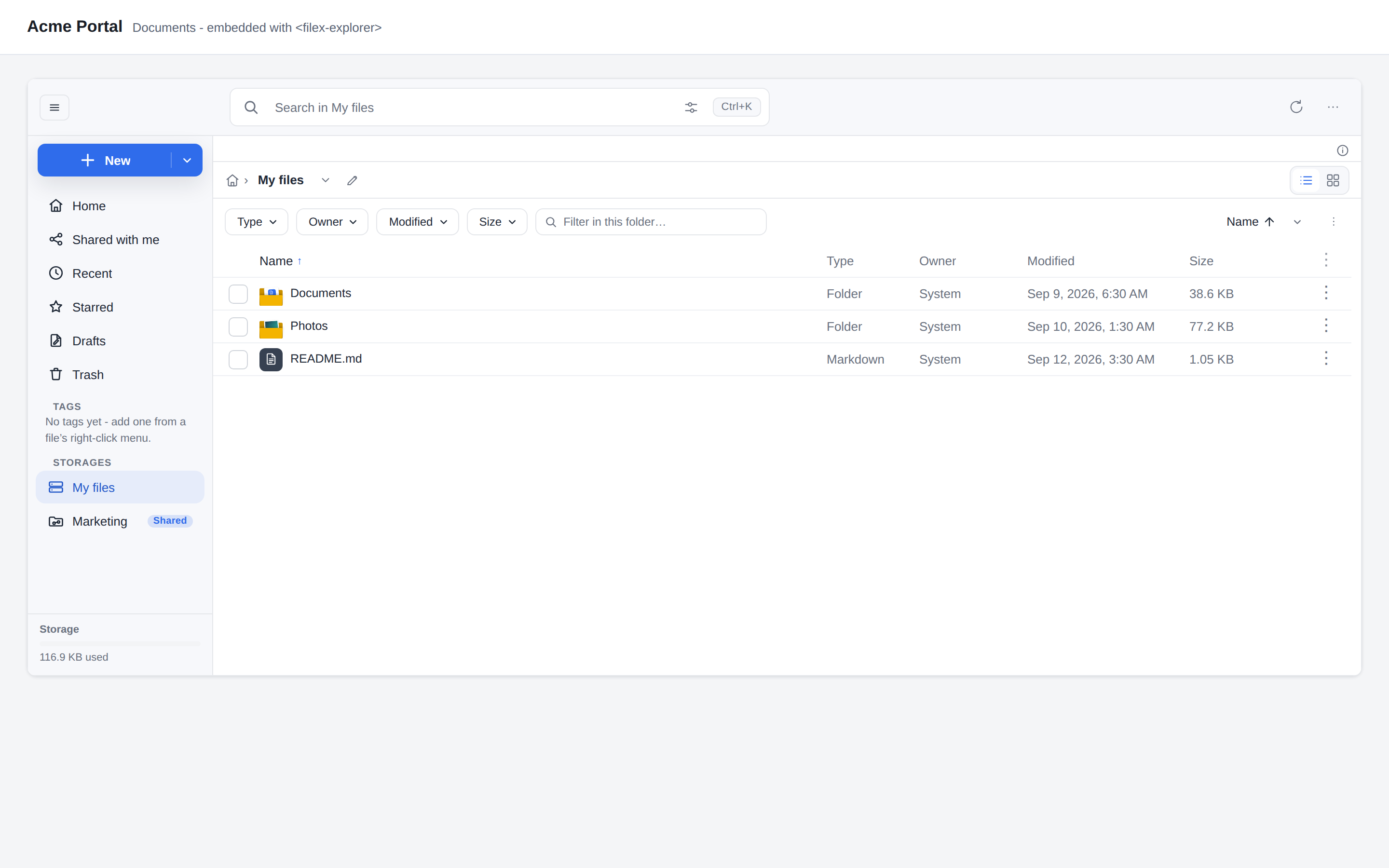
Vue 3 and React - the other two wrappers, and where the details are
pnpm add @brftech/filex-core<script setup>
import { FileExplorer } from '@brftech/filex-core';
import '@brftech/filex-core/style.css';
</script>
<template>
<FileExplorer :config="{ apiBase: 'http://localhost:5212', auth: { kind: 'bearer', token: '…' } }" />
</template>pnpm add @brftech/filex-reactimport { FileManager } from '@brftech/filex-react';
<FileManager config={{ apiBase: 'http://localhost:5212' }} onError={(e) => console.error(e)} />Styles, bundlers, the sidenav / connections / ui-profile attributes, confined tokens
for multi-tenant hosts, a session cookie from another origin and printing from an app:
docs/INTEGRATION.md, summed up in
docs/FEATURES.md → Embedding. ⚠ Keep the packages and the
server on one version (docs/API.md).
|
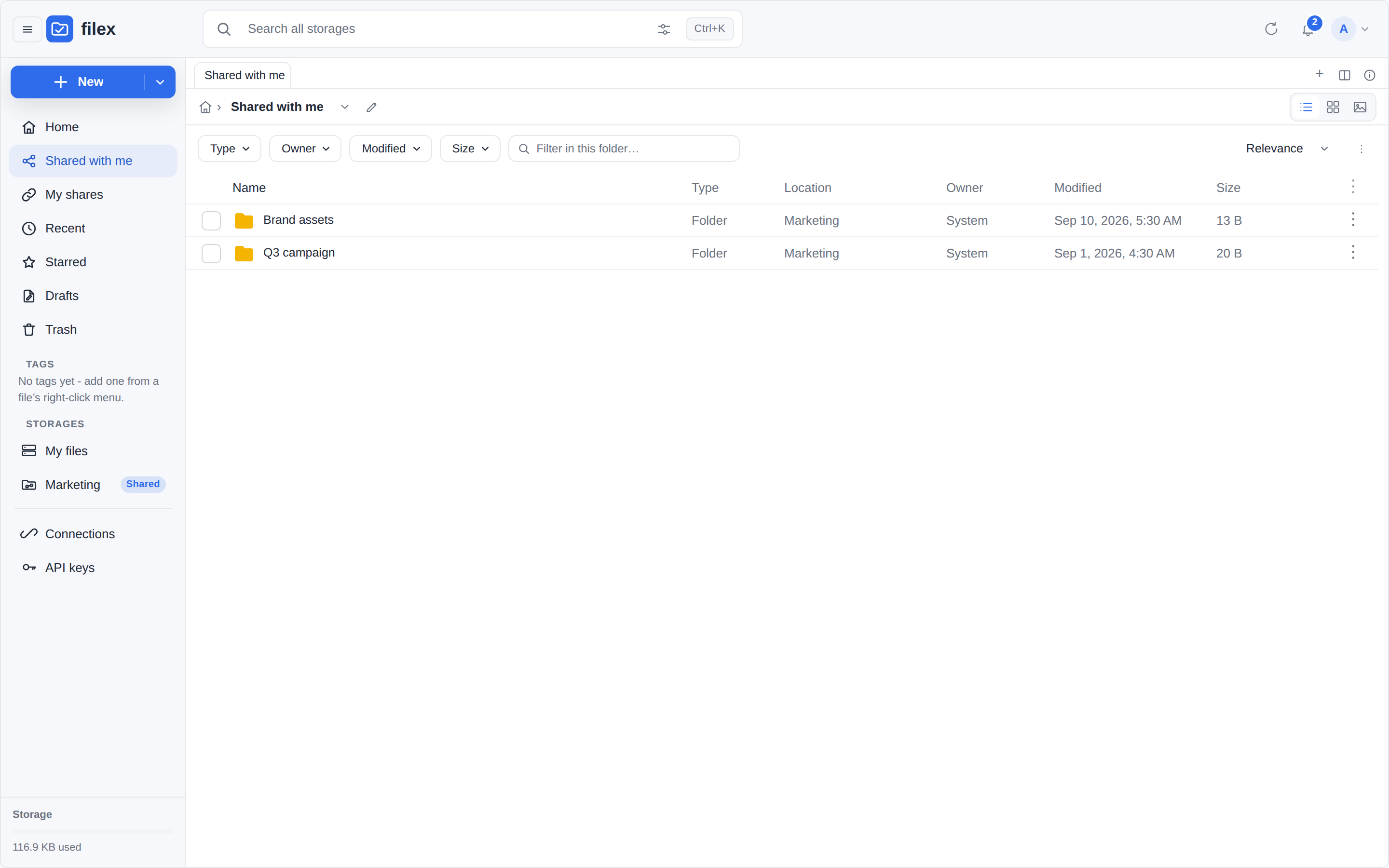
Shared with me - folders other people granted you, no mount instructions |
Embedded in another product's page |
New things to do with files, with exactly the permissions you approved.
An app is a WebAssembly module that runs inside filex in a sandbox, an interface of its own in a sandboxed frame, or both. You install it from a store link or its GitHub address, read every permission it asks for, and nothing updates itself. The people of your filex can browse a trusted store on its App store screen and ask you for an app or a storage plugin. Five ship as public repositories:
| App | What it adds |
|---|---|
| e-Signature | Sign a PDF, or ask others to: people on this filex sign inside it, anybody else by a private link, behind a PIN by default |
| Convert | Convert… on any file or selection: images, video, audio, documents, e-books, archives, data, subtitles and fonts |
| Office editor | Word, Excel and PowerPoint documents in ONLYOFFICE's editor, running in the browser with no Document Server; its 0.2.0 and 0.3.0, made for filex 0.56, add encrypted folders and several people at once, and its 0.4.0, made for filex 0.57, every kind a Document Server opens (.doc, .xls, .ppt, .csv...) and an office engine filex runs on the server for office thumbnails and conversions (docs/ONLYOFFICE.md) |
| filextext | An end-to-end encrypted text workspace in a single .fxtxt file |
| draw.io | The draw.io diagram editor, on .drawio and .dio files |
An app you allow can edit a file together with other people - filex's relay puts their changes in one order without reading them, and someone who may only read watches live - and can open a file of an encrypted folder, which your browser decrypts for it and encrypts again before it is saved.
A language pack is an app too: Spanish, German and French ship as examples.
Install one in a few minutes: docs/APP-PLUGINS.md → Install one. Every app feature in full: docs/FEATURES.md → Apps.
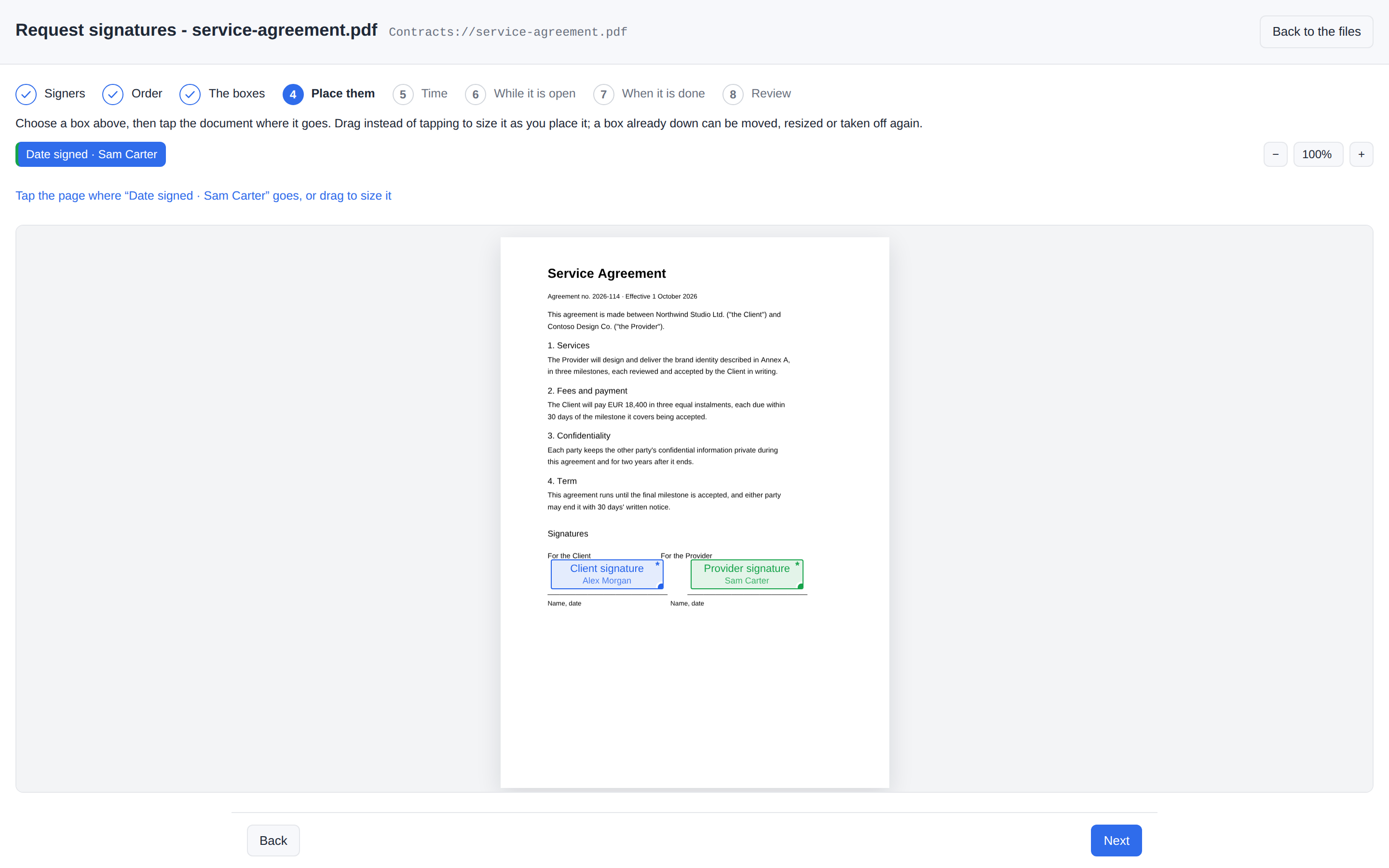
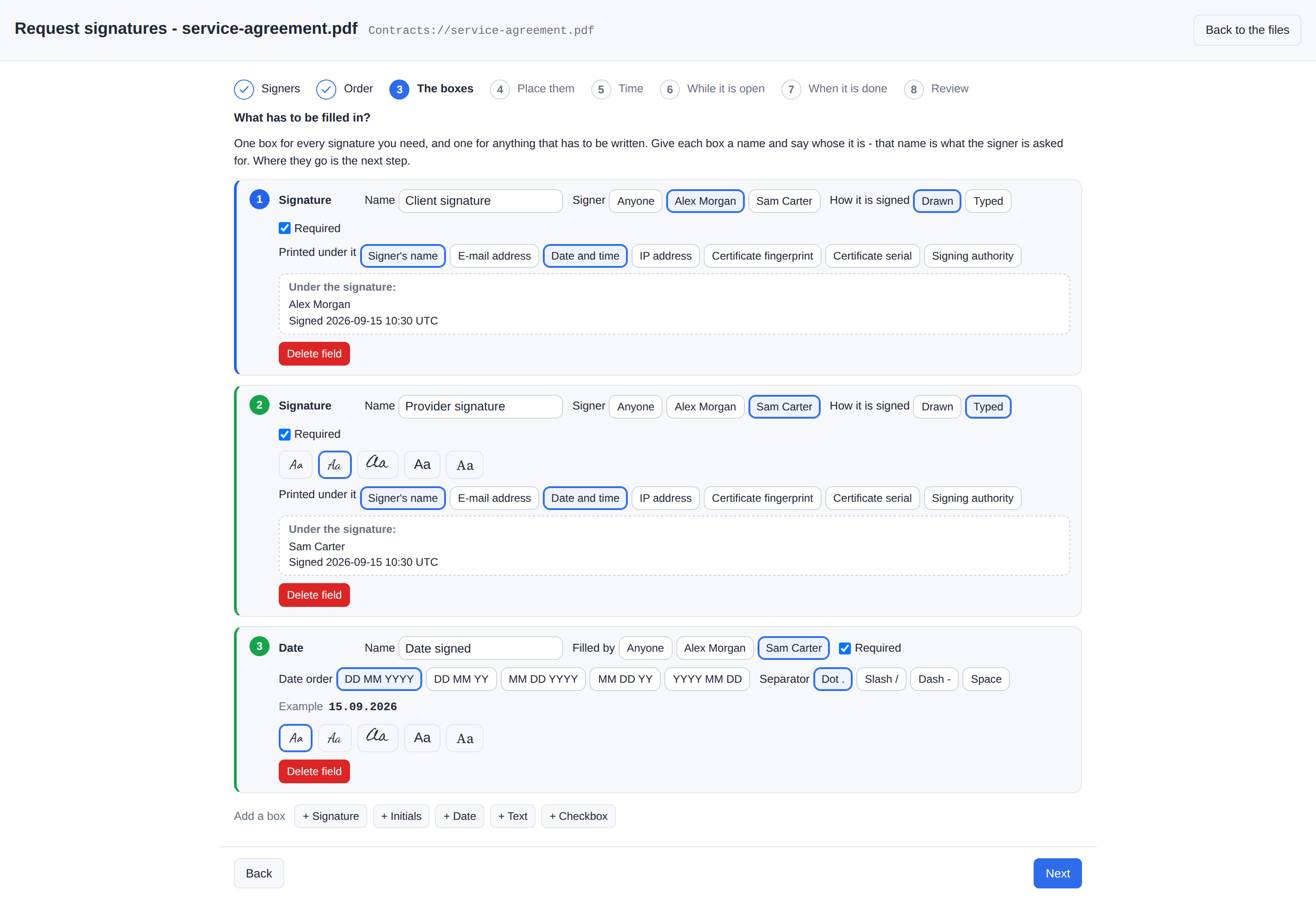
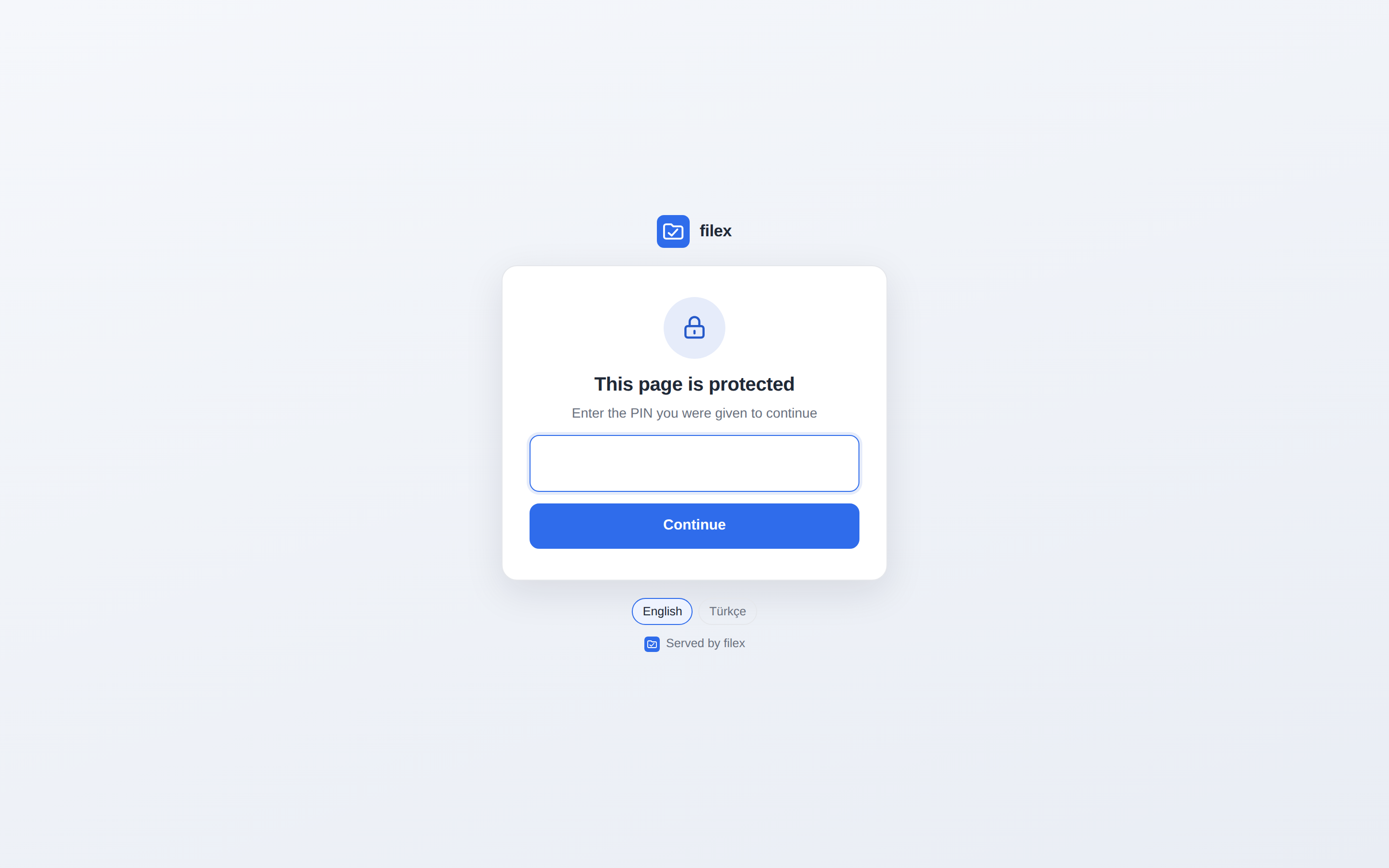
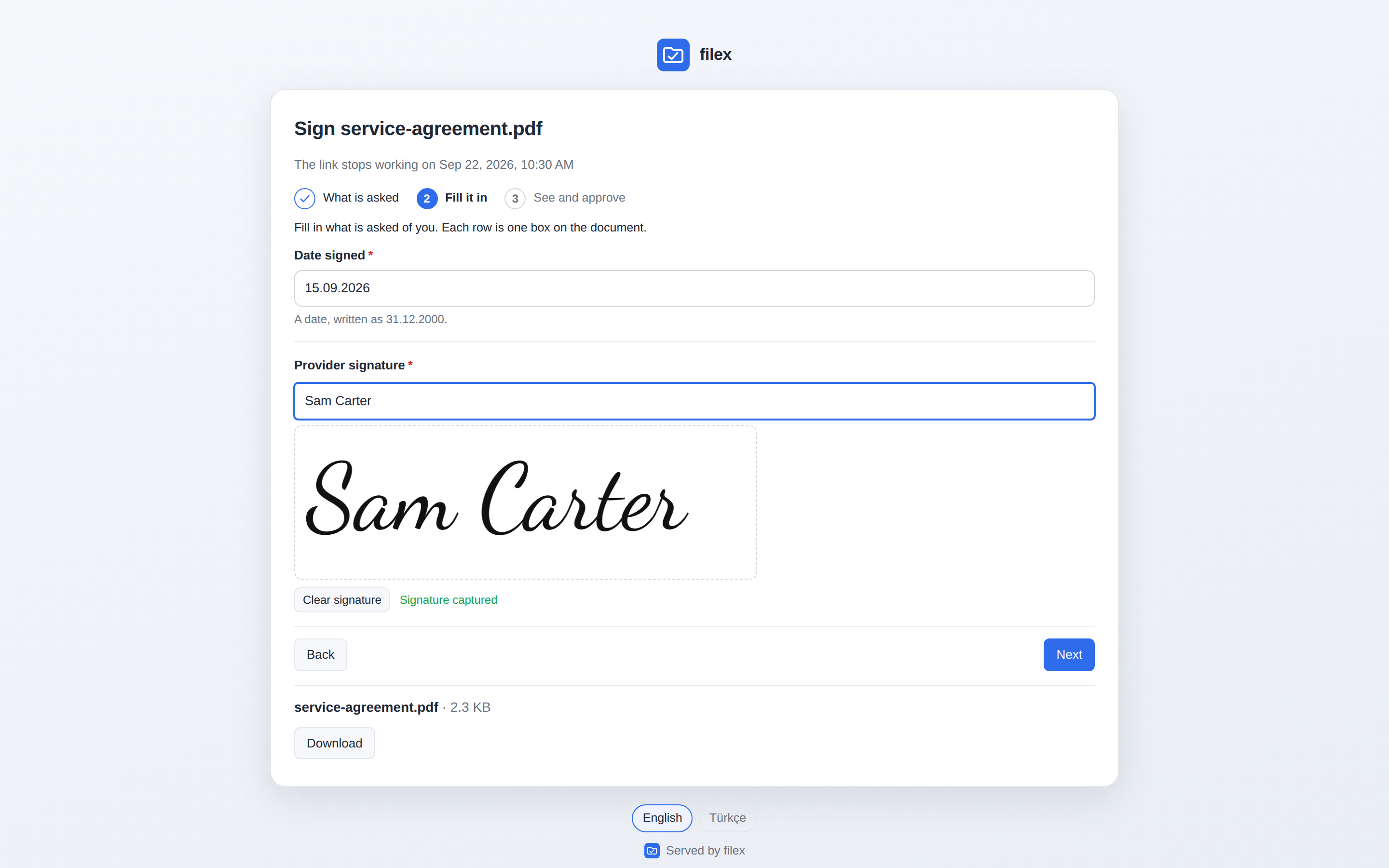
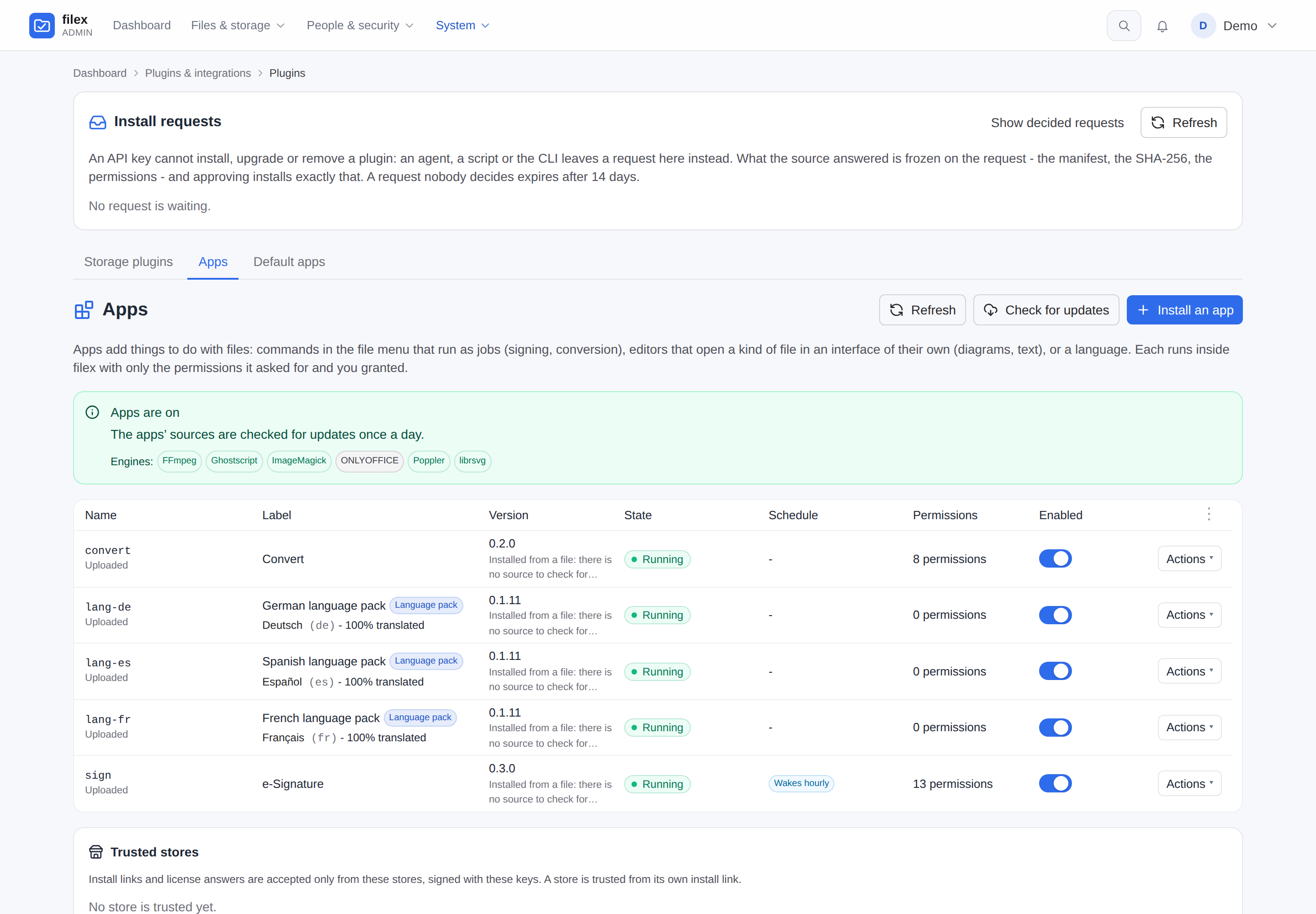
Screenshots of apps - a signature request from start to finish, installing an app, the converter, an app with its own interface, editing together, an encrypted folder's file in an app, a language pack, Default apps, installing from a store
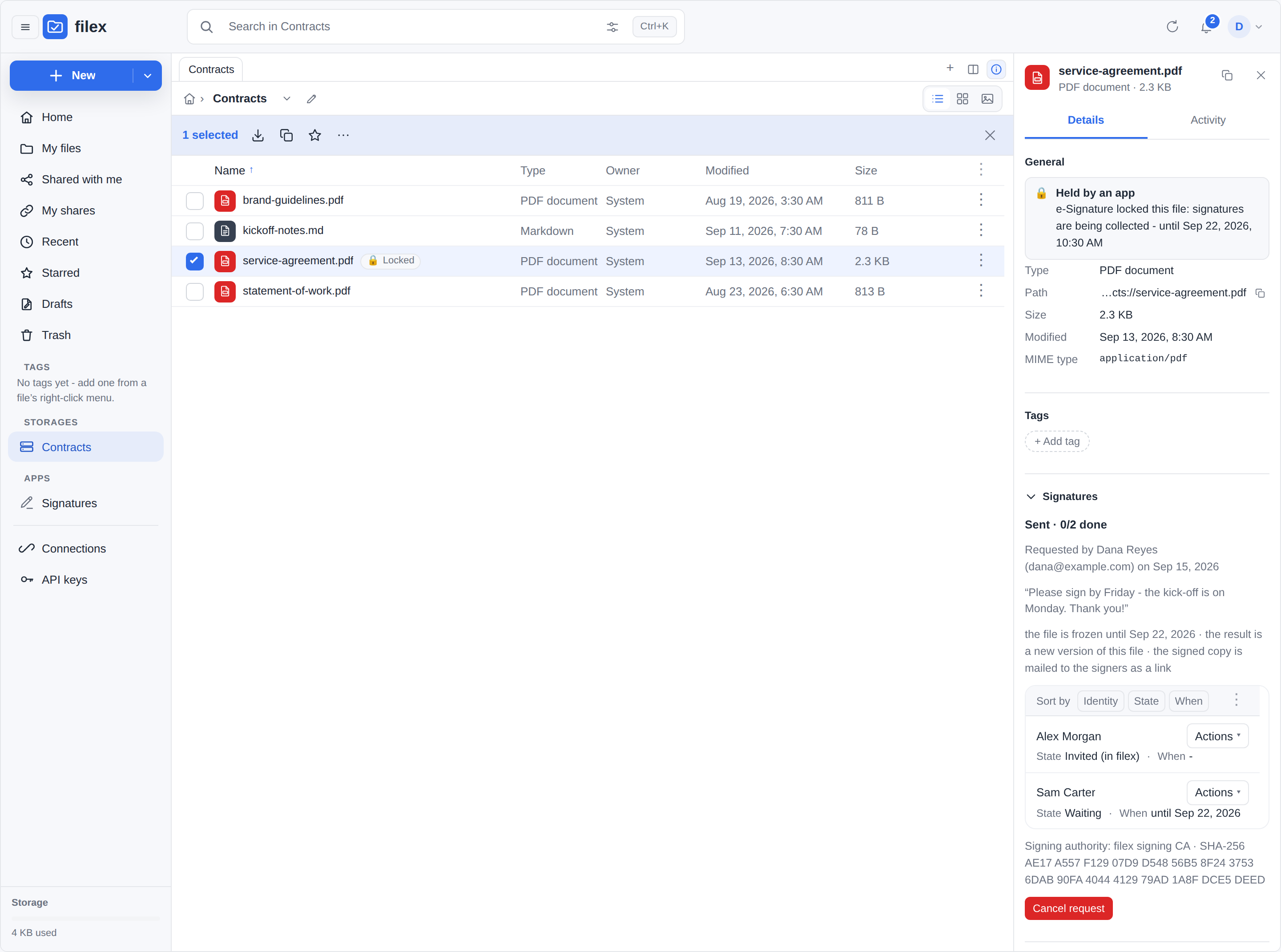
Dana asks a colleague on the same filex and a partner outside it to sign an agreement. The app is e-Signature; every screen is drawn by filex, and the link the partner gets is an ordinary share.
|
Define the boxes - name each one and say whose it is; the document comes next |
Place them - choose a box, tap the page where it goes |
|
The partner's link - filex's one public screen, in your instance's name, behind a PIN |
…and what it opens: only their own boxes - here a name typed in the face the requester chose (drawn and uploaded are the other two) |
|
While it is out - the document frozen for everybody, who has signed in its details |
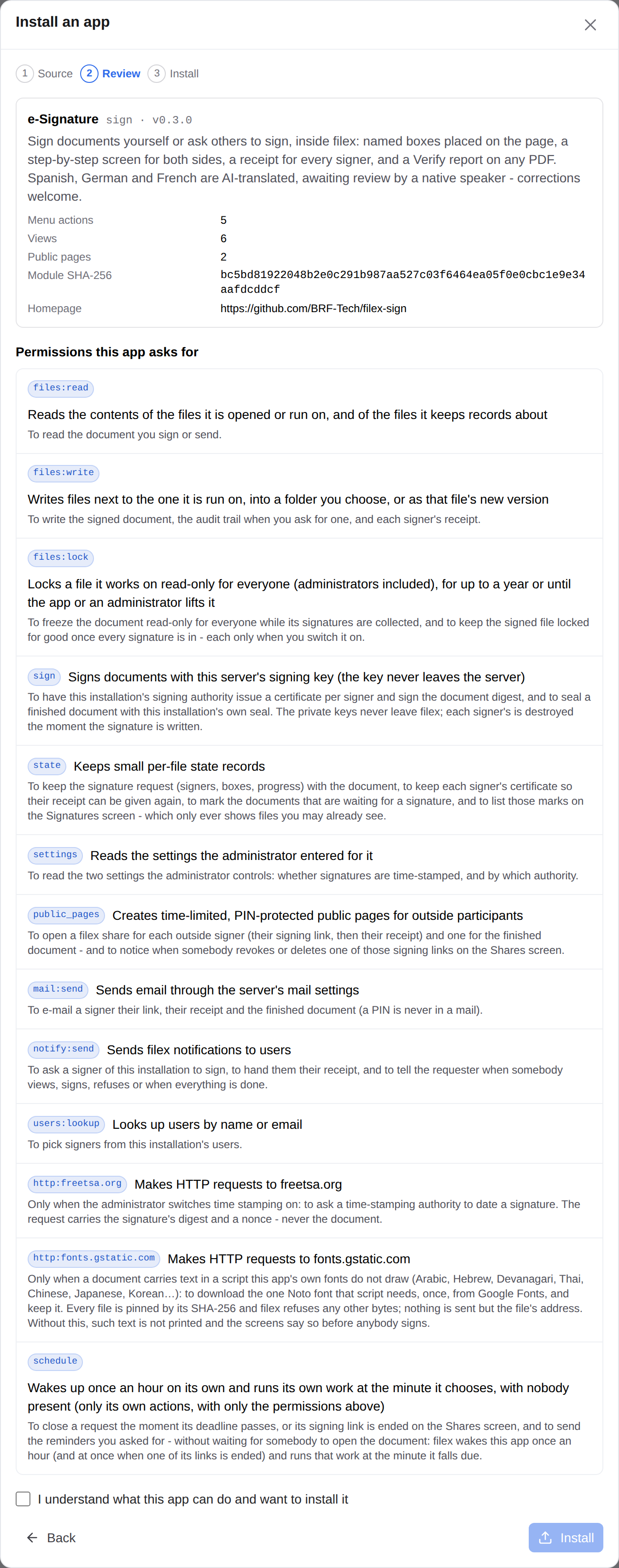
Installing an app - every permission it asks for, in plain words, before anything runs |
|
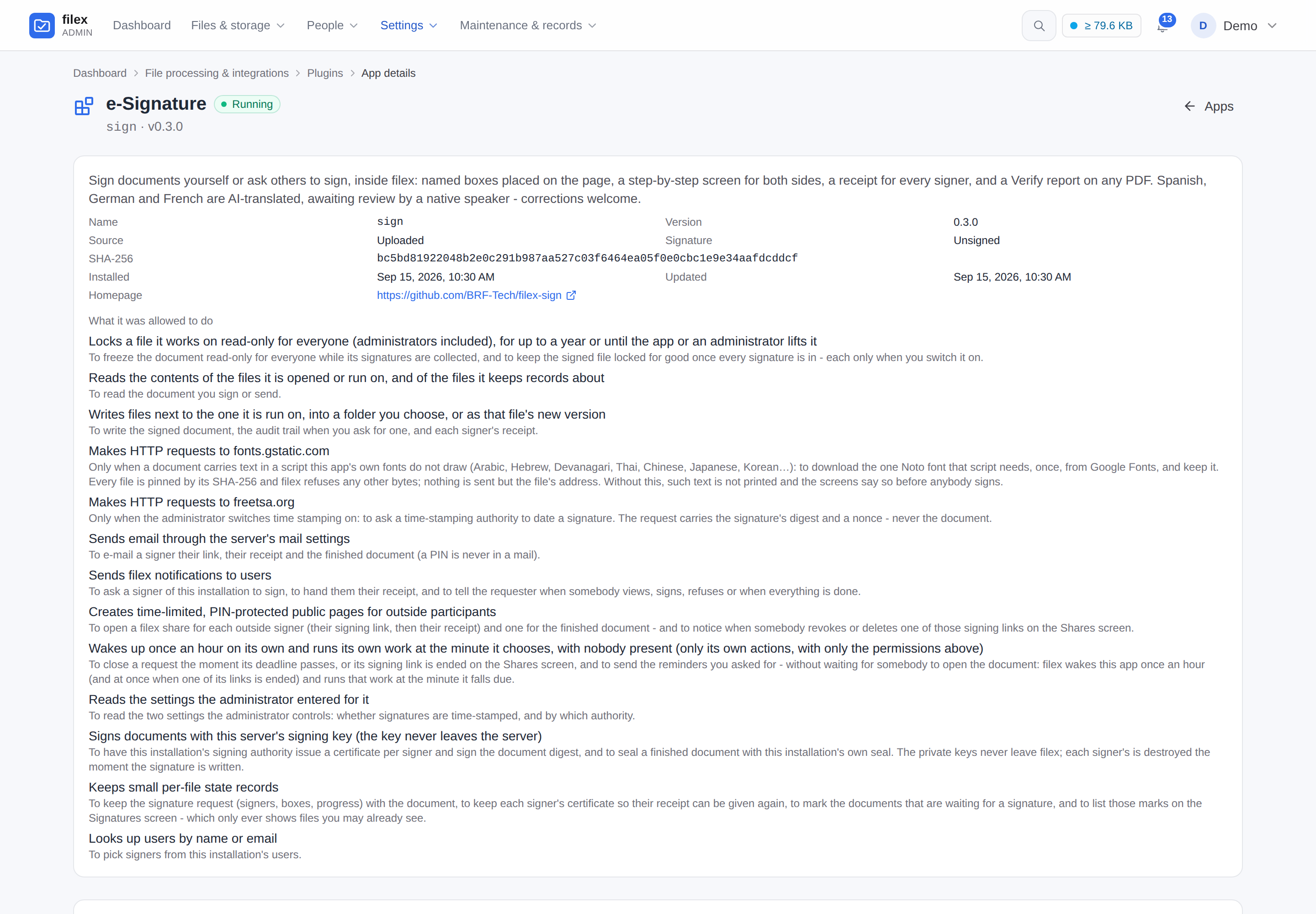
An installed app - where it came from, its fingerprint, and every permission it holds in plain words (its settings and its actions follow, further down the page) |
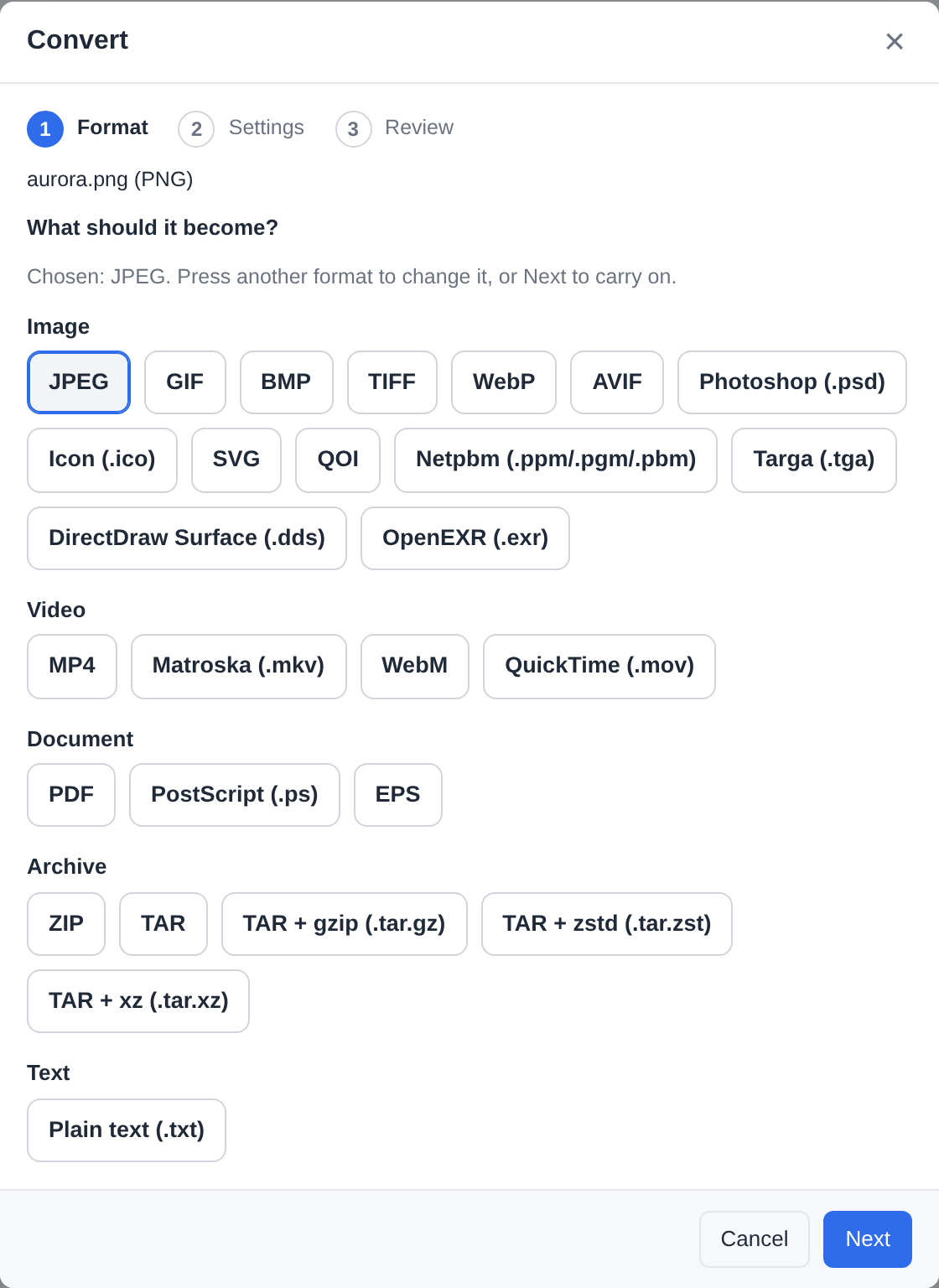
The converter, another app - every target under its category, three steps |
|
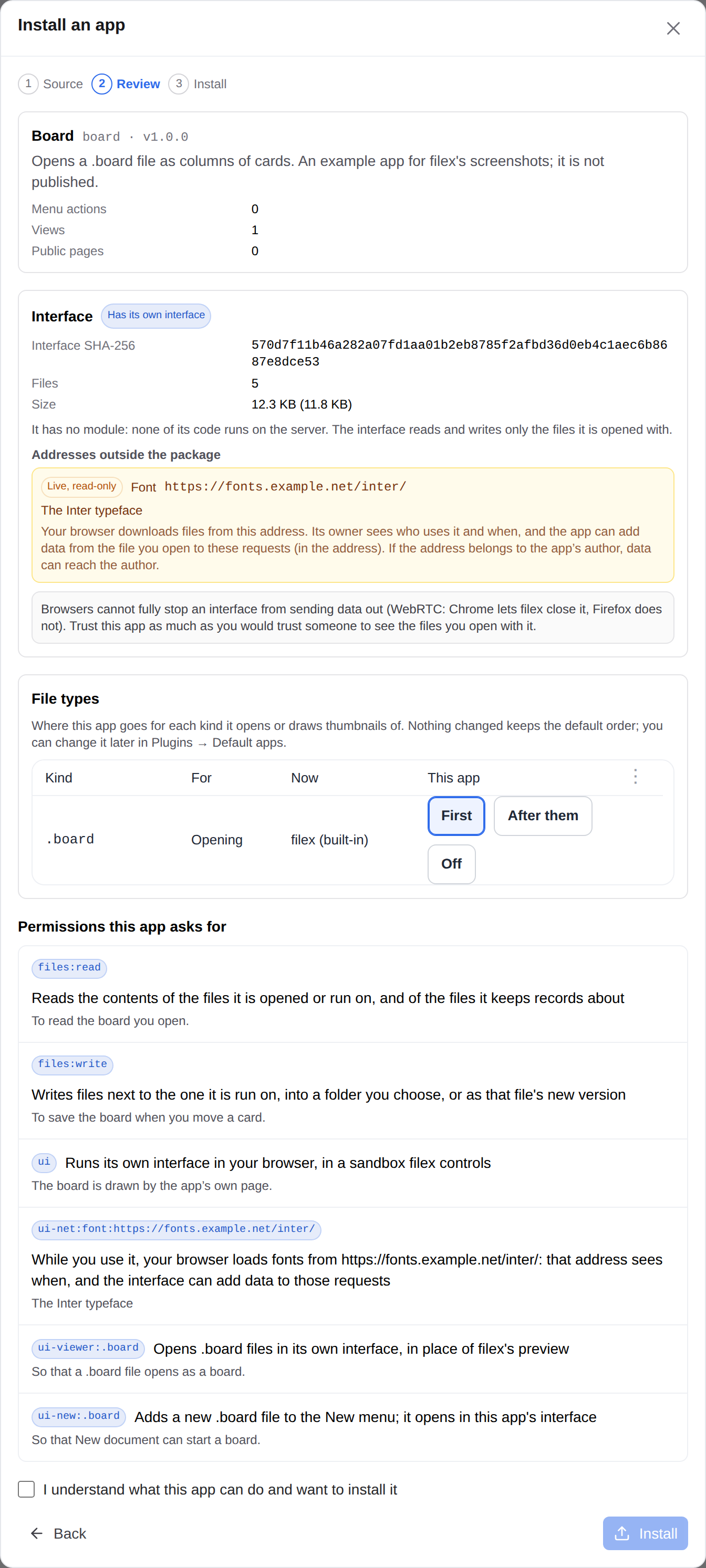
An app that brings its own interface - the review shows the package's fingerprint, every address outside it (a live one is a permission, in yellow) and what a browser cannot promise |
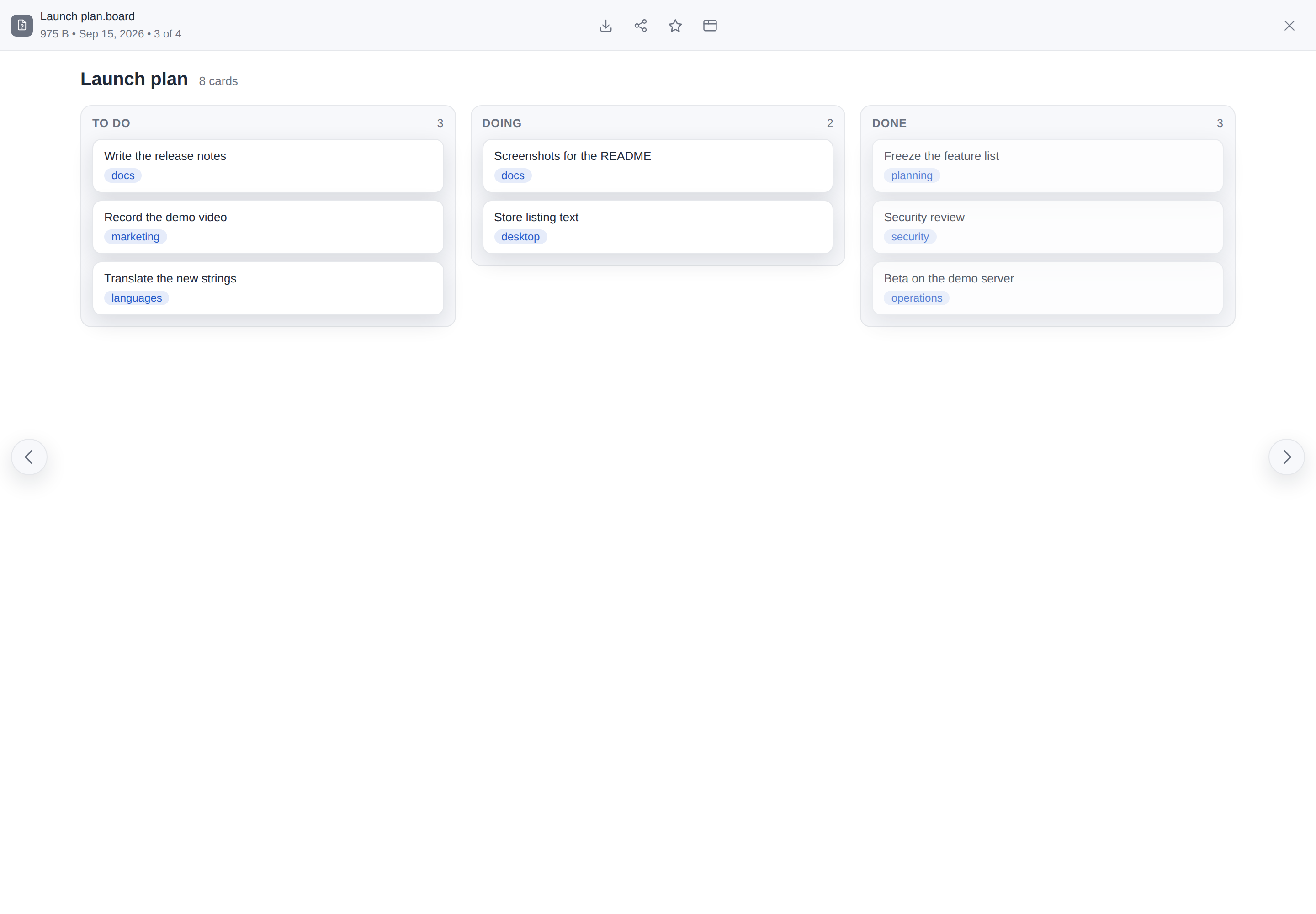
…and that interface open on its own file type, where filex's preview would be. It reads and saves the file through filex, in a sandboxed frame (a small example app, written for these pictures) |
|
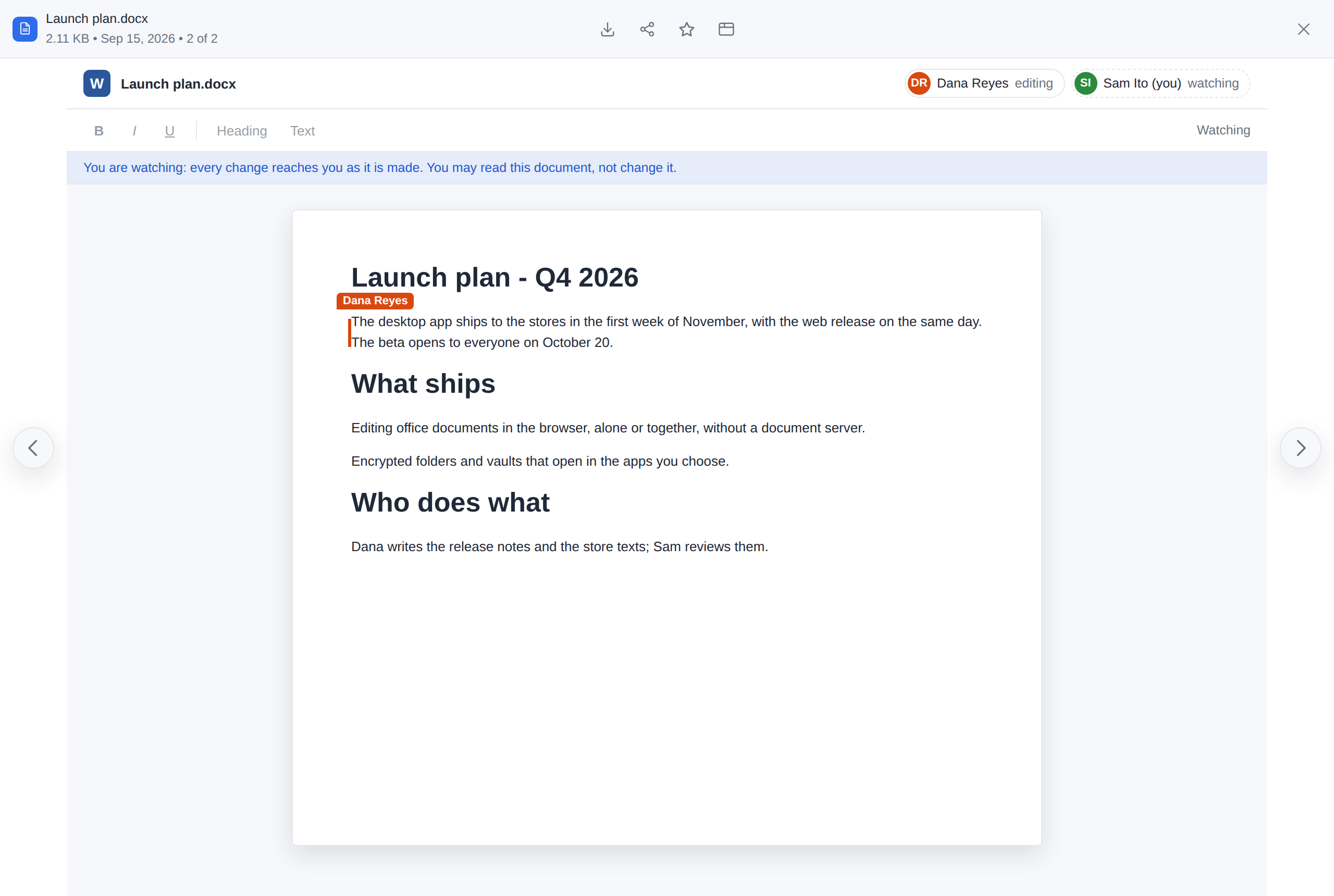
Editing together - Dana types, and Sam, who may only read, watches every change and her cursor arrive through filex's relay (Editing together; an example app written for these pictures) |
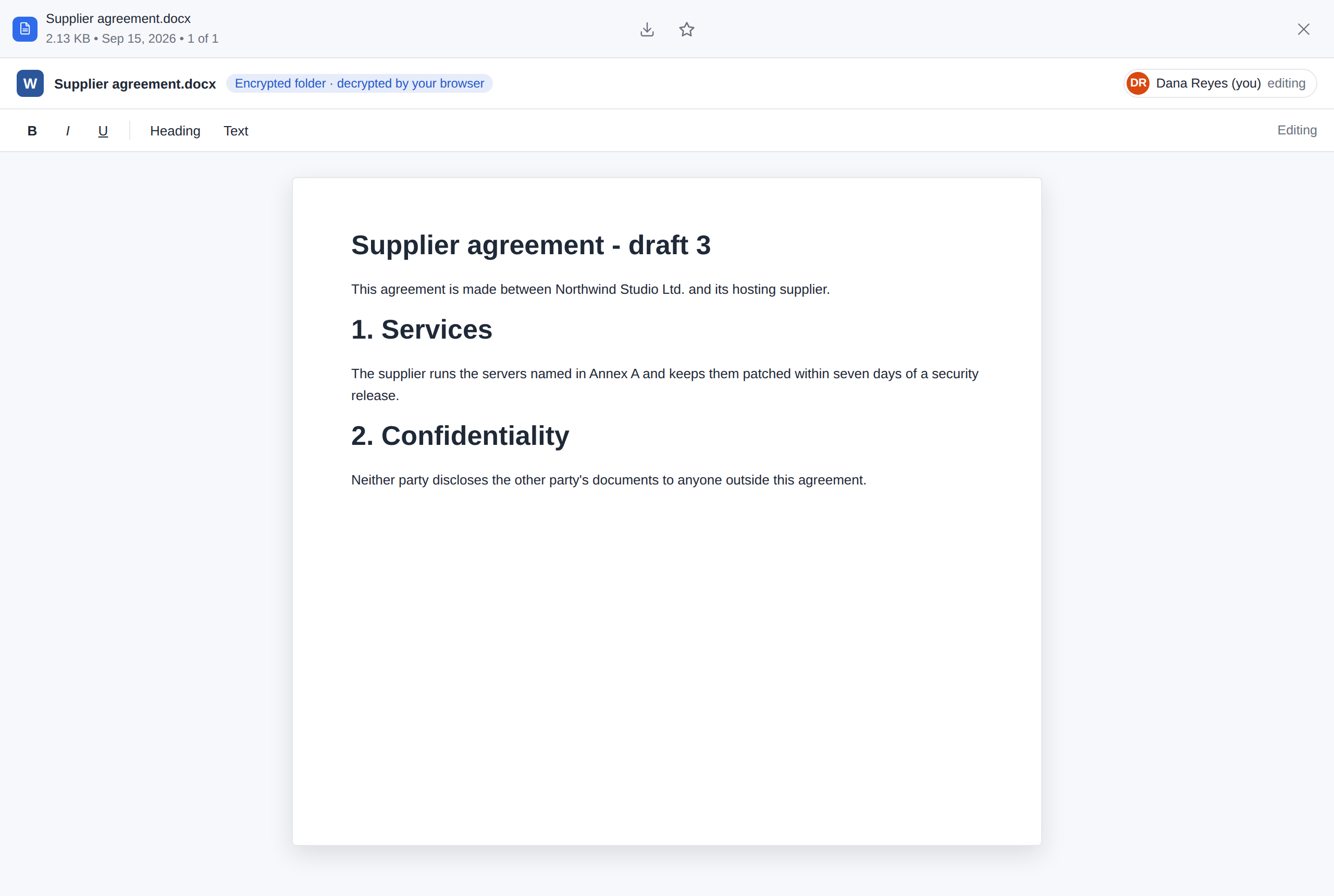
A file of an end-to-end encrypted folder in an app you allowed - your browser decrypts it for the app and encrypts the save, and the server still holds only ciphertext (the same example app; Editing in an app) |
|
Every app on the instance, and a language pack among them - a manifest with nothing that runs, which says how much of this filex it translates and leaves with it |
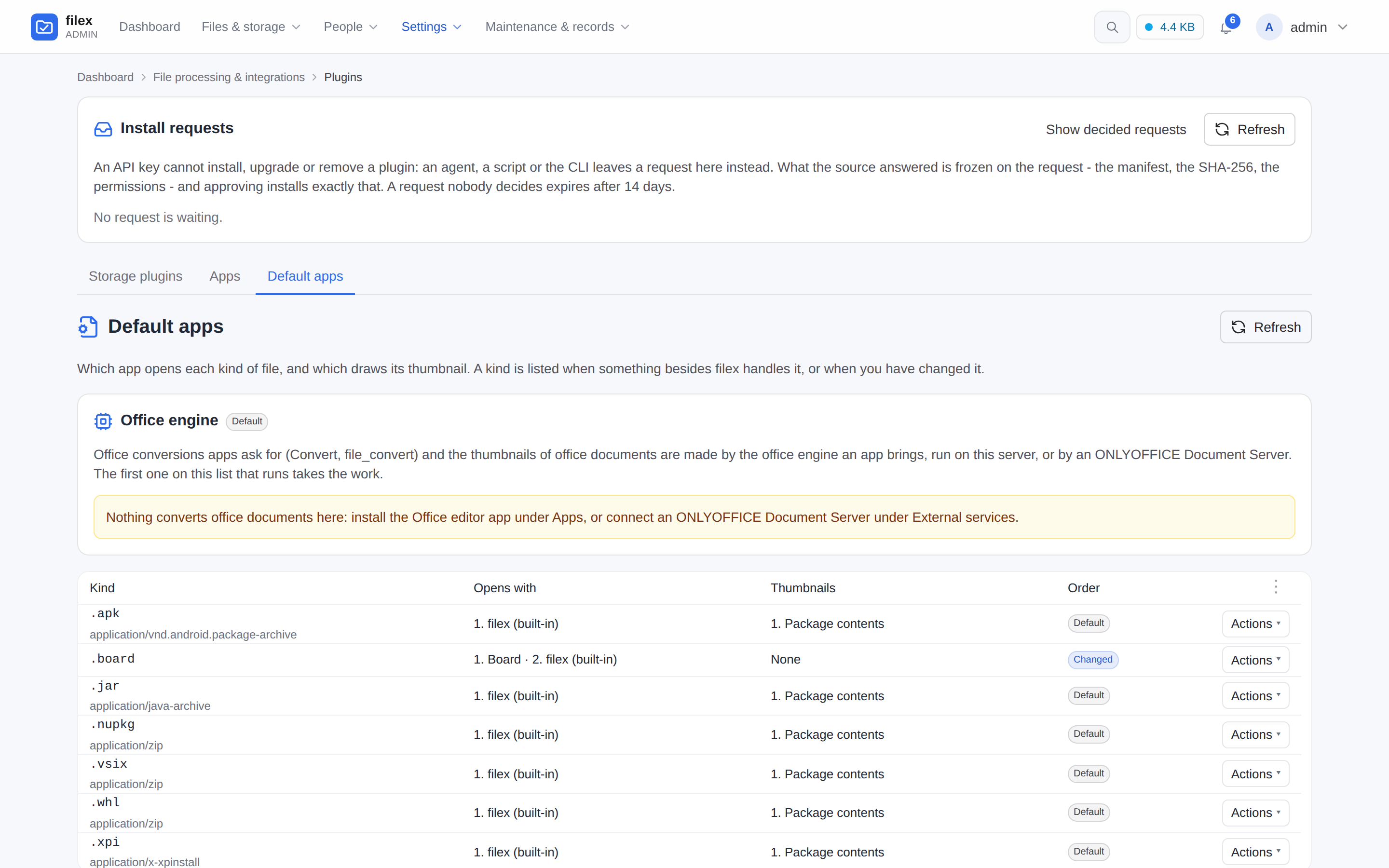
Default apps - every kind of file something besides filex handles: who opens it and who draws its thumbnail, in the order you set (Default apps) |
|
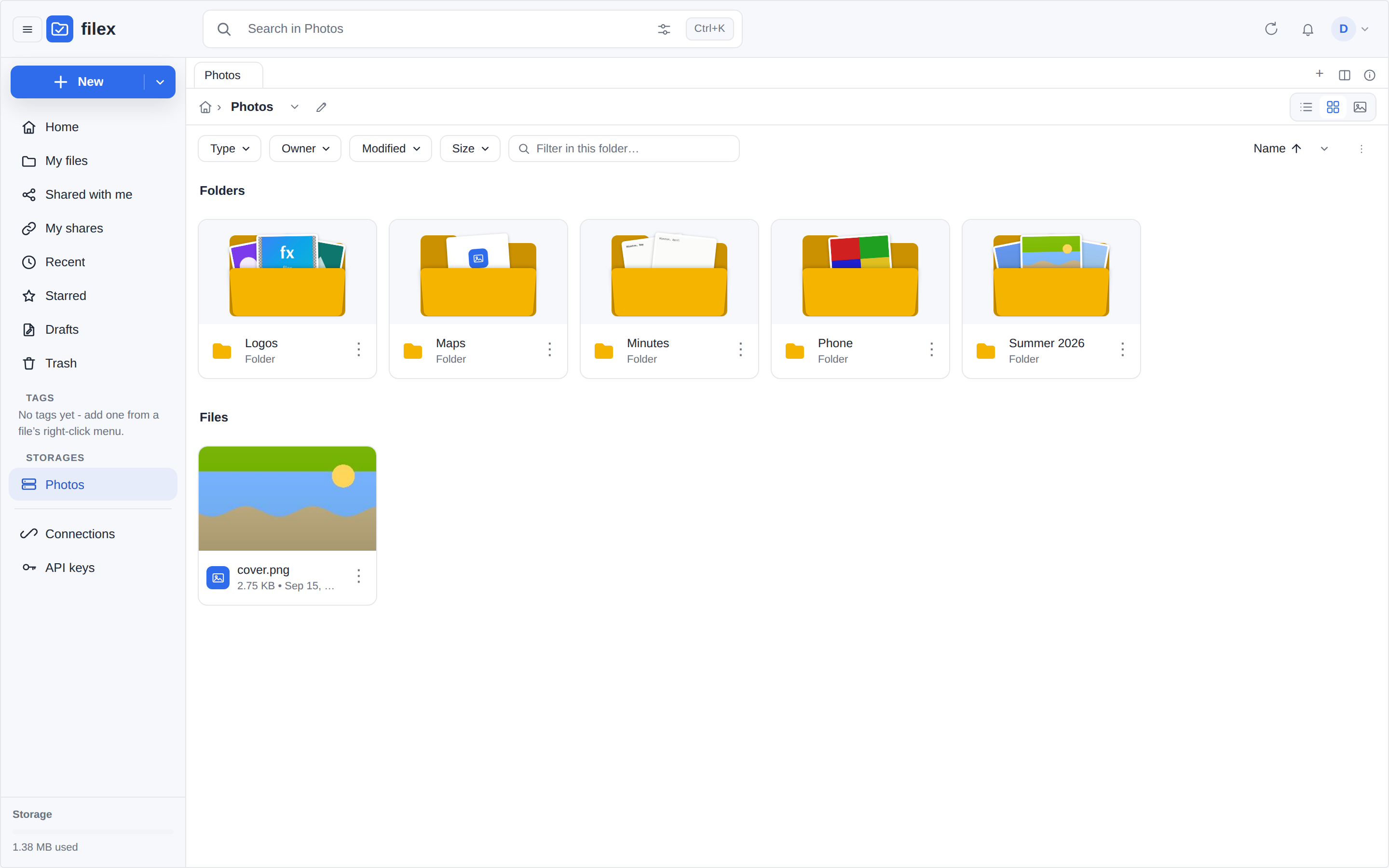
Folder previews - each folder drawn with the three files that came into it last; the SVGs are drawn by filex's built-in engine (docs/thumbnails.md) |
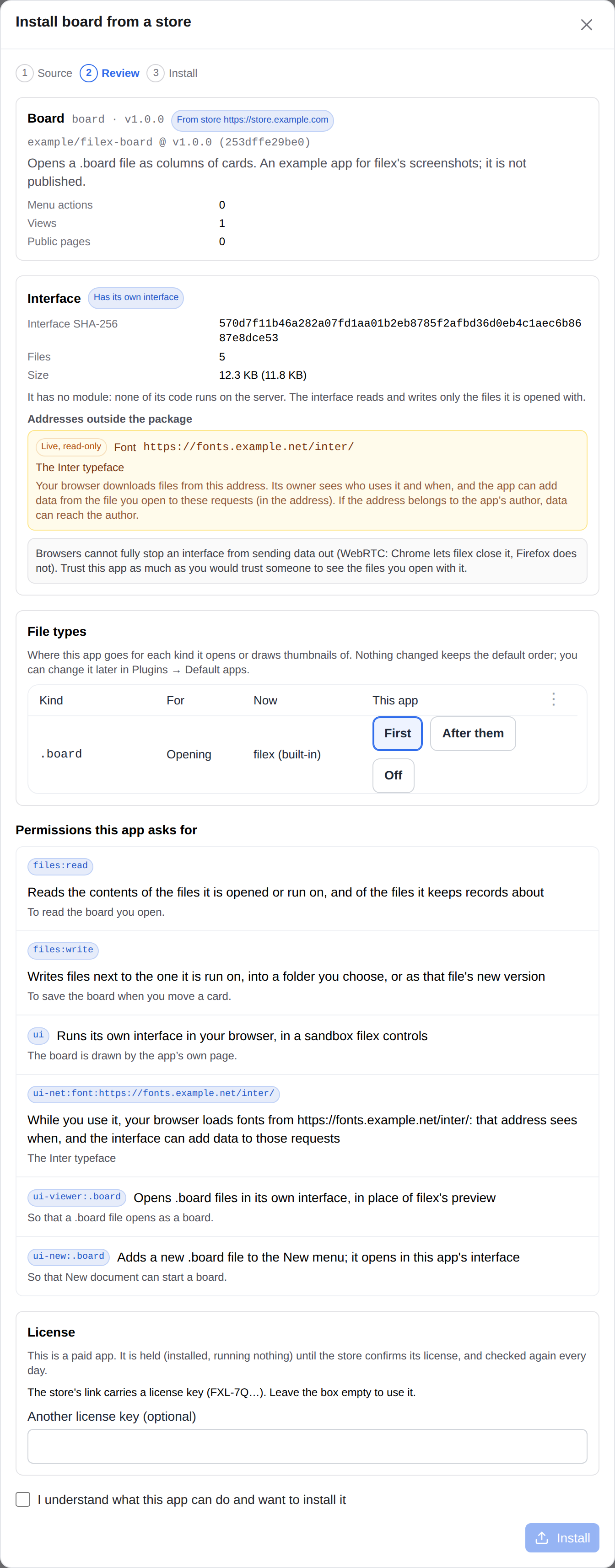
Installing from a store - the same review, marked From store, the paid app's license key shown by its first characters (Installing from a store) |
|
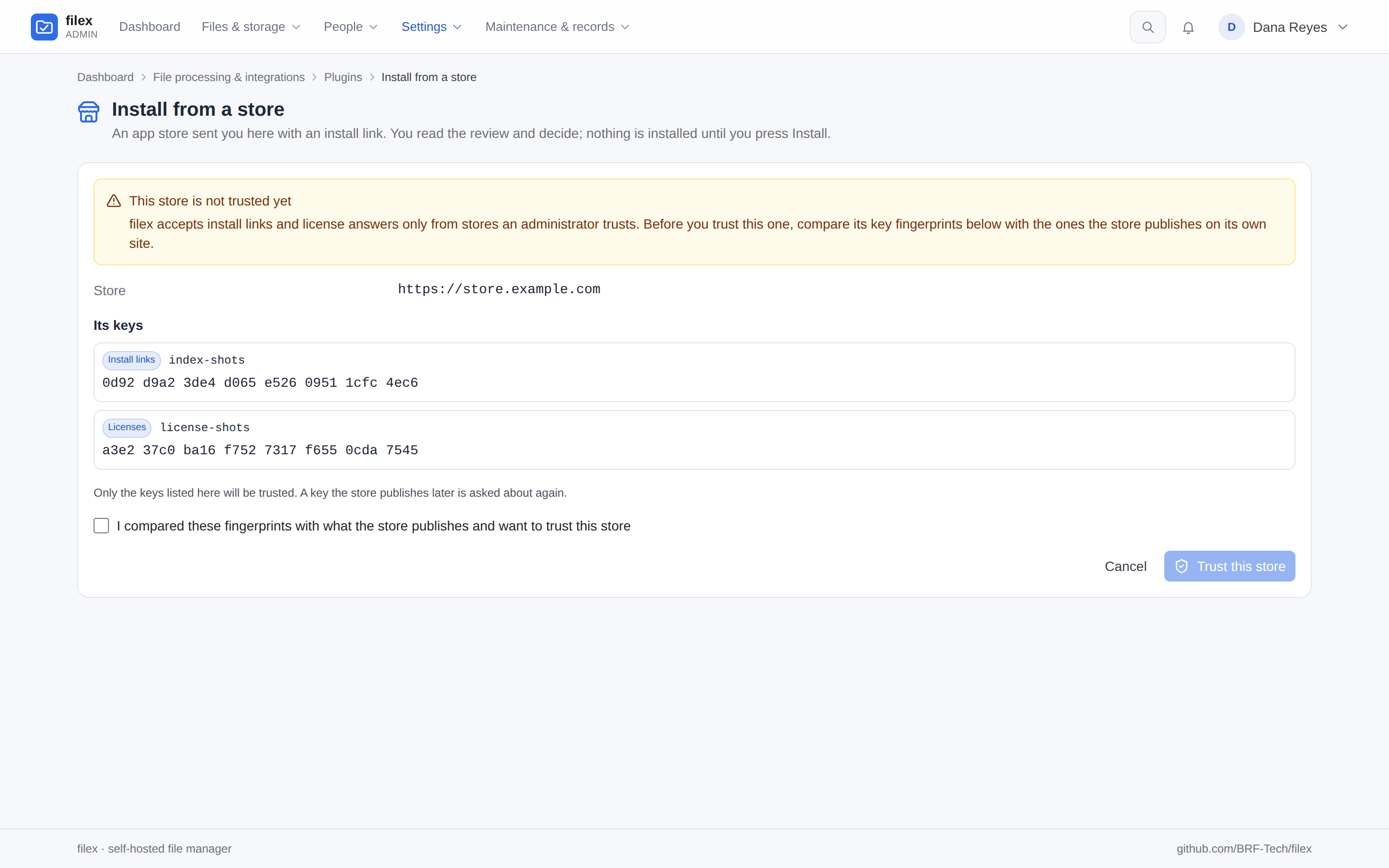
The first link from a store - its address and the fingerprints of its keys, to compare before you trust it (Trusted stores) |
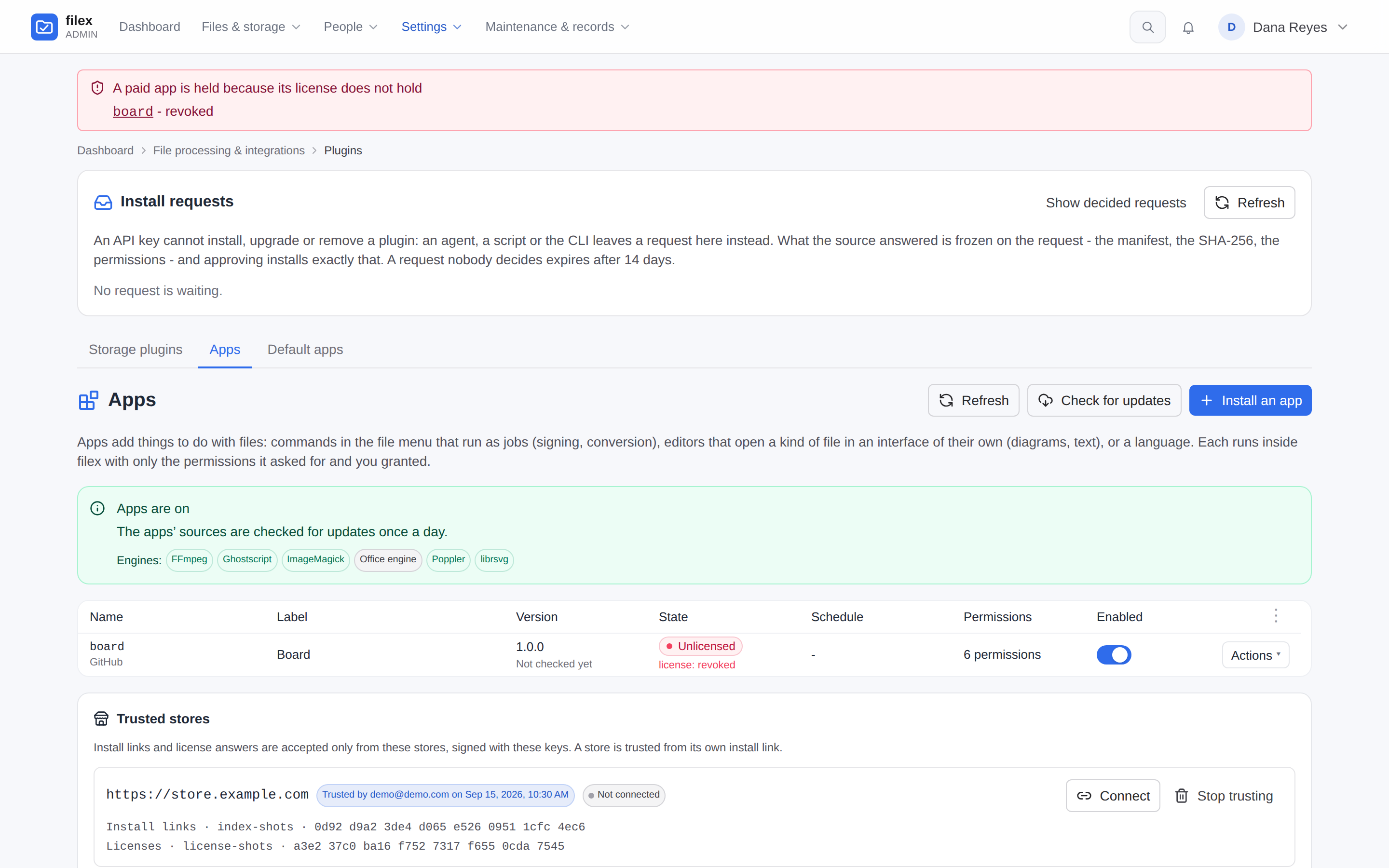
A license the store revoked - the app held, Unlicensed, nothing removed, and a band on every admin page (Paid apps) |
An agent works in the folder you gave it, and nowhere else.
- A native MCP server at
/api/ai/mcp, and a REST surface at/api/aidescribed in an OpenAPI 3.1 file. - An API key carries permissions by verb and can be confined to a single folder, and nothing it hands out can be wider than the key itself.
- A large file goes through an upload ticket: a short-lived, single-use URL, so its bytes never travel through the model's context.
- An AI assistant in the explorer, off until an administrator sets it up: Anthropic, OpenAI or any OpenAI-compatible server, or a local Ollama so nothing leaves your network. It works through the same MCP tools as the person who asks; a change carries Undo, a public link or an access change waits on an approval card, encrypted folders never reach a model and every file content it sends is in the audit log (docs/AI-ASSISTANT.md).
claude mcp add filex --transport http https://files.example.com/api/ai/mcp \
  --header "Authorization: Bearer <api-token>"
What an agent can do, what a key can never hand out, encrypted folders and upload tickets: docs/FEATURES.md → AI agents and MCP; the reference is docs/MCP.md, and the assistant's is docs/AI-ASSISTANT.md.
filex is a file manager, not a groupware suite. What that means next to four things you may be coming from (File Browser among them):
| Coming from | With filex |
|---|---|
| Nextcloud A collaboration platform you host yourself or get from a provider: files, and around them calendar, contacts, mail, chat, video calls and an online office. A PHP application behind a web server, with a database. |
The files part on its own. One Go binary with SQLite inside (PostgreSQL or MySQL when you want them). A desktop app with live folder sync, share links, SSO and LDAP. Office documents, alone or together, in the office editor app or the ONLYOFFICE you connect. No calendar, contacts, mail, chat or video calls. |
| Dropbox, Google Drive Hosted services: your files live on the provider's servers, under its quota and its terms. |
Your own server and the storage you already have: a disk, a NAS share, an S3 bucket. The everyday things in place: a web UI, share links with a PIN and an expiry, file requests, trash and version history. A desktop app that keeps the folders you choose in step. |
| File Browser One binary that puts a web UI over one directory you point it at, with user accounts (each with its own scope and permission switches), allow and deny rules per path, and share links with a password and an expiry. Its repository is archived, and its README says there will be no further releases, bug fixes or security fixes. |
The same one-command start. Several storages side by side. Roles and groups on top of per-folder access; OIDC single sign-on and LDAP built in. Trash and versions, full-text search. The same tree reachable as S3, SFTP, FTPS, NFSv3 and WebDAV. |
What filex does not have, whichever of these you come from:
- An Android or iOS app. On a phone filex is the web app, which offers itself to be installed like one (On a phone or a tablet) but needs a connection to show files; with it closed, notifications arrive as Web Push once you turn them on for the device.
- Placeholder files in Finder or Explorer. The desktop app copies the folders you keep on the computer, and everything else stays online in its own window (docs/DESKTOP.md).
- An office editor built into the binary. Office documents are edited - alone or
together - by the office editor app you install
(
filex-office-editor, ONLYOFFICE's editor in the browser, no Document Server), or in an ONLYOFFICE Document Server you connect; with neither they open in a read-only preview (docs/ONLYOFFICE.md).
Moving in - what comes with you, and what does not
- Where the files already sit somewhere filex can mount - a folder on a disk or a NAS share, a prefix in an S3 bucket, an SFTP, FTP or WebDAV server - moving in is a mount, not a migration. filex does not store files itself: point a storage at that folder and they are there, as they are.
- Files held in Dropbox or Google Drive have to be copied out to such a place first: filex ships no storage driver for either.
- Only the files move: the links, permissions and version history the old system kept are not imported.
- What filex adds - the trash, version history, drafts - sits in hidden folders at the storage's root, and a folder you encrypt end to end holds ciphertext from then on (docs/STORAGE.md, docs/TRASH-VERSIONING.md).
The docker run above is enough to try filex out. For a real deployment,
ready-made stacks live in deploy/:
deploy/compose/- Docker Compose:- minimal - filex + SQLite + local disk (one service, zero dependencies).
- full - filex + PostgreSQL + Redis + Caddy (auto-HTTPS), plus toggleable
add-ons: Drawio, an S3 server (Versity S3 Gateway) and an optional
ONLYOFFICE Document Server, pinned to the version filex is tested against.
Turn each on/off with a Compose profile in
.env. Office documents need none of them (the office editor app edits them in the browser, and its engine draws their thumbnails and converts them on the server), and conversion is the Convert app, not a side-car.
deploy/helm/filex/- a Helm chart for Kubernetes (Deployment + PVC + optional Ingress), published with every release:helm repo add brf-tech https://helm.brf.sh, thenhelm install filex brf-tech/filex(oroci://ghcr.io/brf-tech/charts/filex). Every add-on above is anenabledtoggle invalues.yaml- bundle PostgreSQL / Redis / an S3 server, or wire an external ONLYOFFICE Document Server / Drawio.
Step-by-step instructions for each tier are in
docs/INSTALLATION.md. To try what the next release brings,
there is a nightly build of every change that passed the nightly tests -
ghcr.io/brf-tech/filex:nightly, the desktop app on filex.sh/nightly and the Snap Store's edge channel -
not supported, and not for the data you keep
(docs/INSTALLATION.md → Nightly builds).
filex runs at the root of a host of its own or under a path of one it shares
(https://example.com/filex/): one setting, FILEX_BASE_PATH, and a proxy
that passes the full path - Caddy, nginx and Helm examples in
docs/DEPLOYMENT.md → Serving filex under a sub-path.
The guides are published as a site at docs.filex.sh, and the full documentation index lists every page.
Start with Installation, Configuration, the desktop app, protocols, apps and ONLYOFFICE. Features gives every feature an entry with its limits and its guide.
| Area | What you get |
|---|---|
| The explorer | One layout in the admin app, the desktop app and every embed: a navigation panel, list, grid and gallery views, tabs, personal and team tags, a ⌘K command palette, remappable keyboard shortcuts, new documents from the + New menu and themes an operator composes (Integration, Themes) |
| Storage | Local disks, S3, FTP, SFTP, WebDAV and SMB/NAS mounted side by side, copy and move across them, and a plugin for anything else, from the admin panel or an app store (Storage, Storage plugins) |
| Without a browser | The same tree served as S3, SFTP, FTPS, NFSv3 and WebDAV - a move or delete there is as safe beside a storage scan as one in the web UI - plus filex mount over HTTPS (Protocols) |
| Sign-in | OIDC, LDAP / Active Directory, Windows and Linux accounts, and sign-in attempt limits (SSO, LDAP, OS accounts) |
| People and access | Roles and per-person permissions, groups, per-folder access and native multi-tenancy (Permissions, Groups, Multi-tenancy) |
| Sharing | Public links with a PIN, an expiry and a download limit, file requests and share invites by email (Sharing) |
| Protection | Trash and version history, optional ClamAV scanning, end-to-end encrypted folders, replication to a second storage (with an initial copy of what is already there) and an audit log (Trash & versioning, Protection, E2E encryption, Replication, Audit log) |
| Viewers and editors | Images, video, audio, PDF, Markdown, code (Monaco), Office documents in the office editor app or through ONLYOFFICE, draw.io diagrams, Mermaid diagrams drawn and edited as text, 3D models, and archives in ZIP, 7z and TAR (ONLYOFFICE, Archives) |
| Search and thumbnails | Embedded full-text search that respects permissions, and thumbnails for images, video, PDF, folders and Office documents - drawn on the server by the office editor app's engine or a connected ONLYOFFICE (Search, Thumbnails) |
| Real-time | Presence and live file updates over WebSocket, and editing a file together in an app, through filex's relay (Realtime, Editing together) |
| Clients | A desktop app with folder sync, a web app a phone installs under your instance's name and logo, a CLI, Vue / React / web component embeds, a REST API and an MCP server (Desktop, Sync, CLI, Integration, MCP) |
| AI assistant | An assistant in the explorer, off until you set it up, against Anthropic, OpenAI or an OpenAI-compatible server, or a local Ollama; it works as the person who asks, with Undo for changes, approval cards for what cannot be undone, and never sends an encrypted folder to a model (AI assistant) |
| Apps and languages | Sandboxed apps (e-Signature, Convert, the office editor, filextext, draw.io) that print through filex, edit a file together through its relay and open a file of an encrypted folder only when you allow it, decrypted in your browser; language packs and a right-to-left layout (Apps, Editing in an app, RTL) |
| Running it | One binary or one container; SQLite, PostgreSQL or MySQL; an admin panel with one search for every page, setting and record; webhooks, an in-app bell and Web Push to phones and browsers, with an optional digest; a usage and cost view (Backblaze B2 today); update checks, with patch releases that install themselves once you allow it (Databases, Admin panel, Notifications, Usage, Updates) |
Every feature as its own entry - how it behaves, its limits and the page that documents it: docs/FEATURES.md.
See docs/ARCHITECTURE.md.
The pieces at a glance - drivers, protocols and packages in one diagram
┌─────────────────────────────────────────────────────────────┐
│  filex (Go binary; image ~62 MB slim / ~241 MB full)        │
├─────────────────────────────────────────────────────────────┤
│  HTTP API (chi)  │  Admin UI (Vue 3, embedded)              │
│  Auth Drivers:   │  local · oidc · ldap · proxy-header      │
│                  │  pam · windows (OS accounts)             │
│  Sign-in guard:  │  attempt limits · IP allow-list · realms │
│  Storage Drivers:│  local · s3 · ftp · sftp · webdav · smb  │
│  Served as:      │  s3 · sftp · ftps · nfs · webdav         │
│  DB Drivers:     │  sqlite (default) · mysql · postgres     │
│  Queue Drivers:  │  follows the DB · redis                  │
│  Realtime:       │  WebSocket presence + live updates       │
│  RBAC:           │  roles + groups + grants + share invites │
│  AI / MCP:       │  /api/ai REST + native MCP server        │
│  Sync Worker:    │  etag / size+mtime diff + tombstone      │
│  Replica Layer:  │  primary→replica + rules + reconcile     │
│  Protection:     │  trash + versions + ClamAV (bin/clamd)   │
│  E2E folders:    │  client-side WebCrypto (server blind)    │
│  Co-editing:     │  sealed relay for apps · watchers        │
│  Notifications:  │  webhook + in-app bell + read/unread     │
│  Search:         │  Bleve (full-text, embedded)             │
│  Thumbnails:     │  image · svg · video · pdf · office      │
│                  │  heic · text · zip · folders · apps      │
│  Plug & Play:    │  OnlyOffice · Drawio · Mermaid           │
│  Apps (wasm):    │  sandboxed · e-Signature · Convert       │
│  Languages:      │  en · tr + language packs · RTL layout   │
│  Appearance:     │  operator themes · instance default      │
└─────────────────────────────────────────────────────────────┘
                          ▲
                          │ HTTP API
       ┌──────────────────┼──────────────────┐
       │                  │                  │
   @brftech/         @brftech/          @brftech/
   filex-core        filex             filex-react
   (Vue 3 SFC)       (Web Component)   (React adapter)
       │                  │                  │
       ▼                  ▼                  ▼
   Vue 3 apps       Any framework      React apps
                    (vanilla, Angular,
                    Svelte, Solid, …)

   Same API, no server plugins:  desktop app (Electron, Windows/Linux/macOS)
                                 CLI client (filex client · filex sync)
filex has one maintainer, who builds it with AI coding agents (Claude Code). The maintainer
decides what filex is and how it works: the architecture, the data and security models, and
how each feature behaves. The agents write most of the code inside that direction, in
languages the maintainer works in. About 82% of the commits in the development repository
carry a Co-Authored-By: Claude line, so this is not hidden.
It is AI-assisted, not unreviewed generated code:
- Every change goes through the test chain before it lands: Go tests (also under the race detector), about 500 Vitest files, about 120 Playwright specs on Chromium, Firefox and WebKit, Cypress, and database tests on SQLite, PostgreSQL and MySQL. Every release is tagged only after GitHub's full matrix and a dry run of the release workflow pass on the exact commit.
- Changes to sign-in, permissions, sharing and encryption get extra review passes, and a red test is fixed, not loosened.
- Security reports are handled in the open: see SECURITY.md and the published advisories. There has been no independent audit yet.
- The German, Spanish, French and Chinese READMEs and the German, Spanish and French language packs are machine translations that no native speaker has reviewed yet.

Issues and pull requests are welcome; before a sizeable pull request, open an issue that
says what you are about to do. docs/CONTRIBUTING.md has the
workflow, the tests a change has to pass and the documentation rules, and the project follows
the Contributor Covenant. A security problem is reported privately, as
SECURITY.md describes. What changed in each release is in
CHANGELOG.md. A release is cut every day at 10:00 Istanbul time from what
main holds then, when it holds something new; a pull request merged after the cut ships
with the next day's (Release process).
Development - build from source, and what lives where
git clone https://github.com/BRF-Tech/filex.git
cd filex
pnpm install
pnpm run build:all    # builds packages, web, then Go binary
./bin/filex serve
Subdirectories:
backend/- Go HTTP service (cmd/filex, internal/*, db/queries, db/migrations)packages/core-@brftech/filex-core(Vue 3 SFC, source of truth)packages/webcomponent-@brftech/filex(Web Component wrapper)packages/react-@brftech/filex-react(React adapter via @lit/react)web/- Vue 3 admin UI (embedded into Go binary viago:embed)desktop/- Electron app (bundled main process, tray sync, auto-update)demo/- Standalone HTML demos for each frameworke2e/- Playwright suites (web, embeds, packaged desktop app) +shots/, the scriptspnpm shotsruns to take the screenshots above (published on filex.sh, not kept in the repository)docker/- Dockerfiles + composedeploy/- ready-made Compose stacks + Helm chart (seedeploy/)docs/- Markdown documentationdocs-site/- VitePress site published at docs.filex.sh
MIT - see LICENSE.
The store badges in docs/badges/ are the stores' own artwork, used
unmodified and not covered by that licence: Microsoft and the Microsoft Store badge are
trademarks of the Microsoft group of companies; the Snap Store badge is © Canonical Ltd.,
licensed CC BY-ND 2.0 UK.
Nextcloud, Dropbox, Google Drive, File Browser and ONLYOFFICE are the names of other parties' products, used here only to describe them. filex is not affiliated with, sponsored by or endorsed by any of them.